Look up
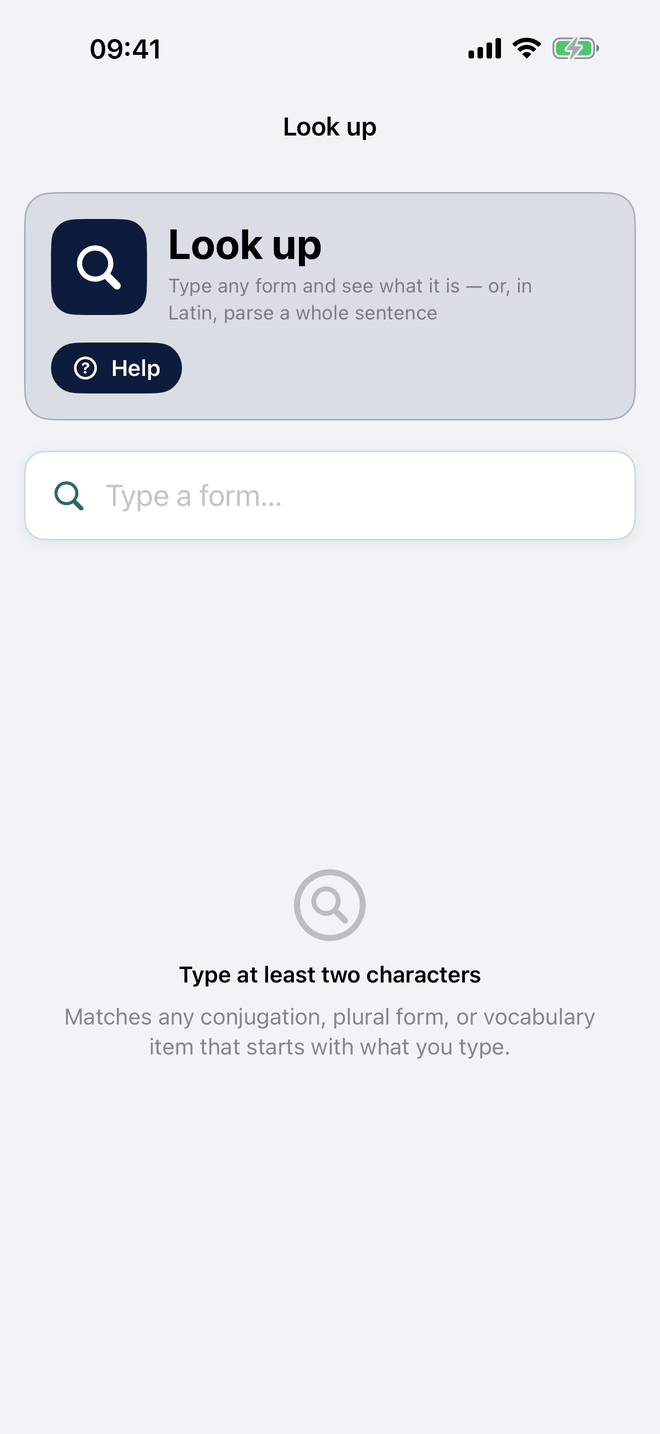
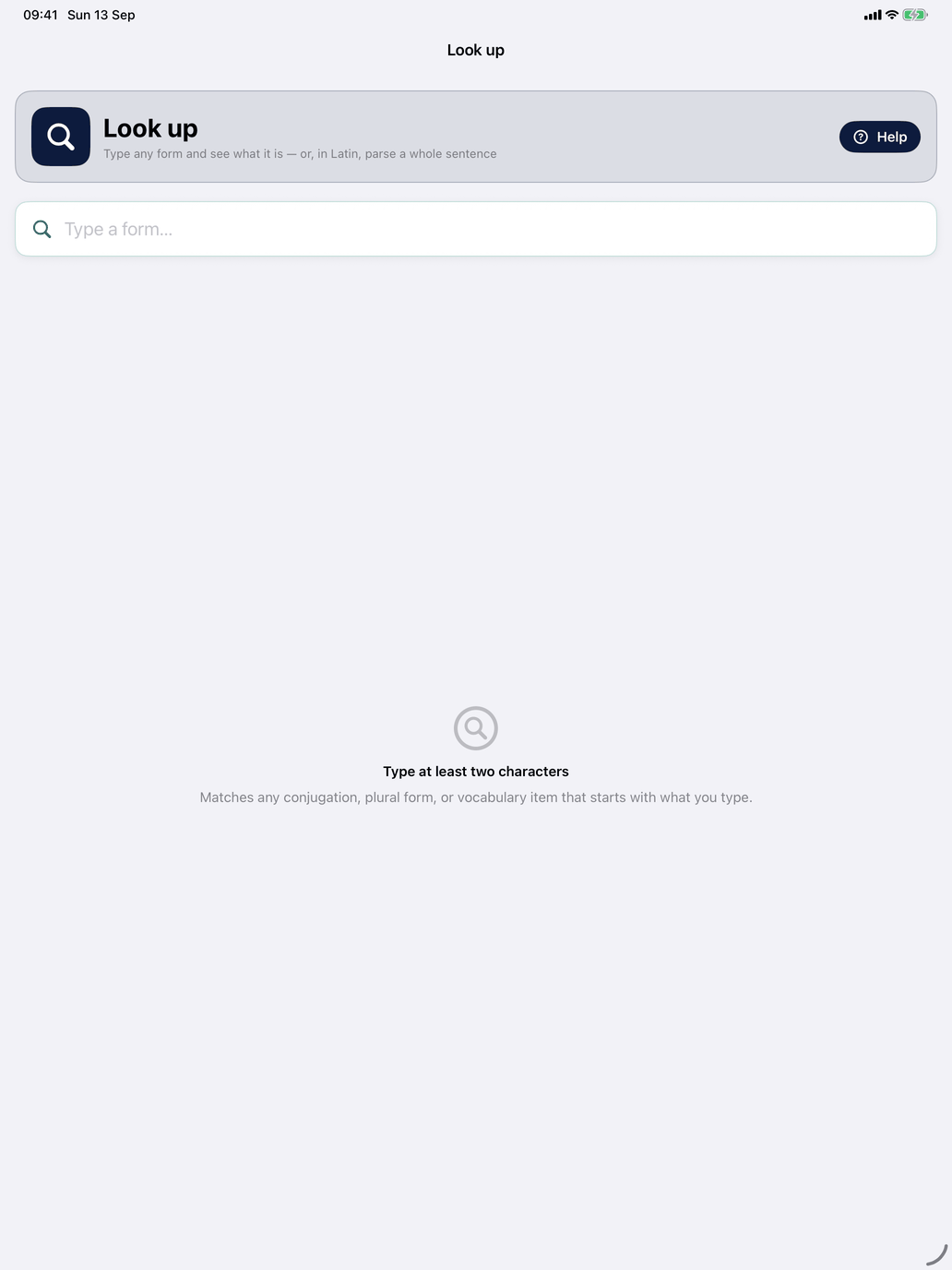
Look up is the place to go when you read or hear a form and want to know what it is. It can be opened from anywhere:
- iPhone and iPad — the round magnifying glass at the bottom right of every screen opens it over the screen you are on, or ⇧⌘F on an iPad keyboard. It is also under Tools on the Self Study screen.
- Mac — type in the Look up a form field at the top of the sidebar, and the right-hand pane shows Look up; clear the field to go back. Edit ▸ Look up… (⇧⌘F) opens it in a window of its own beside the main window instead, on an empty field each time.
Not during a drill: while a drill is running the button is hidden and the menu item greyed out, and a Look up window left open says so instead of answering.
It has two modes. Word mode looks up a single form in the course you are studying. Sentence mode, in Latin only, parses a whole sentence and labels every word; the Latin course guide covers it. In the other courses there is no mode picker: the screen is Word mode.
Word mode
Type at least two characters. The search runs as you type and matches every entry that starts with what you typed:
- Case is ignored — DAR finds dar.
- Accents and macrons are optional — dio finds dió, amico finds amīcō. If you do type an accent, it counts: dió no longer matches dio.
- Prefixes work — trab finds trabajar and its conjugated forms.
- Meanings work too — a word in your app language, or in English, finds entries with a translation that contains a word starting with it. The matched meaning is shown on the row.
Results are grouped under Verbs, Nouns, Adjectives, Adverbs, Phrases and Other vocabulary, each with a count. Within a group, form matches come before meaning matches, and a very short query shows only the first hundred or so results. Each row shows:
- the form, with the part you typed highlighted, and the word it comes from when that is different (one written form often belongs to more than one word, or is several forms of one word, so expect several rows);
- its translation;
- its grammatical description — tense and person, case and number, gender.
Verb and noun rows have a chevron and open the word's detail screen: a verb opens at the tense of the matched form, and a noun highlights the matched form in its table. Other rows are for reading only.
Theory. The theory pages are searched too: every card of every hub's Theory row, by its title and its text — gustar finds the card on me gusta, hubiera the pluscuamperfecto de subjuntivo. When forms and cards both match, a switch at the top chooses between Forms (n) and Theory (n), Forms first; when only cards match, they are shown straight away. A card's row names the card and the sentence that matched; tap it to open the page at that card.
If nothing starts with what you typed, the screen falls back to headwords spelled like it — a letter slipped, a form written from memory: tiner finds tener, ablar finds hablar — under the notice No exact match — these are spelled similarly. When no headword is a slip away, conjugated forms are tried the same way: huce finds hice, hace, hube and huye, each with its tense and person. These rows are approximate, so nothing in them is highlighted as the match, and expressions are left out of this fallback. Only when that too finds nothing does the screen say No matches. Switching course clears the search.