Reading your progress
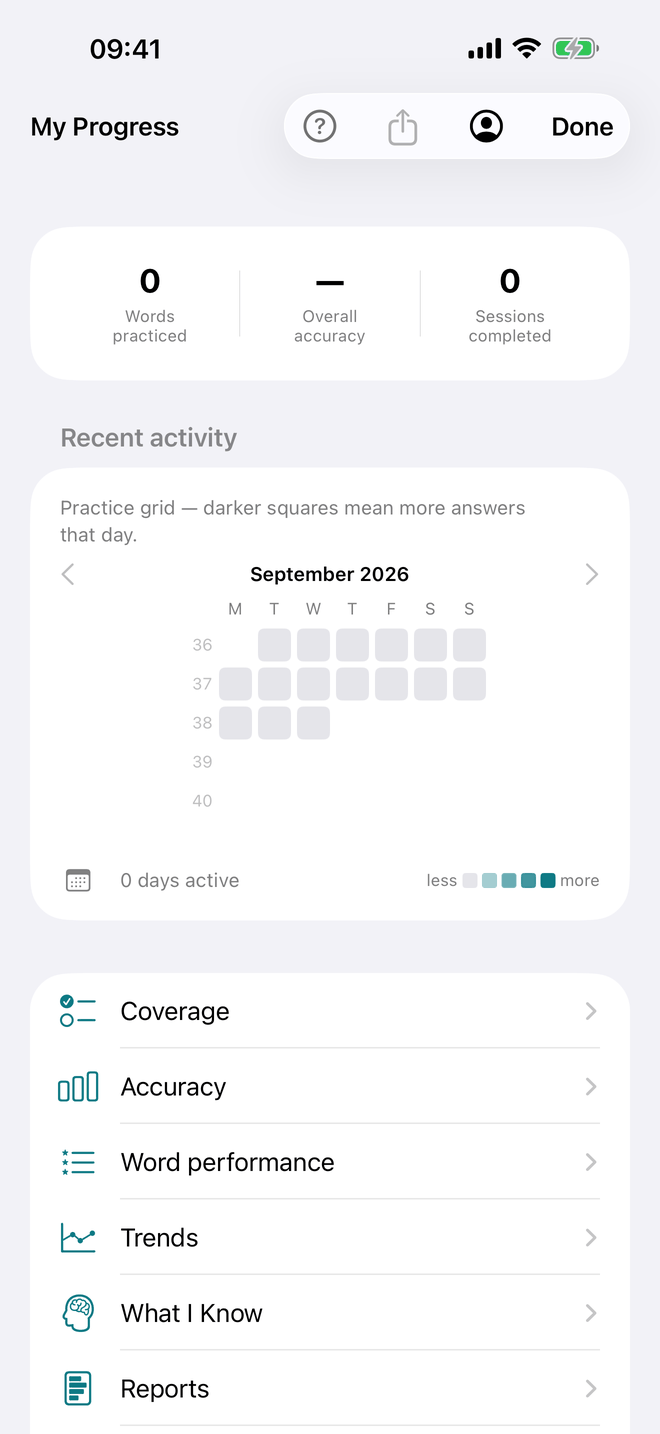
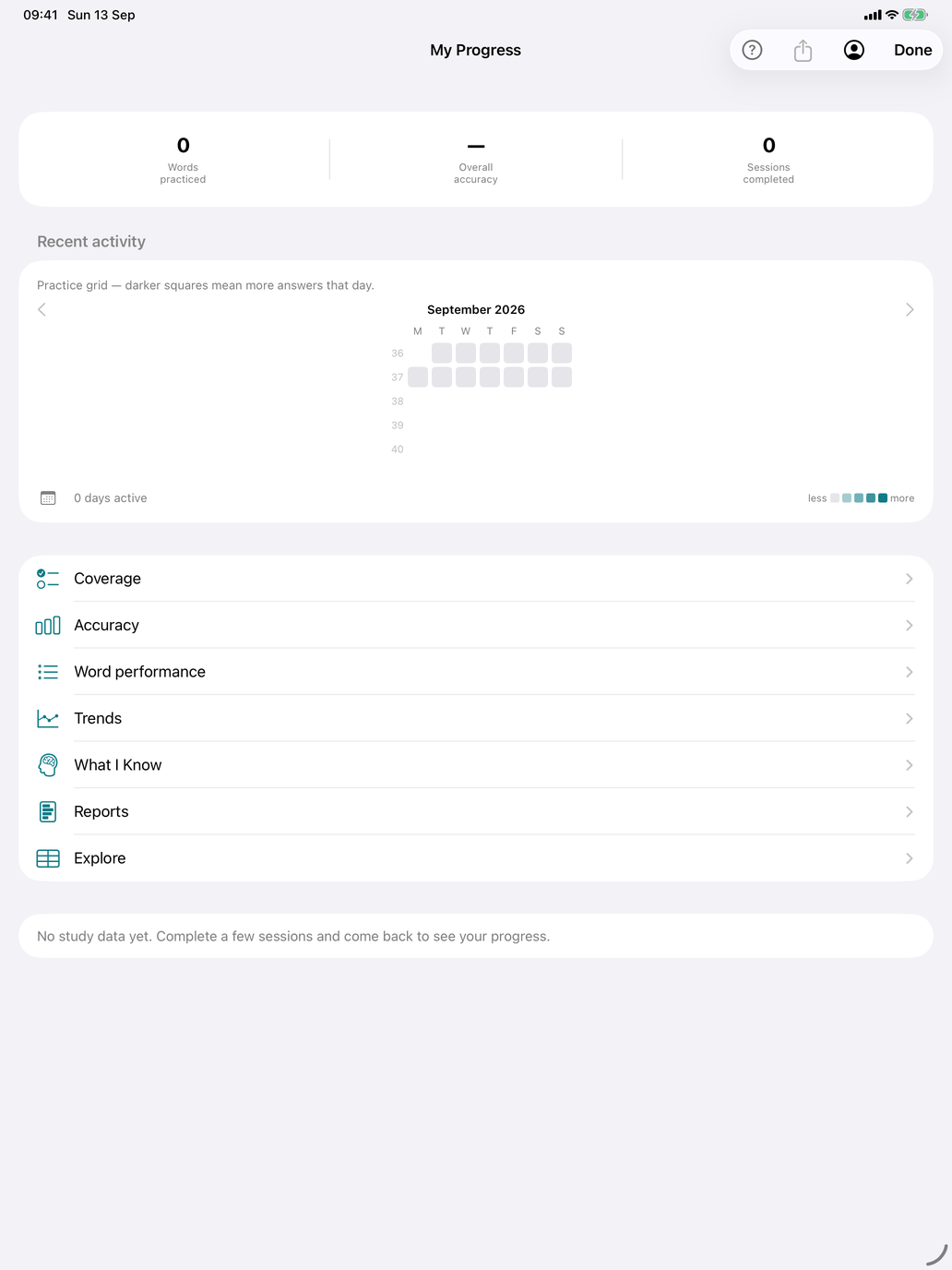
My Progress shows what you have practised and how well it went, for the course you are studying. On iPhone and iPad, open it from the chart icon at the top left of the main screen; on the Mac, choose My Progress under Tools in the sidebar.
Everything here is worked out on your device from the answers already stored. Nothing is uploaded.
The top of the screen
Summary. Three figures: Words practiced, Overall accuracy and Sessions completed. Under them, the day you started, the number of days you have been active and, when you have one, your current streak.
Recent activity. A practice grid for one calendar month, one square per day: the darker the square, the more answers you gave that day. The ‹ and › arrows page through the months, back as far as your first recorded answer; Today jumps back to the current month. Under the grid, a count of the active days in that month and a less … more colour key.
Until you have answered anything, a line says there is no study data yet.
Toolbar. The ? explains the screen. The share icon makes a PDF of your progress (see PDF export). The person icon switches between My data and three sets of sample data — Beginner, Intermediate and Advanced — so you can see what the reports look like with a few months of history behind them. While sample data is showing, the background is tinted; your own answers are not touched. Switch back to My data when you are done.
The reports
Below the grid are seven rows: Coverage, Accuracy, Word performance, Trends, What I Know, Reports and Explore. The first four tell you what you have done; What I Know tells you what stuck; Reports and Explore let you ask your own questions.
Coverage
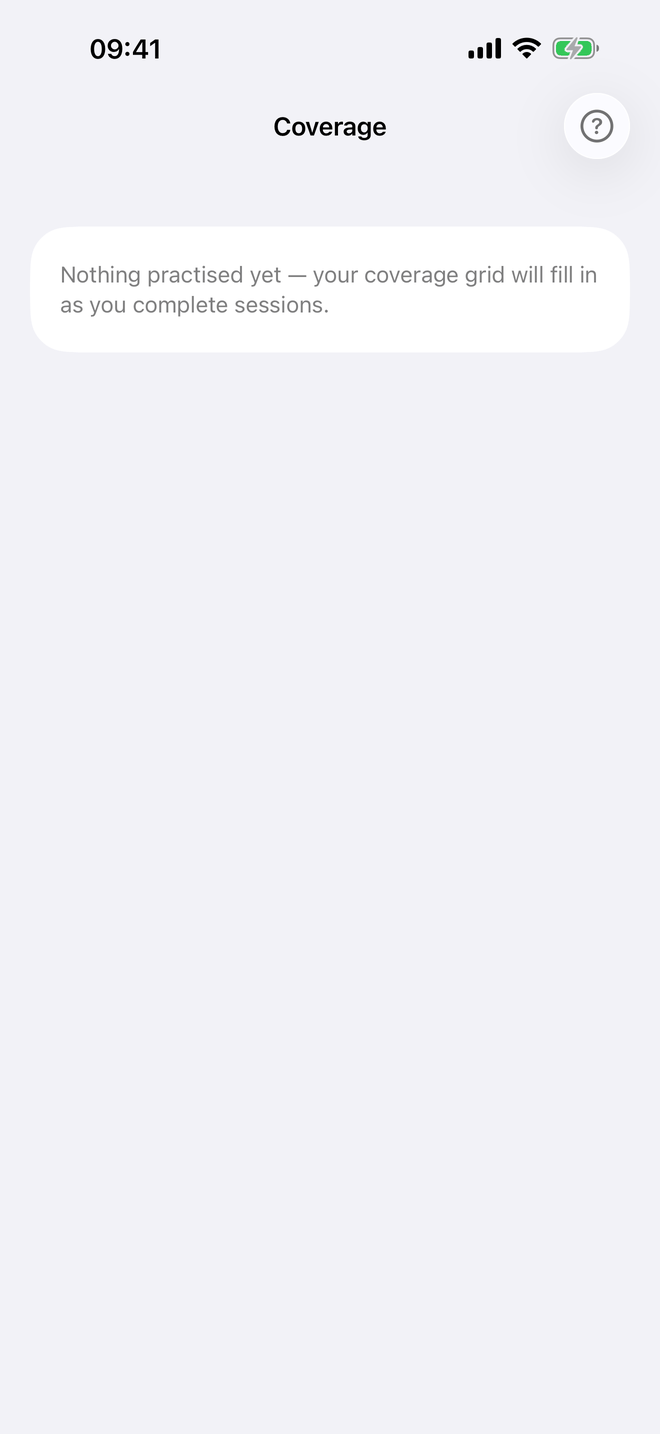
How much of the catalogue you have touched at least once.
- Vocabulary coverage — a bar per word class you have practised (verbs, nouns, adjectives, numerals, pronouns, prepositions, other vocabulary, phrases), with touched / total and a percentage.
- Tenses covered — how many of the course's tenses you have answered at least one conjugation question in, with each tense ticked or not.
- Verb groups — how many of the course's verb groups you have met. A verb often belongs to several groups.
Coverage tells you how broadly you have sampled the material; Accuracy tells you how well you are doing on what you have sampled.
Accuracy
Your correct rate, split four ways. Each row shows the percentage — green from 80%, orange from 50%, red below — and the number of answers behind it.
- By exercise — per type of question (word meaning, article / gender, singular / plural, conjugation, …).
- By tense — conjugation questions only, per tense.
- By person — conjugation questions only, per grammatical person.
- By verb group — per verb group. A verb in several groups counts towards each.
These views are diagnostic: they are there to show you where you lose points, so you know where to focus.
Word performance
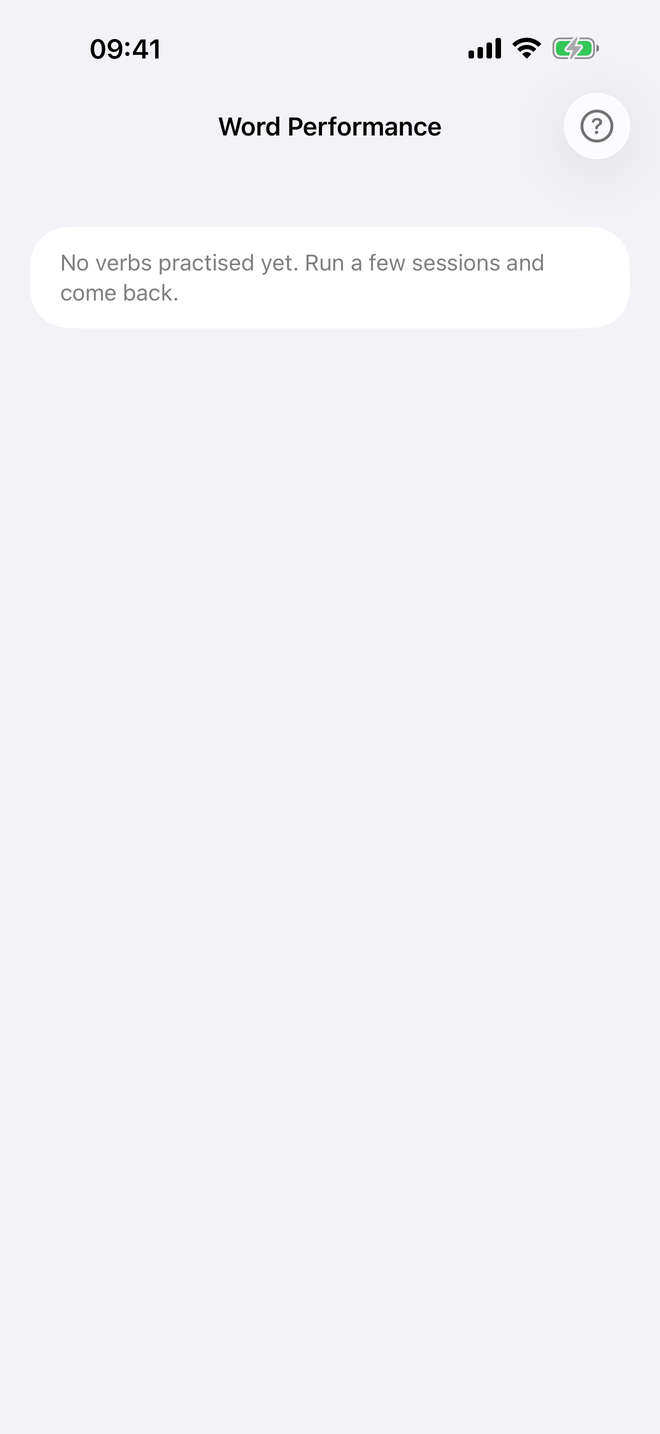
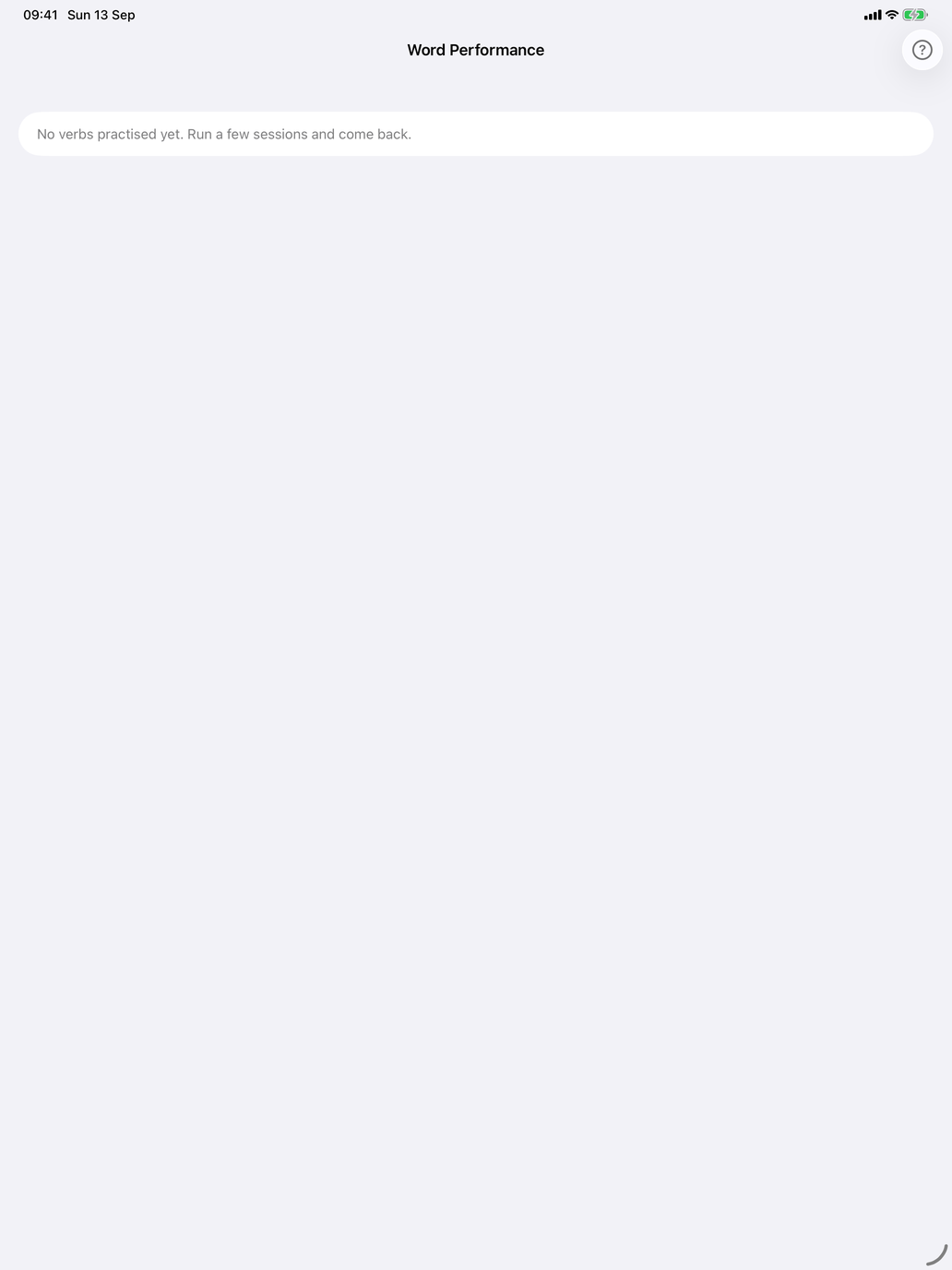
Under Focus next, the words you are having most trouble with, hardest first, with each word's correct rate and number of attempts. A word appears only when you have answered it at least as often as Minimum attempts and its correct rate is below Minimum accuracy (both in Settings → Report thresholds); words with only a few attempts are left out, because there is too little to rank them on.
Tap a verb to drill its conjugation straight away, or tap Practise all to drill every verb on the list. Other words are shown for information only.
Until you have enough attempts per verb, a note at the top says so and points you to Coverage and Accuracy instead.
Trends
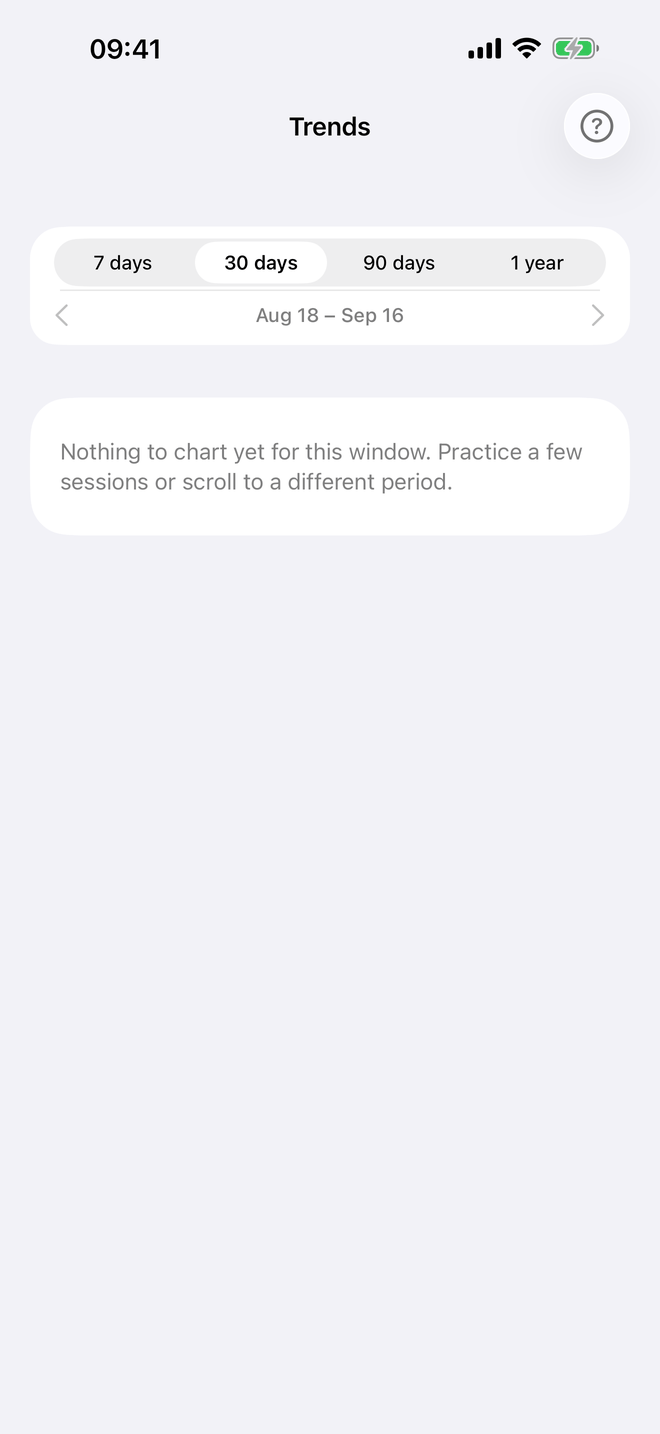
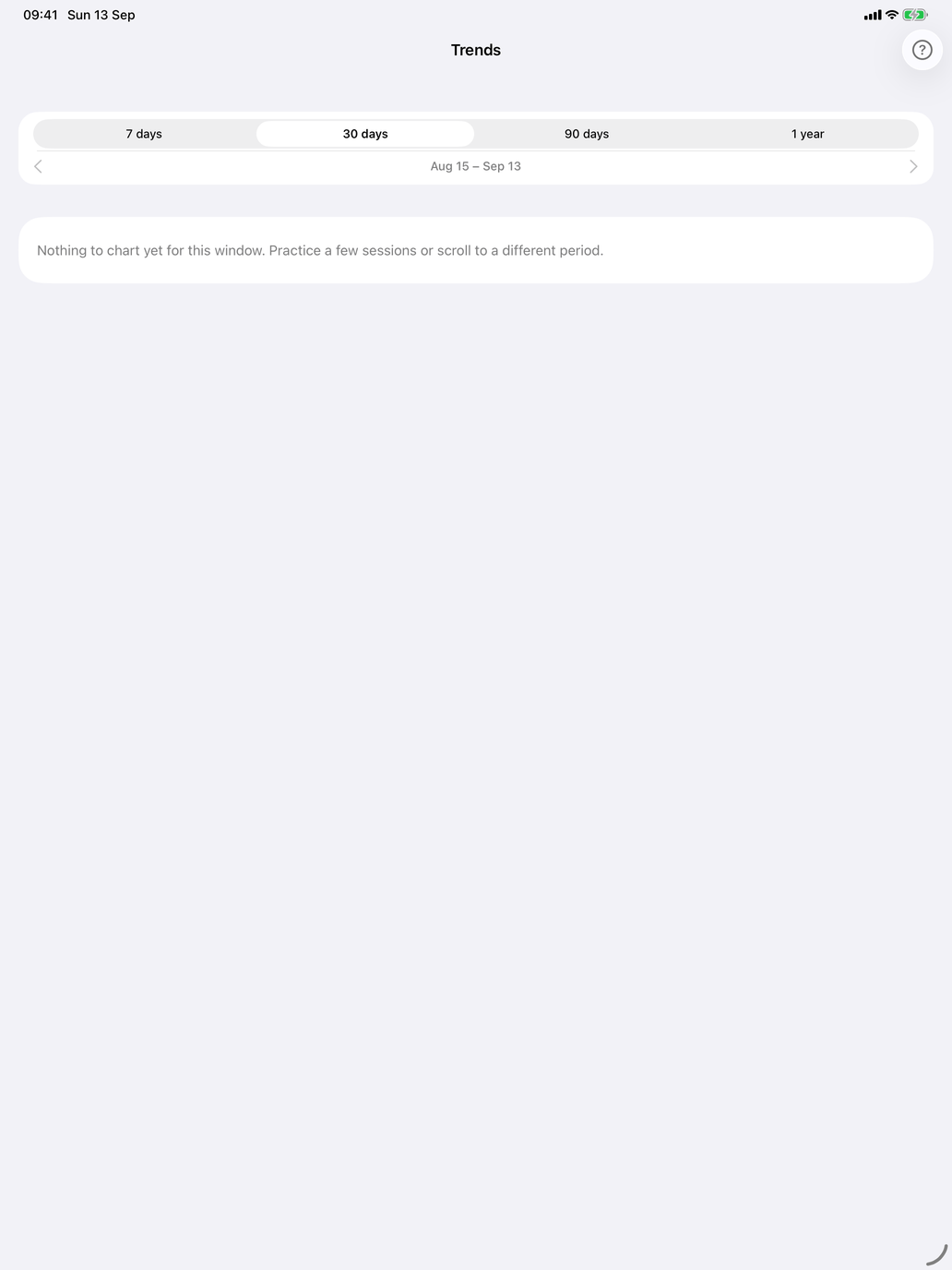
Charts of how your activity and results change over time. The Window control at the top chooses 7 days, 30 days, 90 days or 1 year; the arrows under it page back through earlier periods, and Today returns to the latest.
- Daily activity — answers per day as bars, and that day's accuracy as a line.
- Verbs mastered — how many verbs you have mastered in one tense. Tap the tense name to choose another.
- Verbs mastered — all tenses — every tense you have practised on one chart, for comparison.
- Words mastered — meaning — vocabulary items you have mastered.
- Nouns mastered — gender — nouns you reliably give the right article.
- Vocabulary breadth — verbs — how many different verbs you have ever practised.
"Mastered" is strict on purpose. An item counts only when your record makes it reasonably certain that your correct rate is at least Minimum accuracy — at the default 80% that takes about 16 correct answers in a row, not three. The chart captions quote the current figure, and it moves when you change the setting.
Use Trends to answer am I getting better? — and to spot stretches where accuracy dips, often a sign that you have widened your selection too quickly.
What I Know
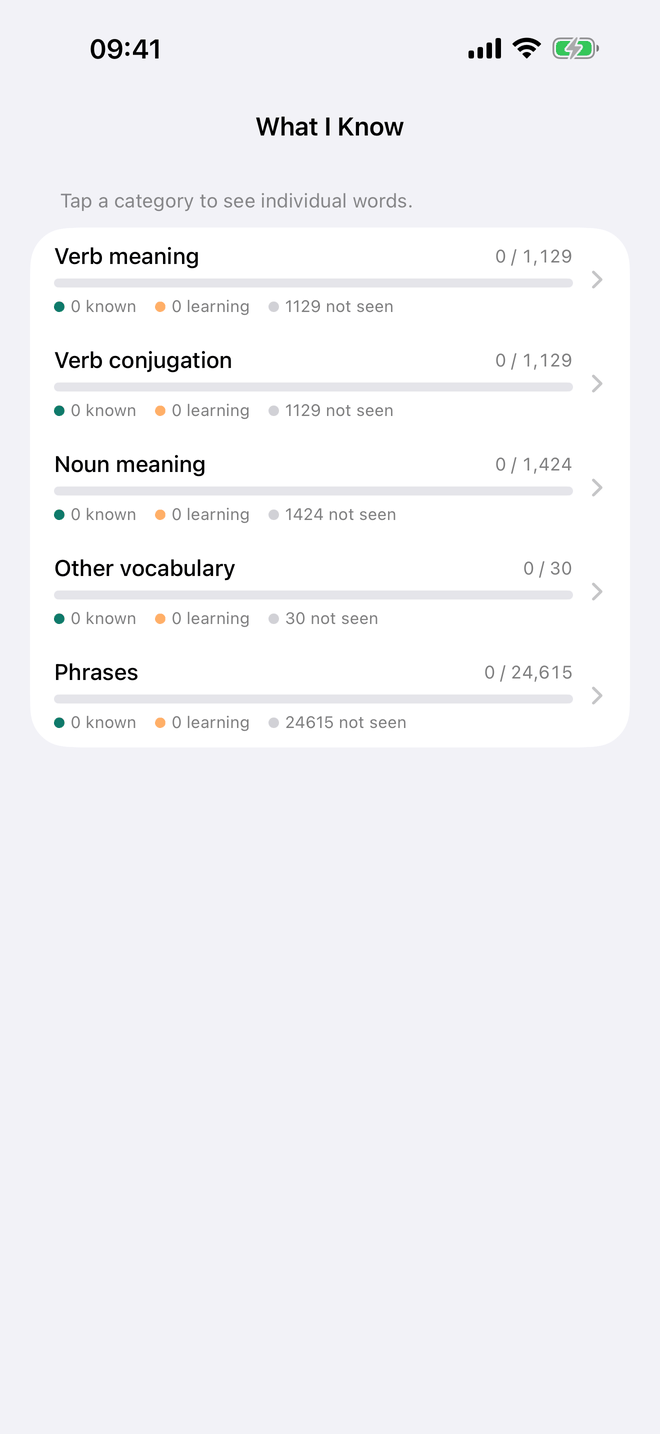
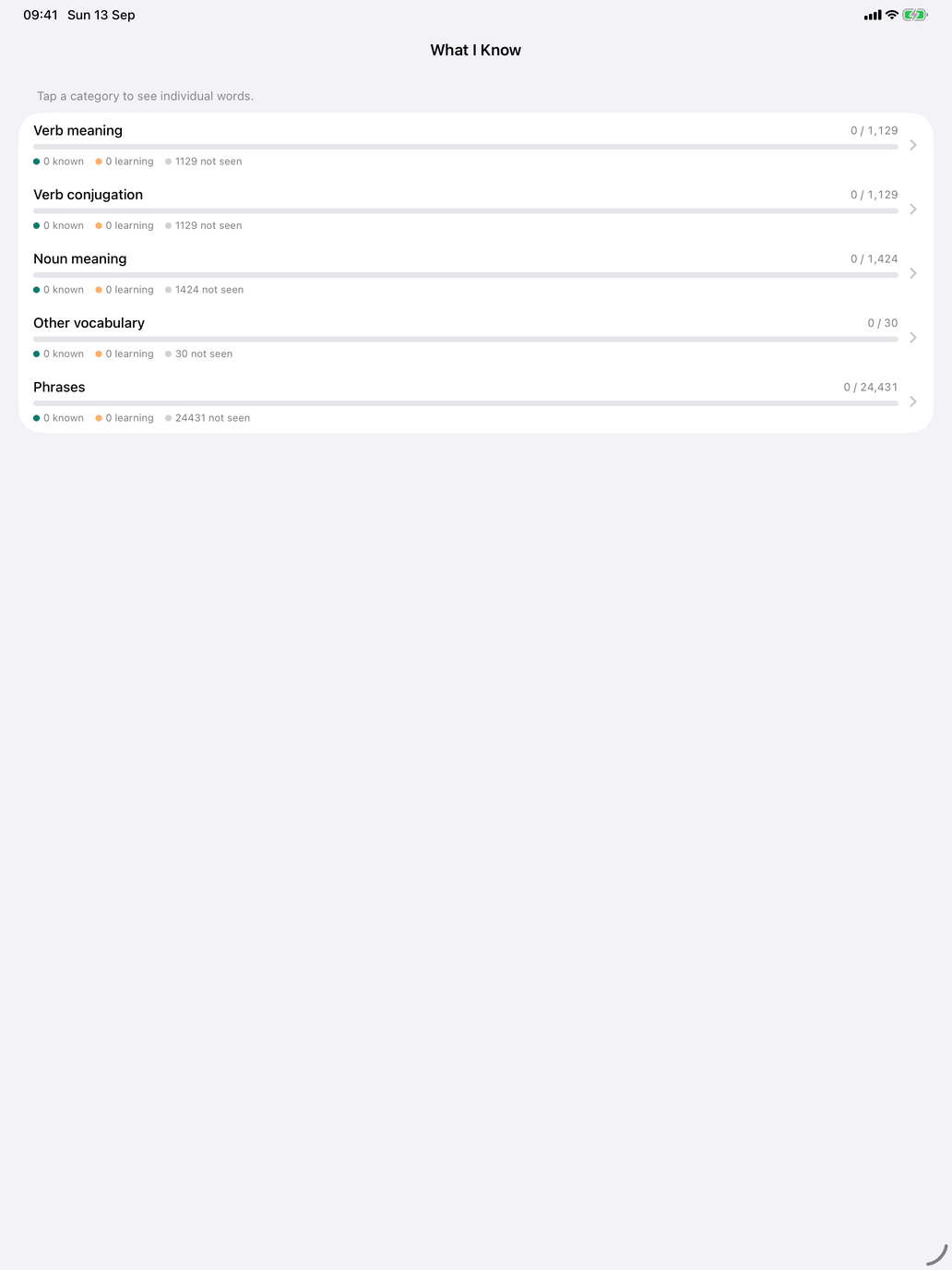
Which words you can actually claim. For each category — Verb meaning, Verb conjugation, Noun meaning, Other vocabulary and Phrases — a bar splits the catalogue into three parts:
- known — at least three attempts, and 75% or better;
- learning — practised, but not yet at that bar;
- not seen — in the catalogue, but never practised in this category.
The split by category is deliberate. Knowing what poder means and being able to conjugate it are different skills on the same word, so they are counted separately: one number averaging the two would hide exactly the gap you want to see.
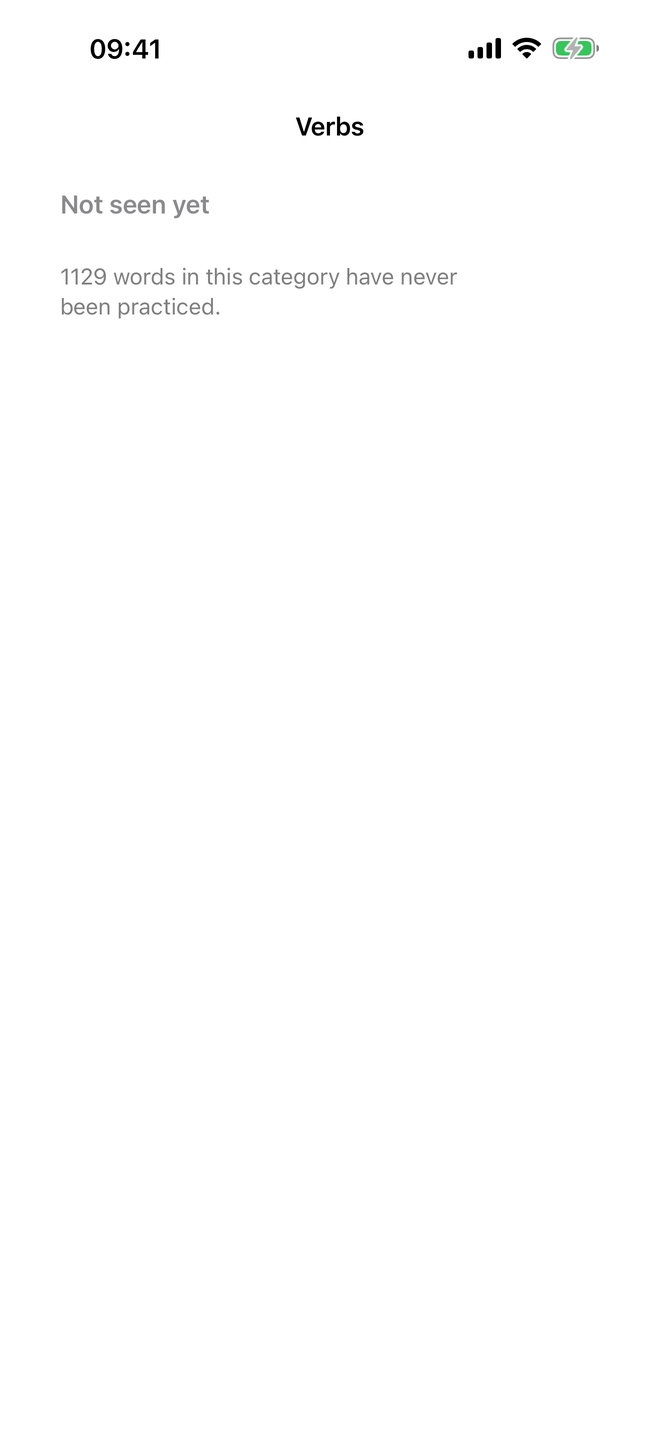
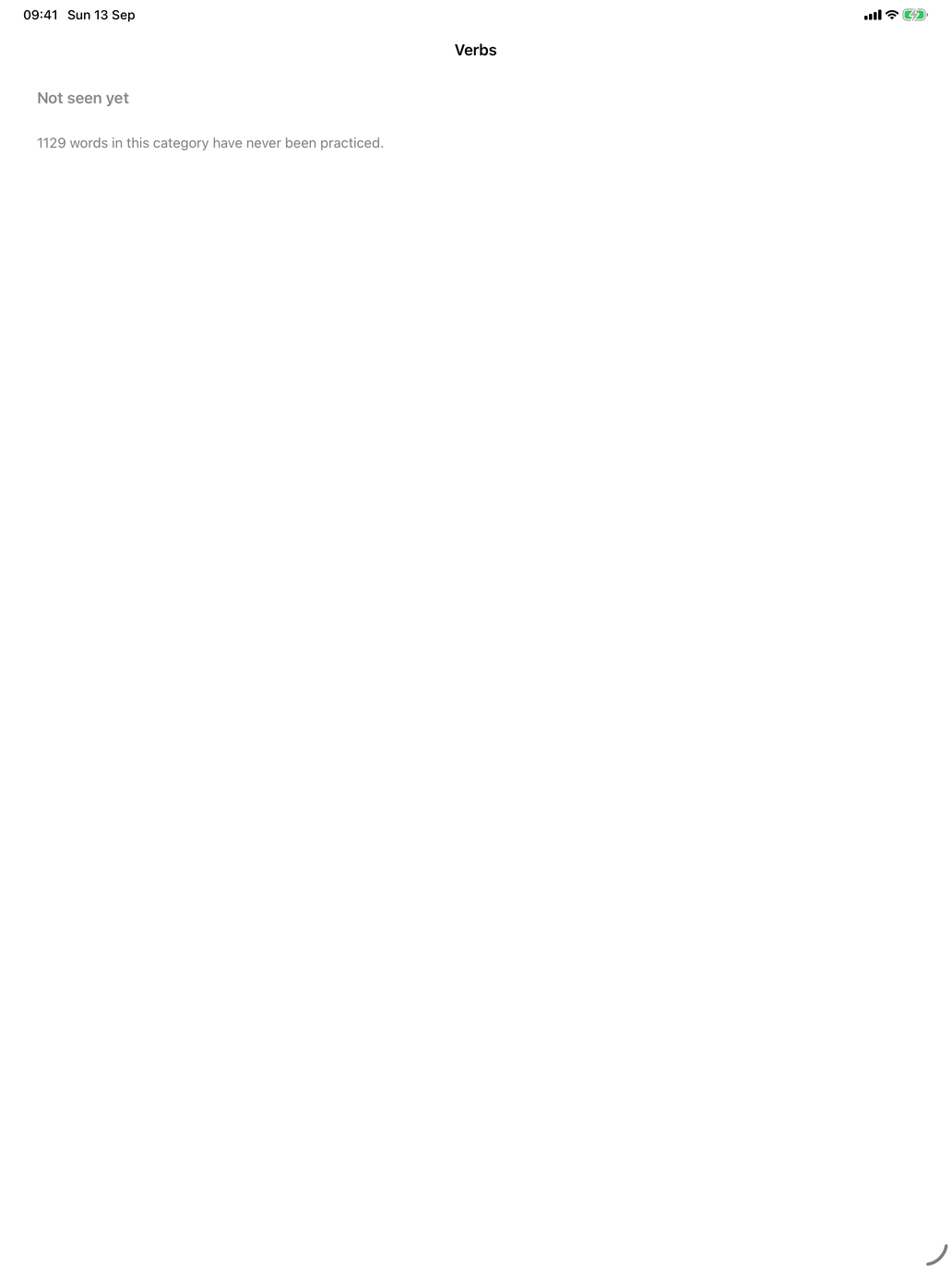
Tap a category for the words behind it: Known, best first, and Still learning, weakest first, each with its accuracy and number of attempts, plus a count of the words Not seen yet.
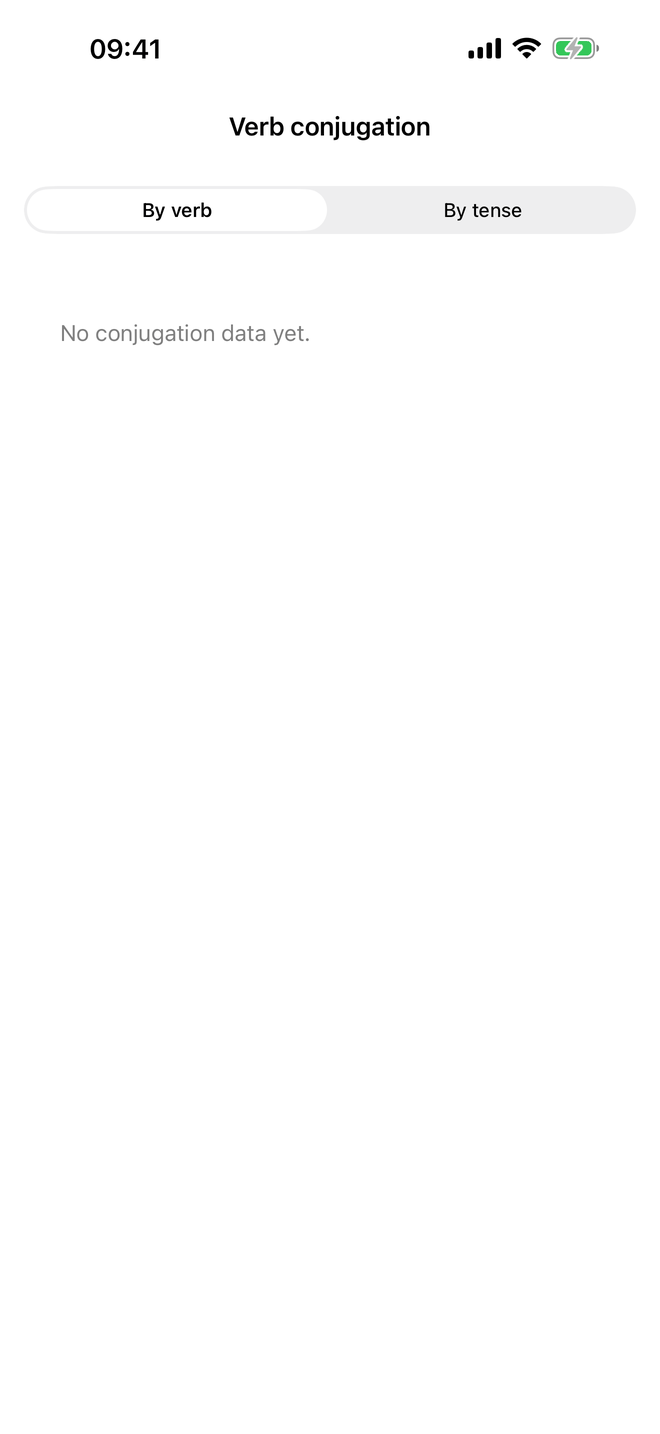
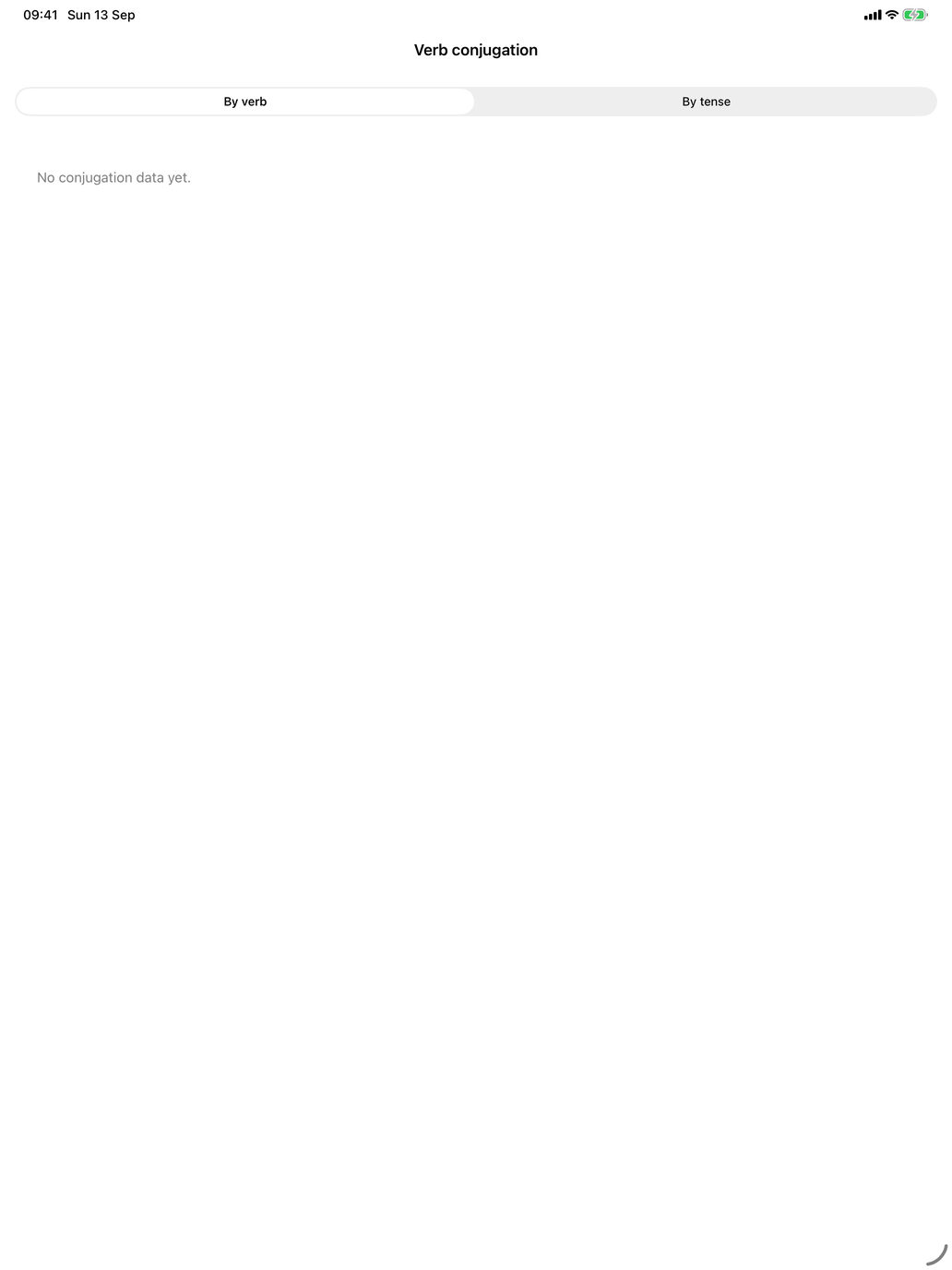
Verb conjugation opens a screen of its own, with two views: By verb (for each verb, the tenses you have practised it in) and By tense (for each tense, the verbs), with how many grammatical persons you have been tested on and how many answers you gave.
Where Coverage tells you what you have met, What I Know tells you what stuck.
Reports
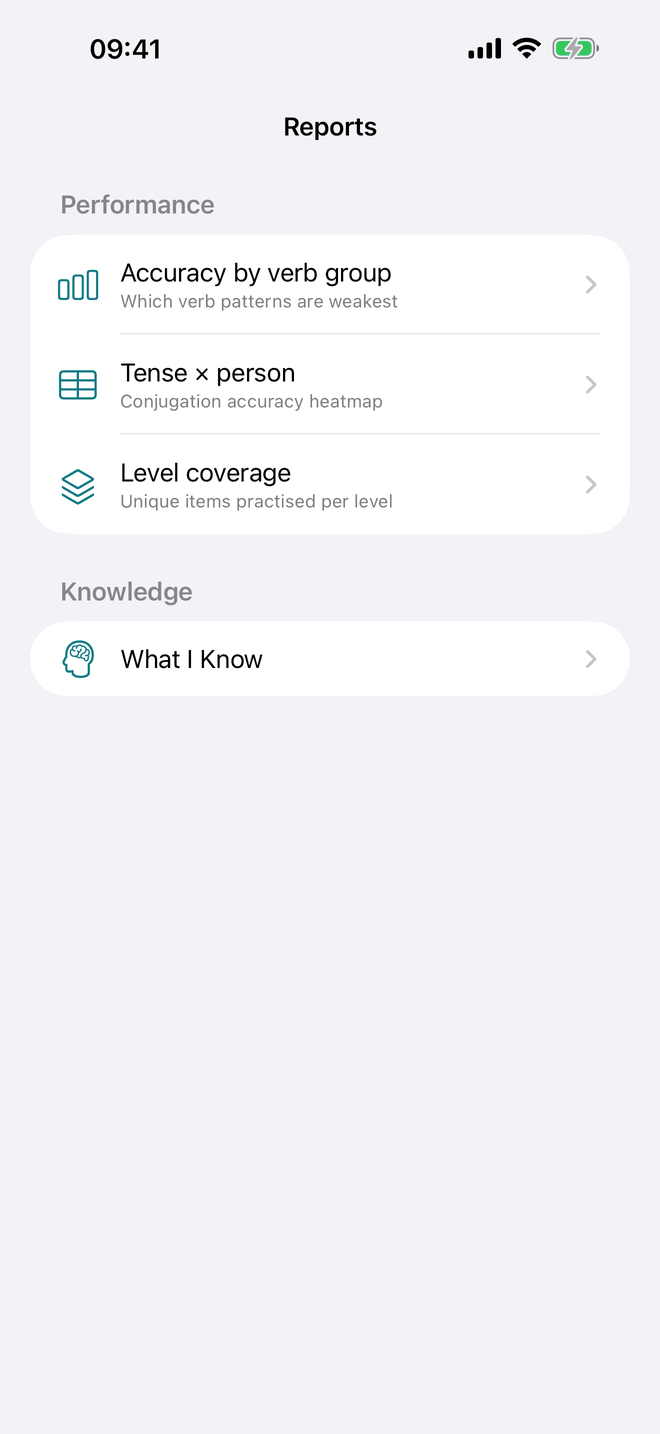
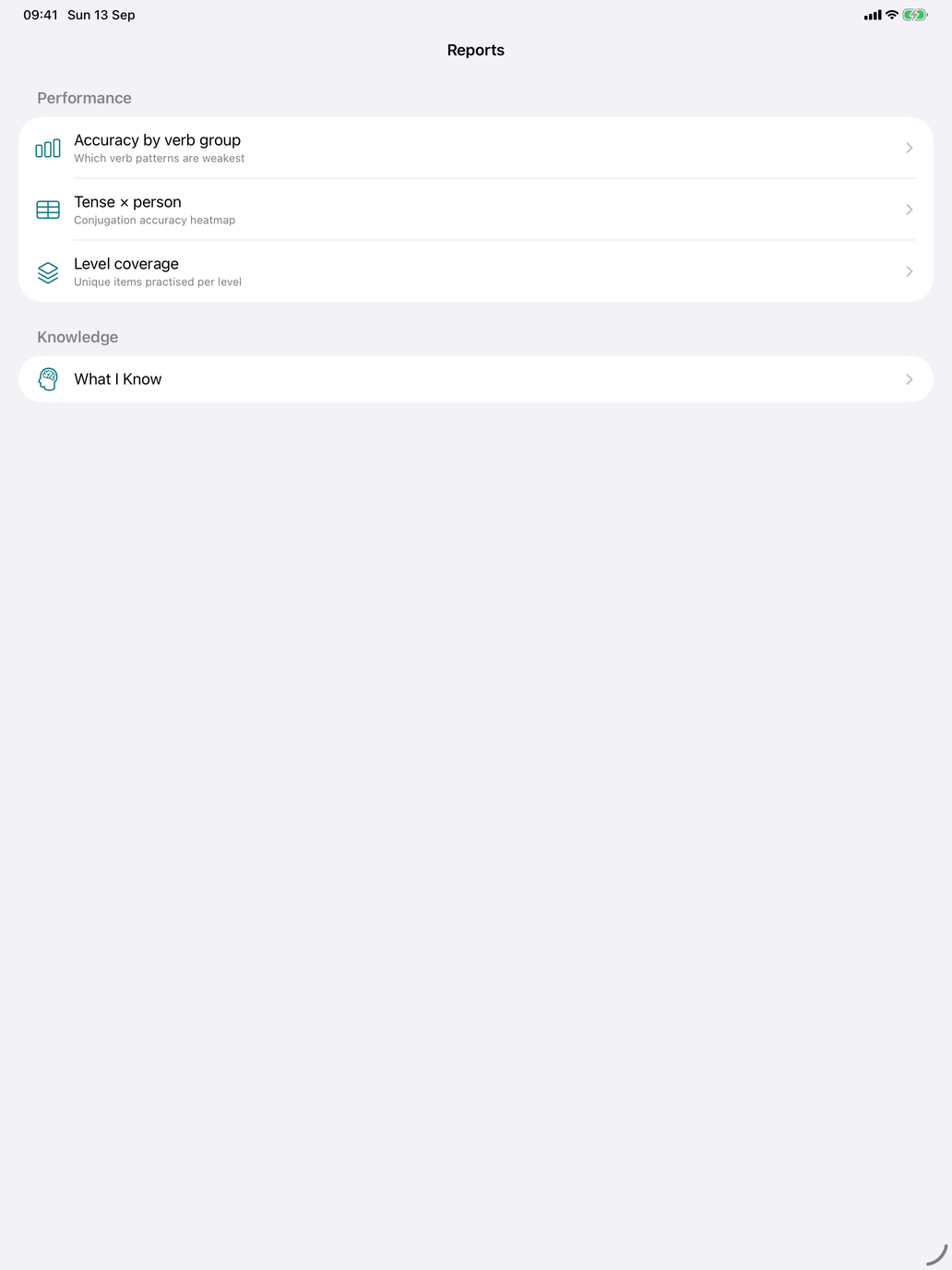
Ready-made questions, each of which opens Explore already set up — you can change it from there.
- Accuracy by verb group — which verb patterns are weakest.
- Tense × person — conjugation accuracy as a grid of tenses against persons.
- Level coverage — how many different items you have practised per CEFR level, per word type.
Under Knowledge, a second way into What I Know.
Explore
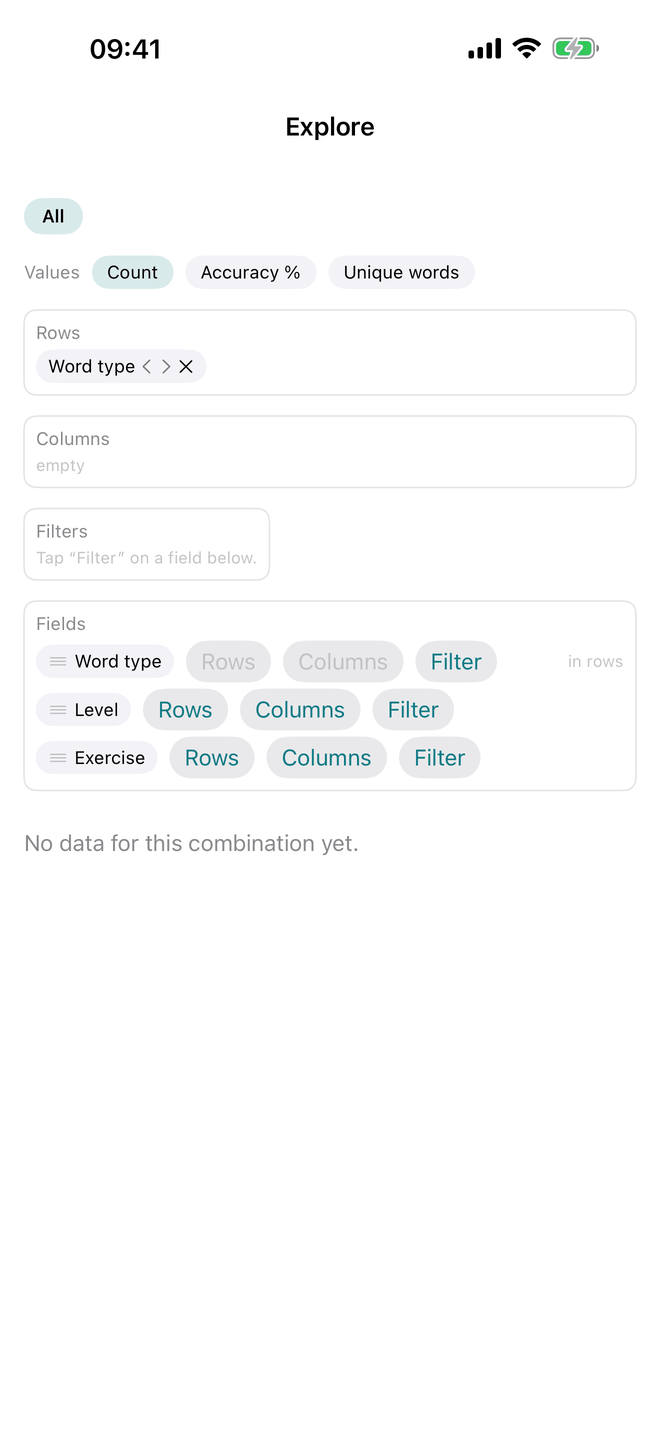
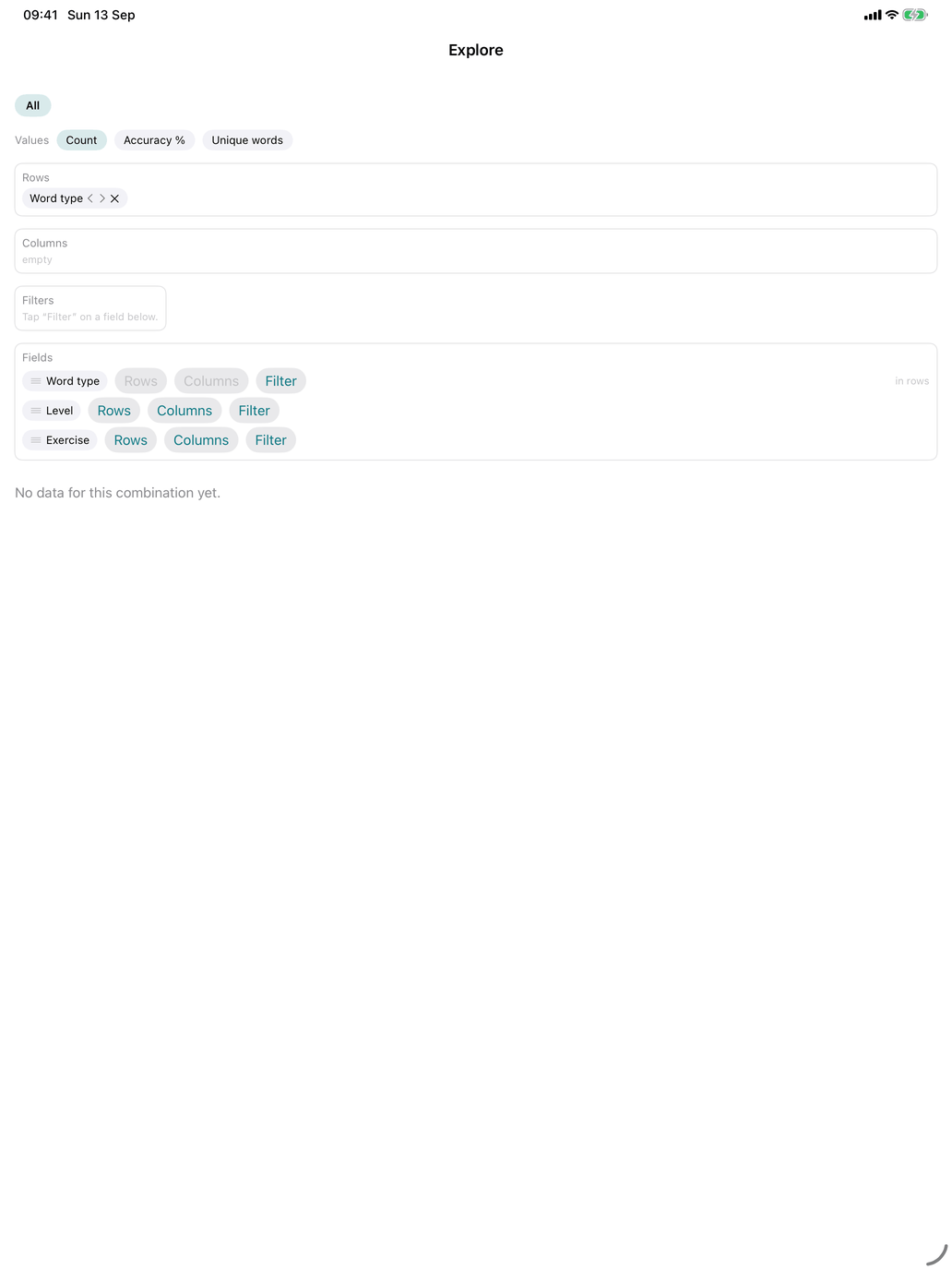
A pivot table over your whole answer history — the same idea as a pivot table in a spreadsheet.
- Scope — the row of buttons at the top: All, or one word type you have answers for (verbs, nouns, words, phrases). The fields on offer depend on the scope.
- Values — what each cell shows: Count (answers), Accuracy % and Unique words. Pick one or more.
- Fields — word type, verb group, noun group (Spanish), level, tense, person and exercise. Add a field to Rows or Columns with its buttons, or drag it onto a shelf; the arrows on a shelf change the order and × removes it. Filter puts a field on the Filters shelf, where a menu picks one value to keep.
Rows nest with subtotals and can be collapsed, and so can column groups; a Grand total closes the table. Tap any cell to see the words behind that number. Because a verb can belong to several groups, group subtotals can add up to more than the total; a note says so when it applies.
Explore is for the questions no fixed report anticipated. Is my subjunctive weakness specific to stem-changing verbs, or general? Scope: verbs. Rows: verb group. Columns: tense. Value: accuracy. Am I worse at one person across the board, or only in one tense? Rows: person. Columns: tense.
PDF export
The share icon at the top of My Progress makes a Progress report PDF: a cover page with your key figures (start date, active days, streak, answers, accuracy, words practised, sessions), then coverage, accuracy with the weakest items, and trend charts. It is offered to the share sheet, so you can save it, keep it as a record or send it to a teacher. It is generated on your device and uploaded nowhere. The icon is greyed out until you have answered something.
When to check it
You do not need My Progress every day. Good moments to look are:
- after a week or two of steady practice, when the grid and the trends start telling a story;
- when you feel stuck — Word performance gives concrete weak words, Accuracy the categories where you lose points;
- before widening your selection — check in Coverage that you have really worked the current material, and in What I Know that it stuck;
- when you have a specific suspicion ("I'm fine on -ar verbs and lost on -ir") — test it in Explore rather than guessing.