The main screen
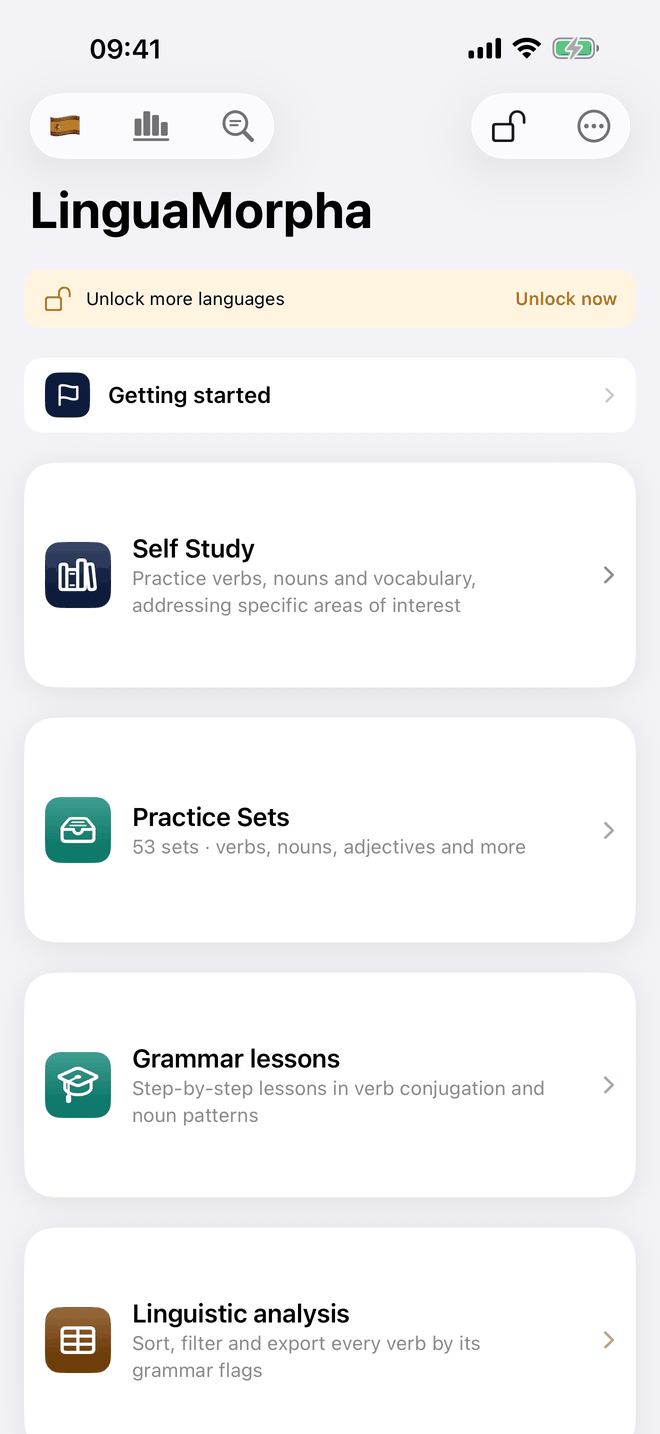
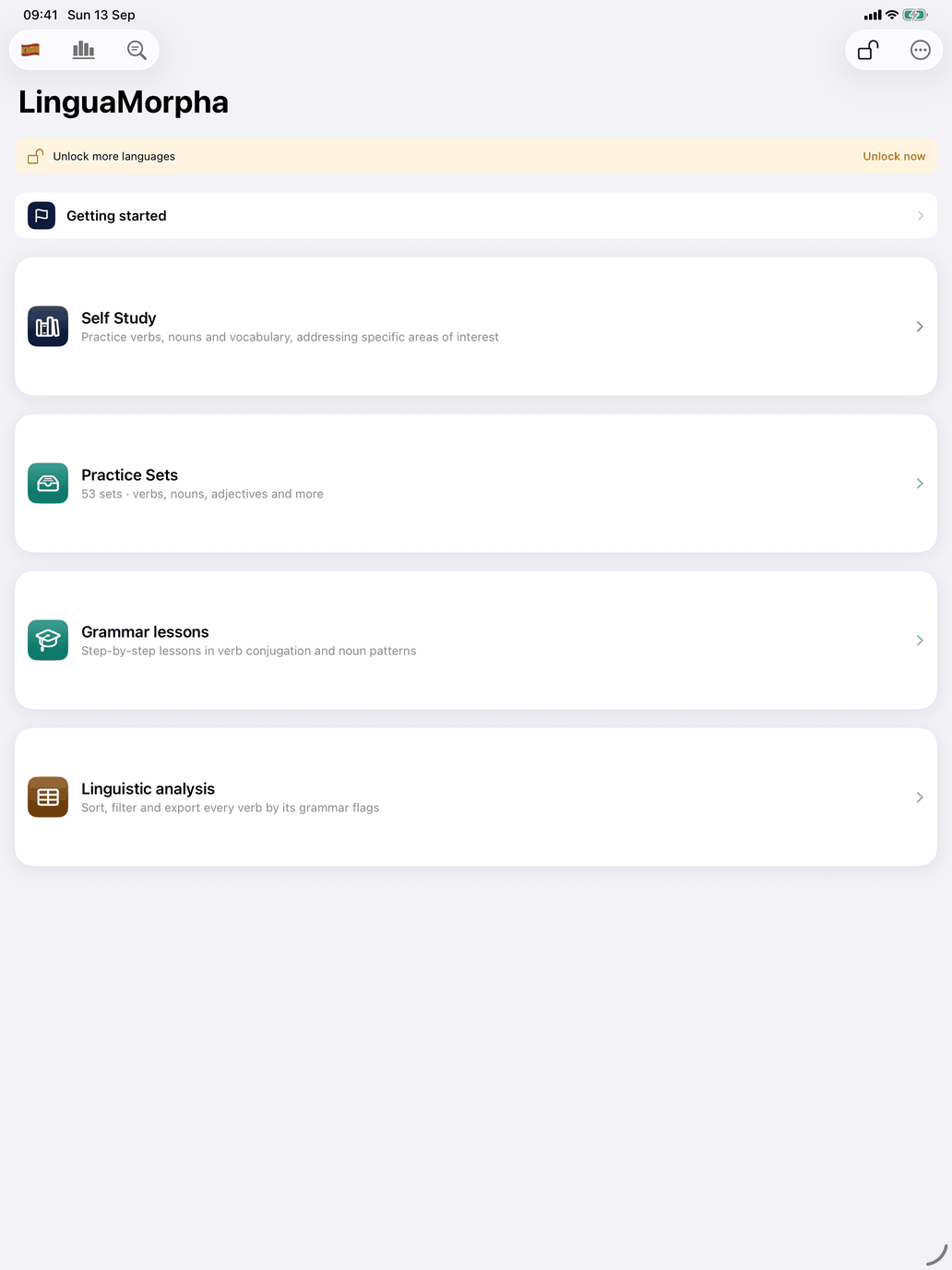
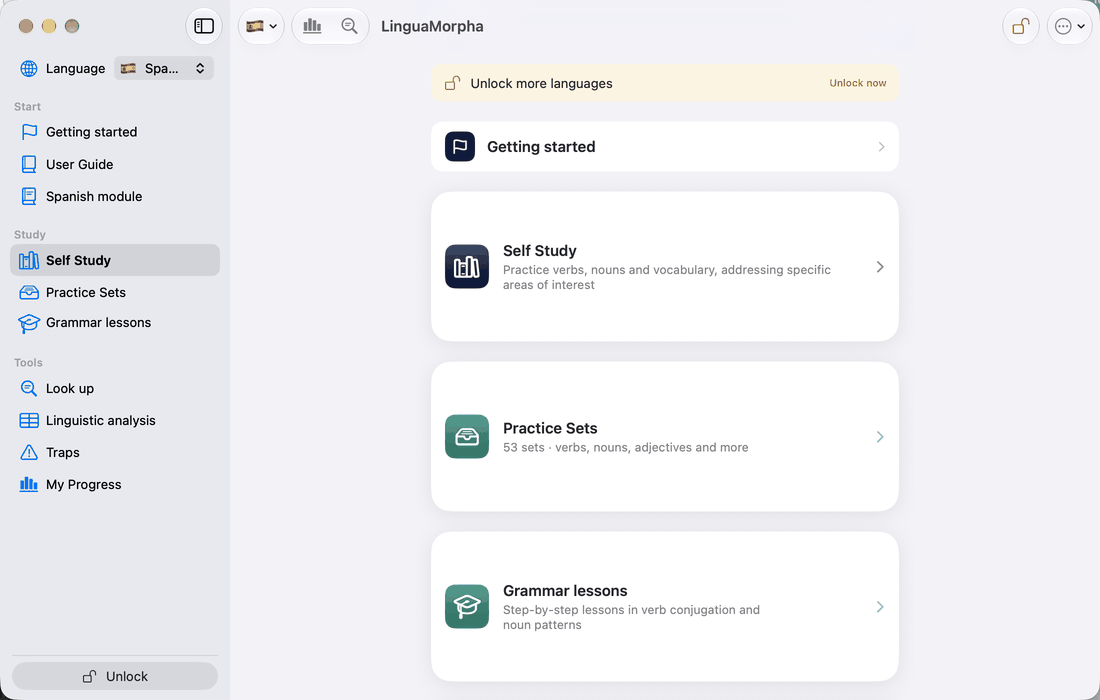
When you open the app you land on the main screen. On iPhone and iPad it is the screen titled LinguaMorpha; on the Mac it is a window with a sidebar on the left and the chosen area on the right. From here you choose how to study and reach the global tools.
While the Open the app on this page switch on the Getting started page is on, the app opens on Getting started first. Switch it off when you no longer need it; the page stays available.
On iPhone and iPad
At the top is the trial banner (see The platform shape), then a Getting started row, then large cards. Which cards you see depends on the course you are studying:
- Self Study — you decide which verbs, nouns, adjectives, adverbs, pronouns, prepositions, numerals, phrases and other vocabulary are in play, and which drill to run. The right entry point for most learners most of the time. See Self Study.
- Practice Sets — ready-made sessions you run as a unit. The card says how many sets the course has and what kinds of practice they cover. You can build your own, and share sets with another learner.
- Grammar lessons — step-by-step lessons in a fixed order.
- Linguistic analysis (Spanish and French) — sort, filter and export every verb by its grammar features.
If the course is locked (the trial is over and you have not bought it), the cards open the store instead.
Toolbar, left side
- The flag — the course you are studying. Tap it for a menu of the courses; the current one has a tick, and a lock marks one you have not unlocked.
- The chart icon — opens My Progress.
- The Look up icon (a magnifying glass over lines of text) — opens Look up.
Toolbar, right side
- Unlock — opens the store: each course with its price (or Owned), Unlock all languages, and Restore Previous Purchase.
- The ⋯ menu — Getting started, User Guide, the guide for the course you are studying, Settings, Help (what this screen does) and About.
On the Mac
The sidebar replaces the cards and the toolbar icons. From top to bottom:
- Language — the course you are studying. Everything below follows it.
- Start — Getting started, User Guide, and the guide for the course you are studying. The guides open in the right-hand pane.
- Study — Self Study, and Practice Sets and Grammar lessons where the course has them.
- Tools — Look up, Linguistic analysis (Spanish and French), Traps (Spanish) and My Progress.
- At the foot, the trial countdown while the trial runs, and the Unlock button (Purchases once you own everything).
Settings and About are in the LinguaMorpha menu rather than the sidebar; see On the Mac.
Conventions used throughout the app
Help on every screen. Screens explain themselves: tap the labelled Help button at the top of a hub, or the ? in the toolbar, for a short help sheet about that screen. Many menu rows offer a second way in: press and hold a row (about half a second) and you get a help sheet about that single row instead of the whole screen. A quick tap always does the row's normal thing.
Reporting a problem. Press and hold a Help button or ? to start an email about that screen, with the app version and the screen's name already in the subject. Add a screenshot if you can.
Detail views. Many screens show words in a list. Tapping a word opens its detail view — translation, forms, level, topics and example sentences, where the course has them.
Going back. The ‹ arrow at the top left takes you back one step, to the screen you came from. On the Mac, choosing a sidebar row jumps straight to that area.