Levels
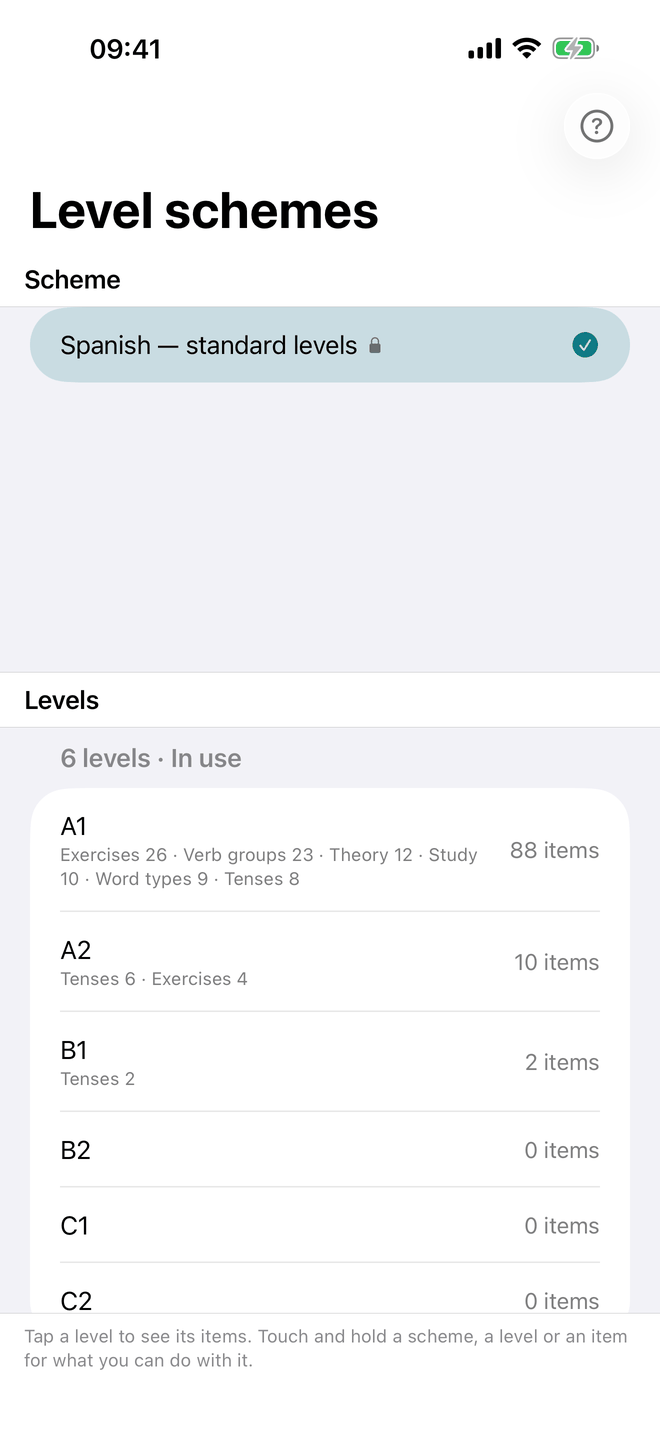
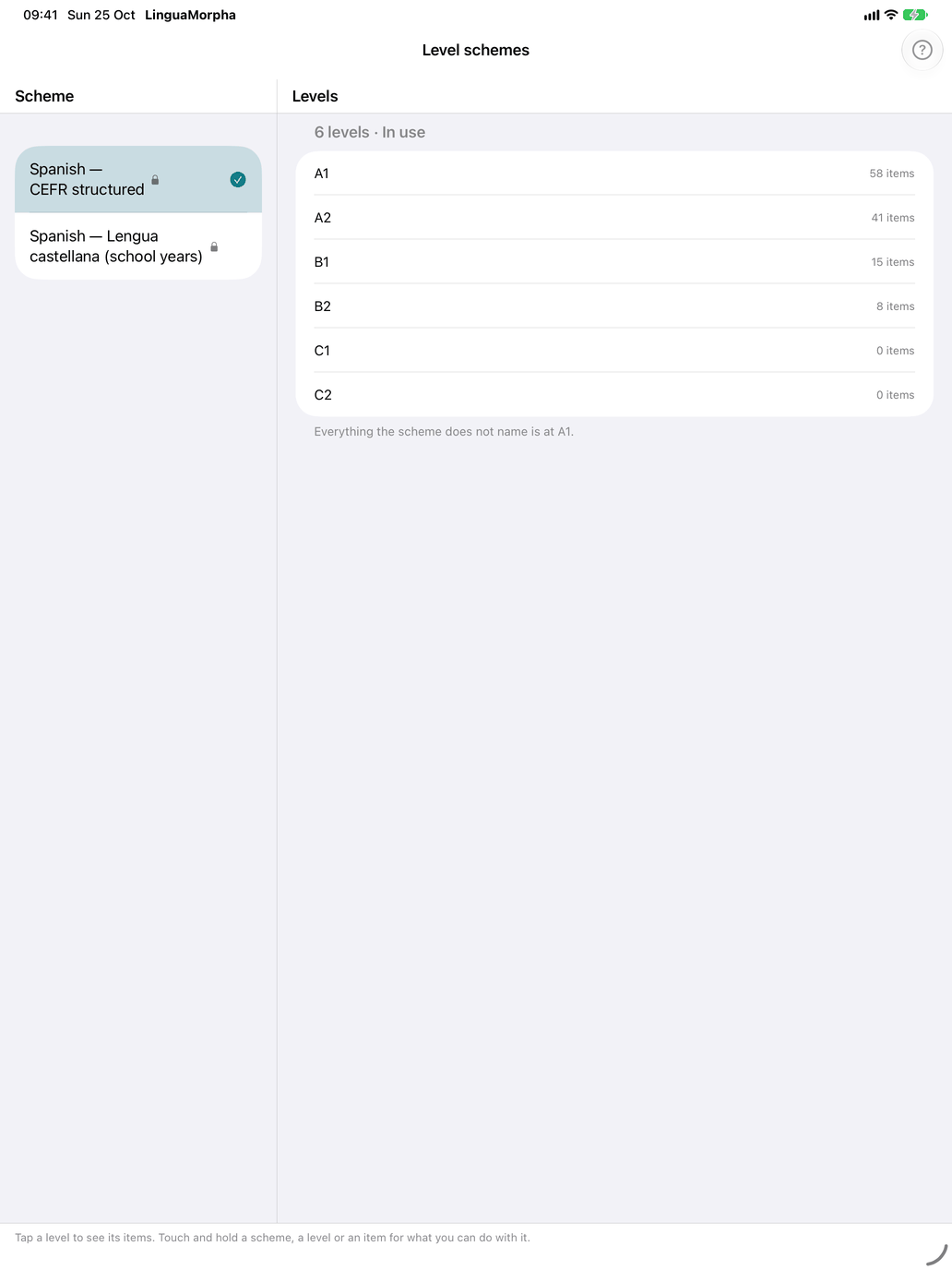
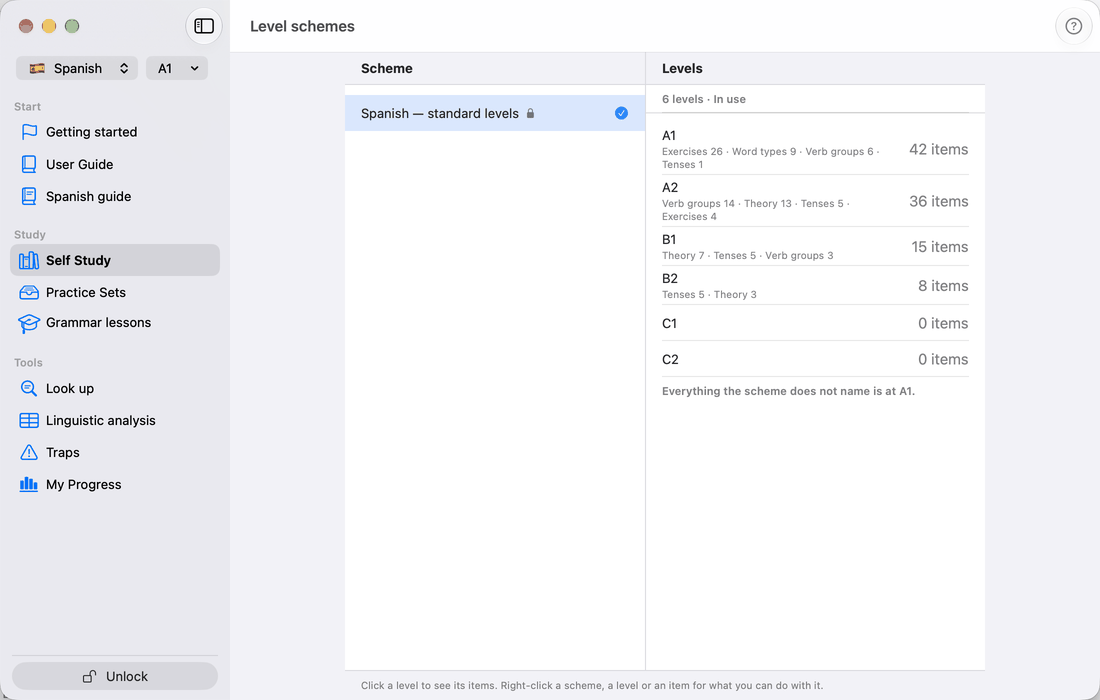
Every course is organised in levels. A level scheme says at which level each thing first appears — words, tenses and the other grammar, drills and theory — and your level decides how much of that you see. Levels add up: at the third level you see everything of the first three. The standard schemes of Spanish and French name their levels after CEFR, A1 to C2; Latin's has six levels of its own.
Your level
Your current level, such as A1, is shown in one chip with the course's flag and the scheme in use: in the toolbar on iPhone and iPad, at the top of the sidebar on the Mac. A new install starts at the first level, and so does a scheme you have not used before. Tap or click the chip for Scheme and level (a window of its own on the Mac). It has three sections:
- Learner — who is studying; see Learners below.
- Scheme — the courses, the one you study ticked. Tap a course to fold out its schemes; choosing a scheme of another course switches to that course. A lock marks the schemes of a course you have not unlocked, and they open the store. Tap the scheme in use to fold out its levels: All levels first — no level: everything shows, as in a course without a scheme, except what the scheme leaves out with Not shown — then the levels where something starts. Choose one to change what the app shows; the top level shows everything the scheme shows at all.
- Level — the three switches below, offered only at a level, not at All levels.
The switches:
- Assign items — for your own scheme: set, on each item as you walk through the app, the level at which it first appears (see Assigning items in the app). A built-in scheme cannot be changed, so it is not offered there.
- Show levels — puts a small chip with its level on every item, read-only.
- Only new at this level — the meaning decks hold only the words your level adds, not those of the levels below, and the reference lists open showing only what is new at your level. Above each list a control switches between New at A2 (n), Up to A2 and All levels, which adds the words of higher levels; a choice with nothing in it is left out, and searching looks through everything. A sparkle beside your level shows that it is on.
Changing your level shows and hides; it deletes nothing. Your answers are kept per item and count again when an item comes back.
Your level applies to Self Study: its hubs, drills, reference lists and theory. A theory page leaves out the cards above your level; Also later levels at the top brings them back, with their level beside them, and does the same for the tenses on a verb's page. Practice Sets follow it too: a set whose tenses or most of whose words lie above your level is kept off the list (Also later levels at the top shows them; it is the same setting as on the theory pages, and it is kept), and a set's words are trimmed to your level on its page. Grammar lessons follow the same level, but only mark what lies above it: a lesson above your level is dimmed, and a module that lies wholly above it says Above this level; every lesson stays open. At All levels nothing is above.
Learners
Several people can study on one device, each as a learner. The Learner section of Scheme and level lists them, the active one ticked; tap another to switch to them. Add learner adds one by name. Touch and hold a learner (right-click on the Mac) for Rename and Delete; deleting says how many answers go with them, and when the last one goes a new, empty Default learner takes their place. The first learner is called Default until you rename it.
Each learner has their own progress, scheme and level; everything else, such as the settings, your own schemes and the practice sets, is shared. Once there are several, the chip shows the active learner's name before the flag. You cannot switch learner during a drill: finish it first.
Level schemes
Open the dialog from the Level schemes row in the course tab of Settings, which shows the scheme in use. It has two columns, one above the other on iPhone:
- Scheme — the course's built-in schemes, each marked with a lock, the standard one first; then your own schemes. A checkmark marks the scheme in use. Selecting a scheme shows its levels; it does not switch to it.
- Levels — the selected scheme's levels, each with how many items start there and of what kind, and a Not shown row for what the scheme leaves out. The line under the list names the level that holds everything the scheme does not name.
Every action is on a menu: right-click on the Mac, touch and hold on iPhone and iPad. The line at the bottom of the dialog says so.
Working with schemes
A scheme's menu offers:
- Use — makes it the scheme in use.
- Duplicate… — copies it under a new name, with its levels and which item is on which level; the copy becomes the scheme in use. This is how you start from a built-in scheme.
- Export… — saves the scheme as a file, to keep or to give to someone.
- Summary as PDF… — what starts at each level, as a PDF to save, share or print.
- Rename…, Place words…, Options… and Delete… — your own schemes only. Delete… removes the scheme from this device; export it first if you want to keep it.
- New… and Import… — on the empty space under the list too.
New… asks for a name, the levels, and under Start with how to begin: Everything on the first level, after which you assign items in the app, or Take over “…” for an existing scheme, choosing under Where the levels go which new level each of its levels becomes.
Import… reads a scheme file. A file for another course, one that does not fit this course, one that is too large, or one that is not a level file at all is refused with a sentence saying why. A scheme you already have asks before the file replaces it. After an import the app says how many levels arrived and what did not match: names this course does not know are ignored, and words the file does not mention follow the scheme's word rule or sit on the level that holds everything unnamed.
Opening a level
Select a level to see its items by name, grouped by kind — verbs, nouns, tenses, drills and so on. ‹ Levels goes back. In your own scheme, an item's menu offers Move to another level, or — to leave it out; on the Mac, ⌘-click or ⇧-click selects several items first.
Changing the levels
In your own scheme, a level's menu offers Rename…, Insert level before…, Insert level after…, Move up, Move down and Delete…. A new level starts empty, and moving a level takes its items along. Deleting an empty level just removes it; deleting one that holds items — or the level that holds everything unnamed — asks where they go: to another level, or to —, where they are not shown at any level.
Placing words
Place words… on your own scheme puts whole word types on the levels in one go. For Verbs, Nouns, Adjectives and Adverbs choose:
- Unchanged — leave the type as it is.
- By frequency — the most frequent words on the first level, and each next level half as many again. Frequency is measured in a corpus of the language; a word without a measured value is placed by its frequency band.
- All on the lowest level.
- Not placed — the words of that type are not shown at any level.
Each row says how many words the type has and how it is placed now. Preview shows how many words of each type each level would get. Apply asks first, because it replaces the placements you made by hand for those types.
The choice is kept with the scheme. Words added to the app later follow it: a new word goes to the level whose words are as frequent as it is, and no word already placed moves.
Scheme options
Options… on your own scheme holds the switches that are not about levels:
- Show translations — off for a learner who already speaks the language: the word lists, the drills and the guides show no translation. The meaning drills are then pointless; hide them on the Levels side.
- Tense names — as courses for learners name them, or as the language's own schools do. Only for a course that has both traditions. Every table, drill and guide follows the choice.
- App language — the app language the scheme sets, once, when it is chosen; Leave as it is sets none. The learner can change it afterwards in Settings.
- Unnamed items at — the level that holds everything the scheme does not name: a word added to the app later, a drill with no level set.
The built-in schemes keep their own settings; duplicate one to change them.
Assigning items in the app
With Assign items on, every item carries a chip with its level — word rows, tenses, drills, theory, topics — and items above your level are dimmed rather than hidden. Tap a chip to choose the item's level: its own level and the ones next to it, Other levels for the rest, and Not shown to leave it out. A pencil beside your level reminds you that assigning is on; switch it off in Scheme and level.
Level and word scope
The level decides what exists in Self Study. Select word scope narrows it further by topic, and each hub's selection rows by group. See Choosing what is in play.