Practice Sets
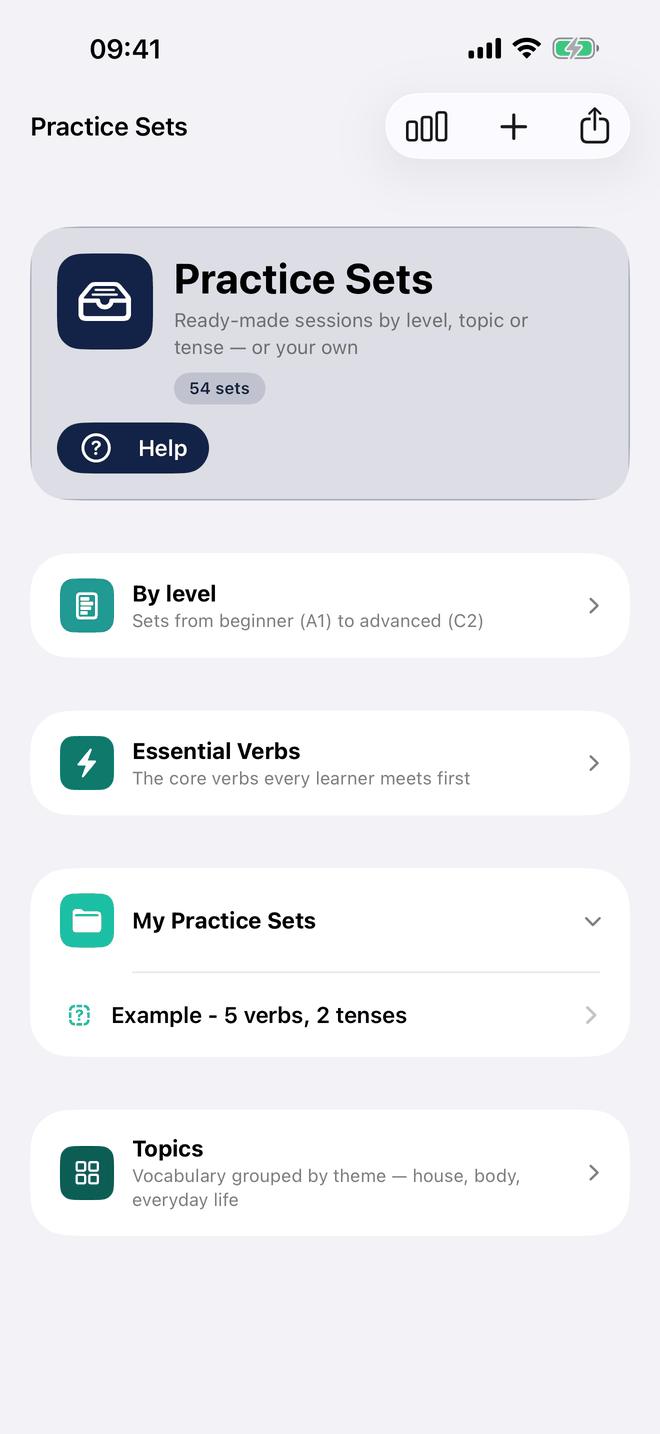
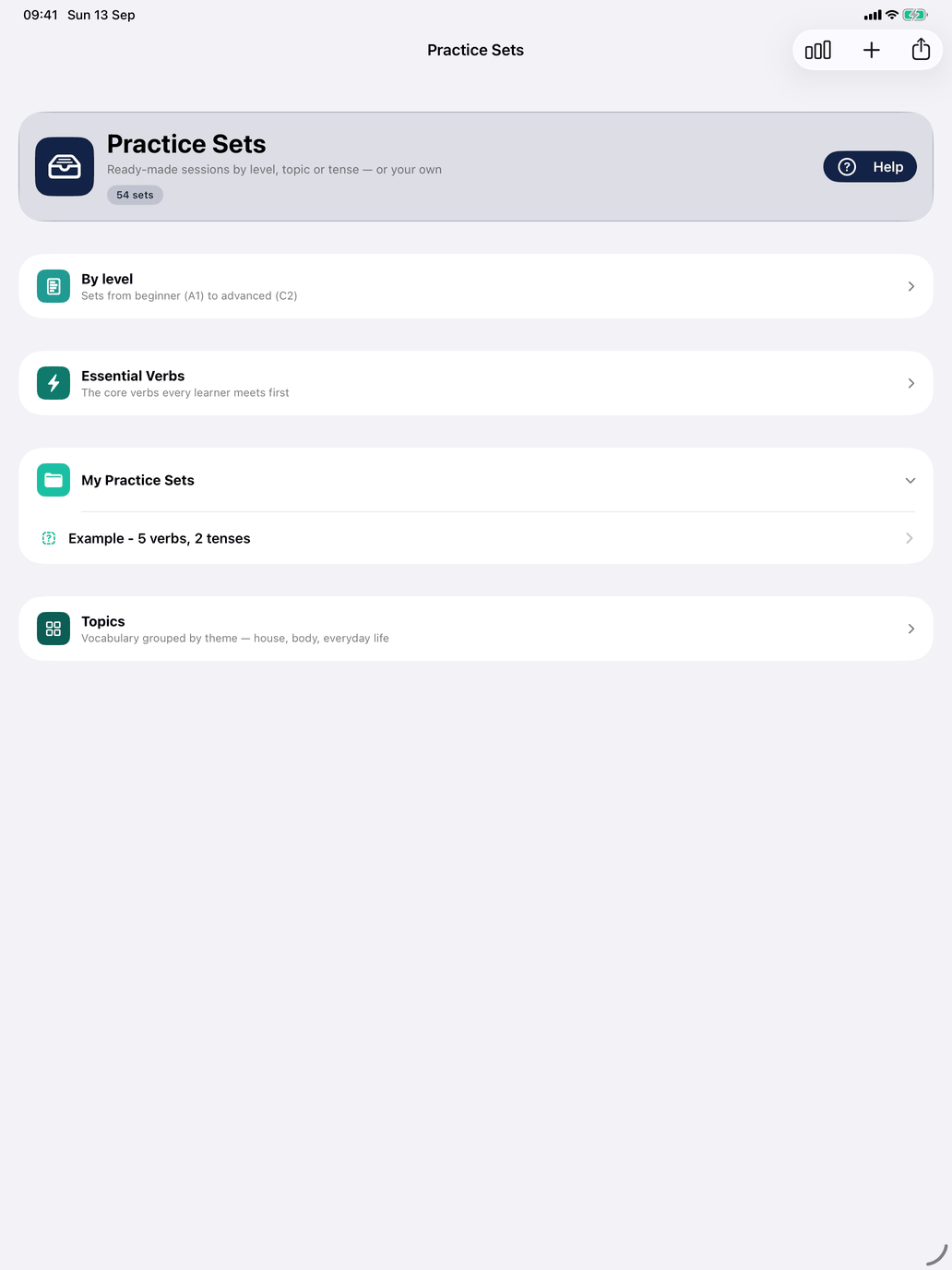
A practice set is a ready-made session you run as a unit: a body of content — verbs, nouns, adjectives, other vocabulary, phrases, in any mix — together with the exercises to run over it. Open Practice Sets from its card on the main screen, or from Study in the Mac sidebar. It appears for every course that has sets; the header says how many there are.
The sets that come with the app and the sets you build are the same kind of thing: every set is yours to run, edit, rename or delete.
The library
Sets are grouped into folders. Tap a folder heading to open or close it; a folder with more than three sets starts closed. Depending on the course, the app supplies:
- Topics — vocabulary grouped by theme.
- By level — sets by CEFR level, from beginner (A1) to advanced (C2), verbs and nouns separately.
- Essential Verbs — the core verbs through one tense per set, plus review sets per level.
- My Practice Sets — where new sets go by default. It starts with one example, Example - 5 verbs, 2 tenses, to show what a set looks like.
Which folders and sets a course has is described in the course guide.
Managing sets. Every row carries a ⋯ at its right-hand edge: on a set it offers Edit, Rename, Duplicate and Delete, on a folder Rename and Delete (with every set in it). A long press on the row opens the same menu, and on the Mac so does a right-click. Deleting always asks first.
Running a set
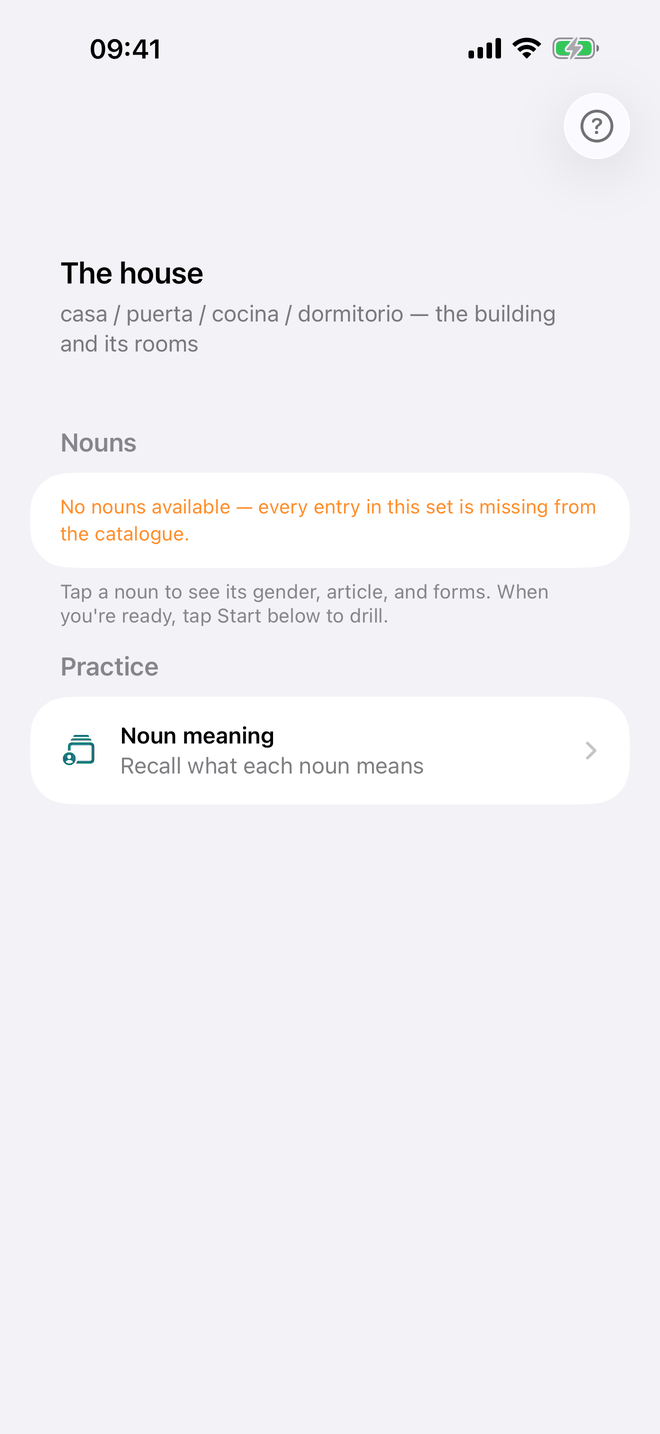
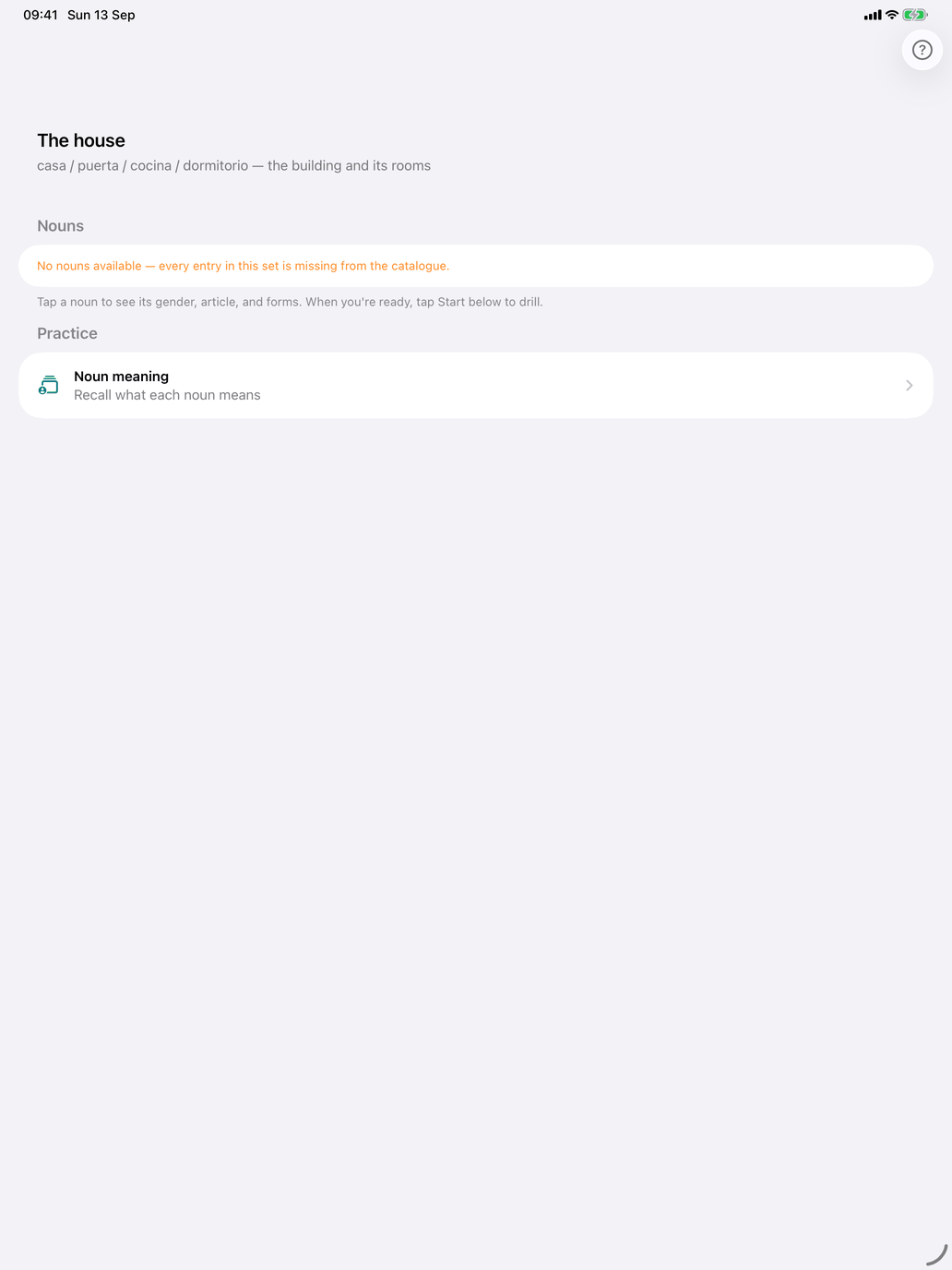
Tap a set to open it. The screen shows the set's name and description, its exercises under Practice, the Tenses covered (for verb sets), then the content, one section per word class:
- Verbs — tap a verb for its conjugation, limited to the set's tenses. Cycle through randomly at the top of the list steps through the verbs for you.
- Nouns and Adjectives — tap one for its detail screen.
- Adverbs, Prepositions, Words and Phrases — read through the pairs.
Each word list shows its first five entries; Show all under the list opens the rest.
The exercises come first: under Practice are the set's drills — for example Verb meaning, Verb conjugation, Verb recognition, Noun meaning or Mixed meaning (the meaning of every word in the set); in Latin, a set with nouns also offers Decline the noun, the declension drill over exactly the set's nouns, and the Agreement drill, which matches an adjective to them; a Spanish or French set that contains adjectives offers the Agreement drill over those adjectives. Tap one to start it. Every answer feeds the same adaptive engine as the rest of the app and shows up in My Progress.
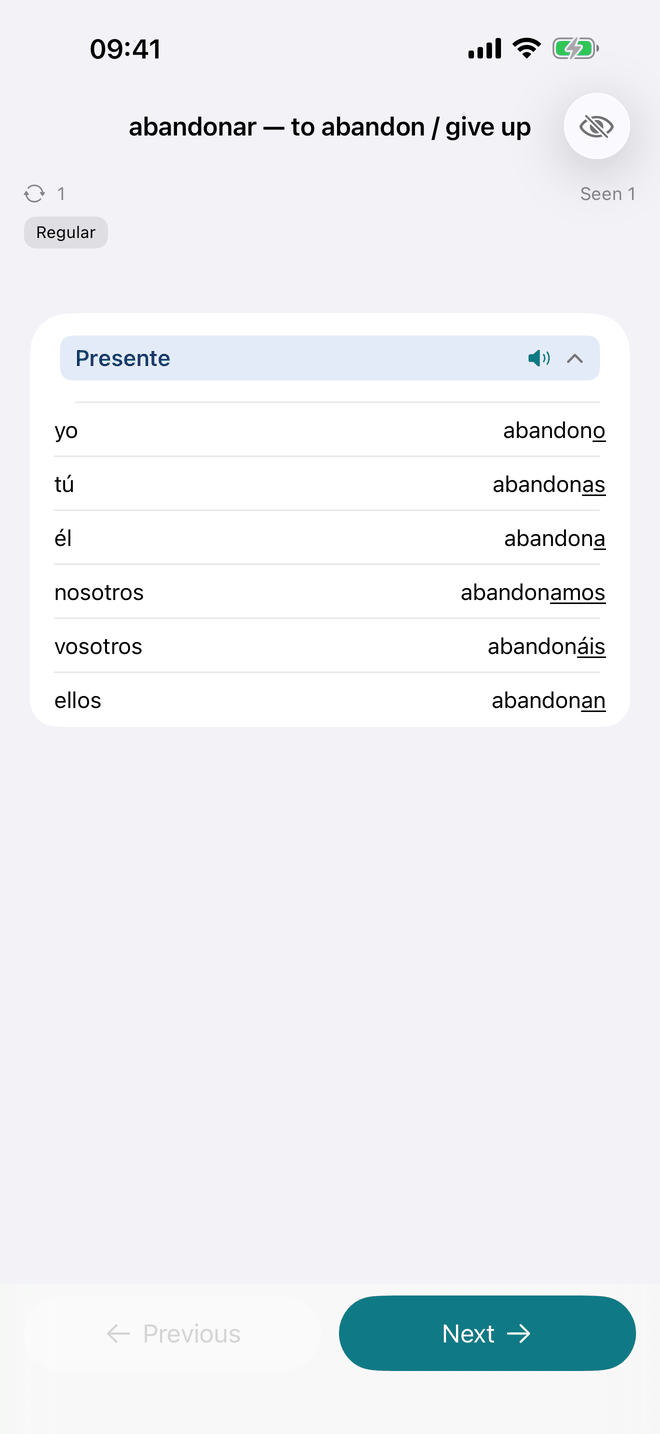
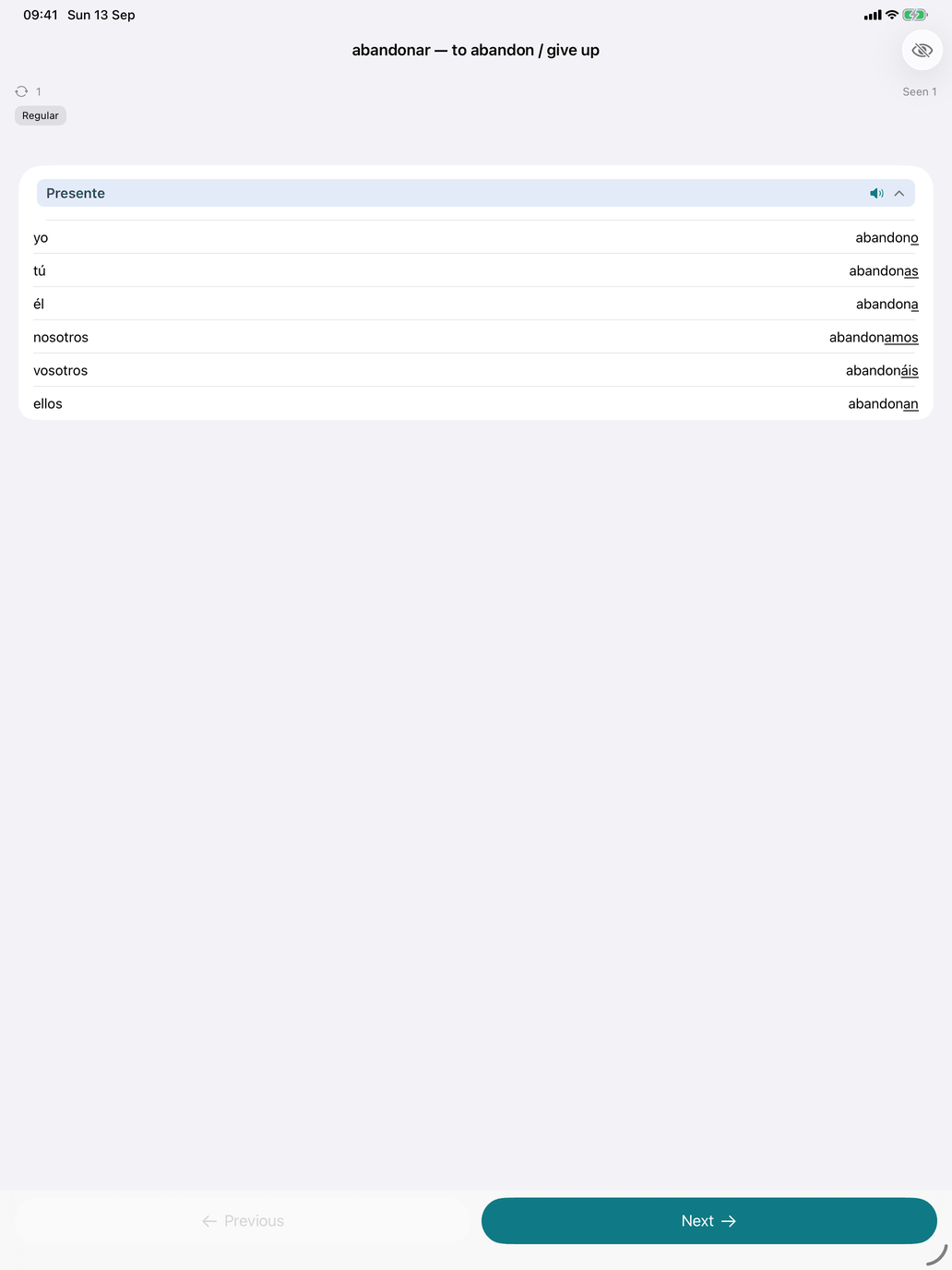
Cycle through randomly shows one verb's conjugation at a time, in shuffled order. Next moves on and Previous goes back; every verb comes round once before the order is reshuffled, and a counter shows how many you have seen. There is no score — stop whenever you like.
Building your own
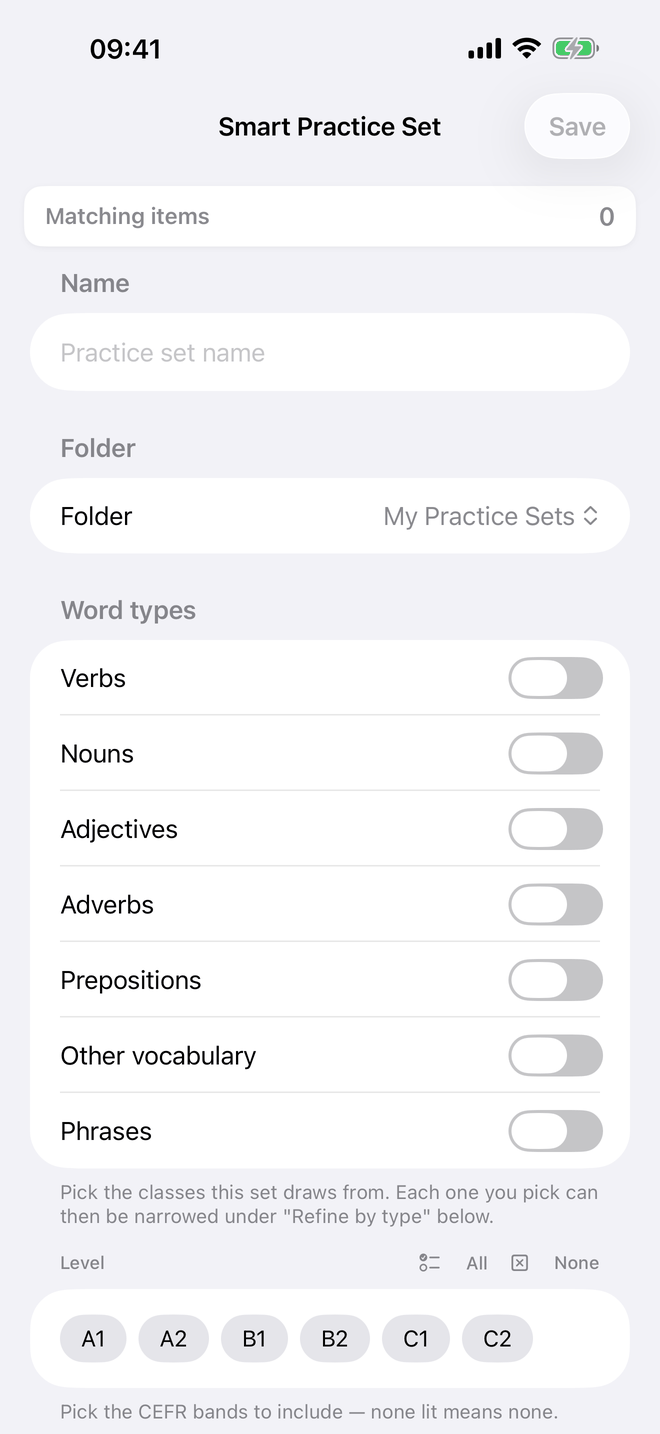
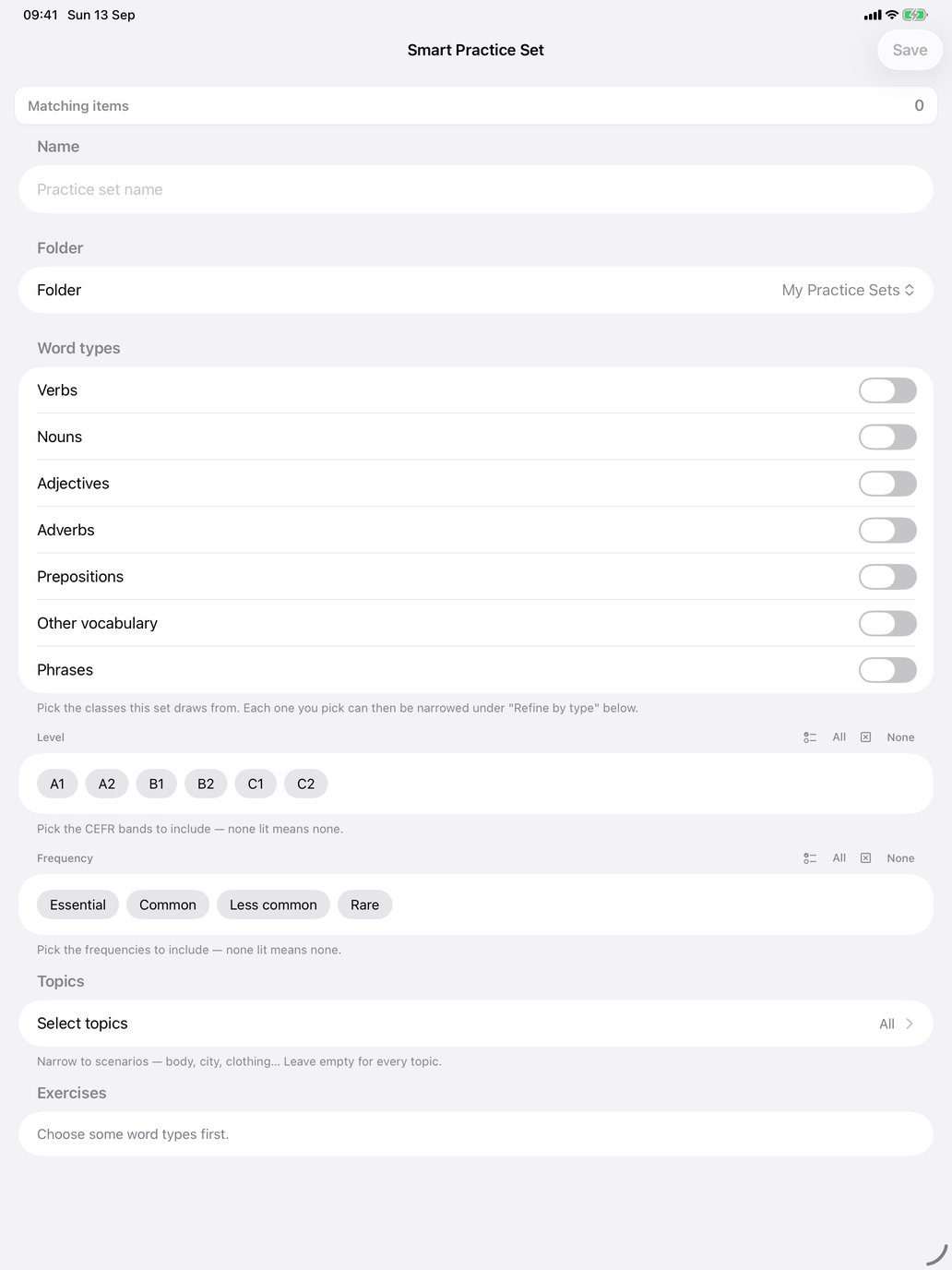
Tap New (the +) to build a set by describing it rather than picking every word. A bar at the top shows how many items match as you go.
- Name — give the set a name.
- Folder — choose a folder, or New folder… to make one.
- Word types — switch on the word classes the set draws from.
- Specific words — optionally pick individual verbs, nouns, words or phrases. The level and frequency then follow from the words you chose. In the verb and noun pickers, the filter menu at the top left picks many at once: By Topic, or By Grammar with the same groups as Select verb groups and Select noun groups. Tick groups and tap Apply; with words already chosen, it asks whether to replace them, add to them (OR) or keep the overlap (AND). Every group can be ticked, whatever your level. On the Mac these screens open as a sheet.
- Level and Frequency — narrow to CEFR levels and to how common the words are. All and None set every chip at once.
- Topics — narrow to themes; leave it empty for every topic.
- Refine by type — narrow a word class by its own groupings (verb groups, for example). Leave a row on All to keep everything.
- Exercises — switch on the drills to run. The choice follows the word types: verbs offer Verb meaning, Verb conjugation and Verb recognition; nouns Noun meaning, adjectives Adjective meaning, other words Word meaning and phrases Phrase meaning; every set can have Mixed meaning.
- Tenses — greyed out until conjugation or recognition is on; then pick at least one.
- Review words — untick any matching word you do not want. Your removals stick; new words that match the description still join the set later.
Tap Save. It stays unavailable until the set has a name, at least one word type, at least one exercise, at least one matching item and, where needed, a tense.
Because the set is saved as a description, it keeps up with the catalogue. Edit on such a set opens the same screen, filled in.
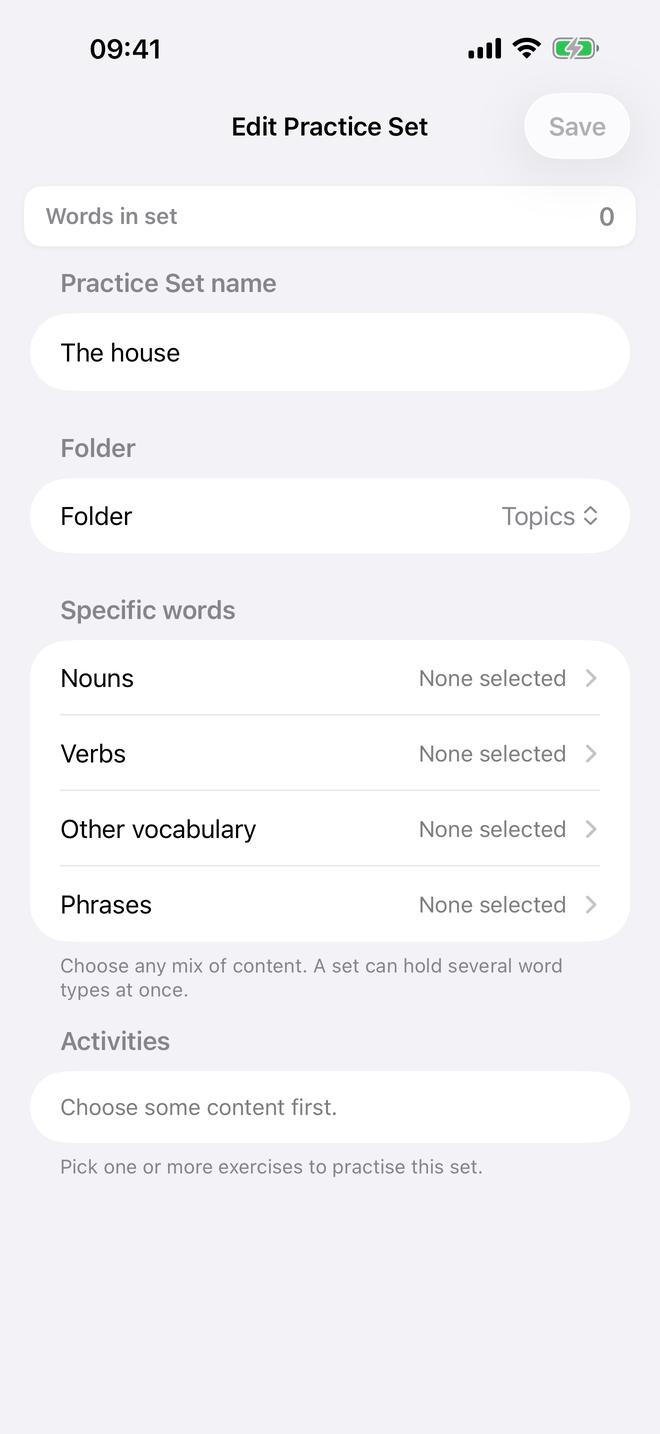
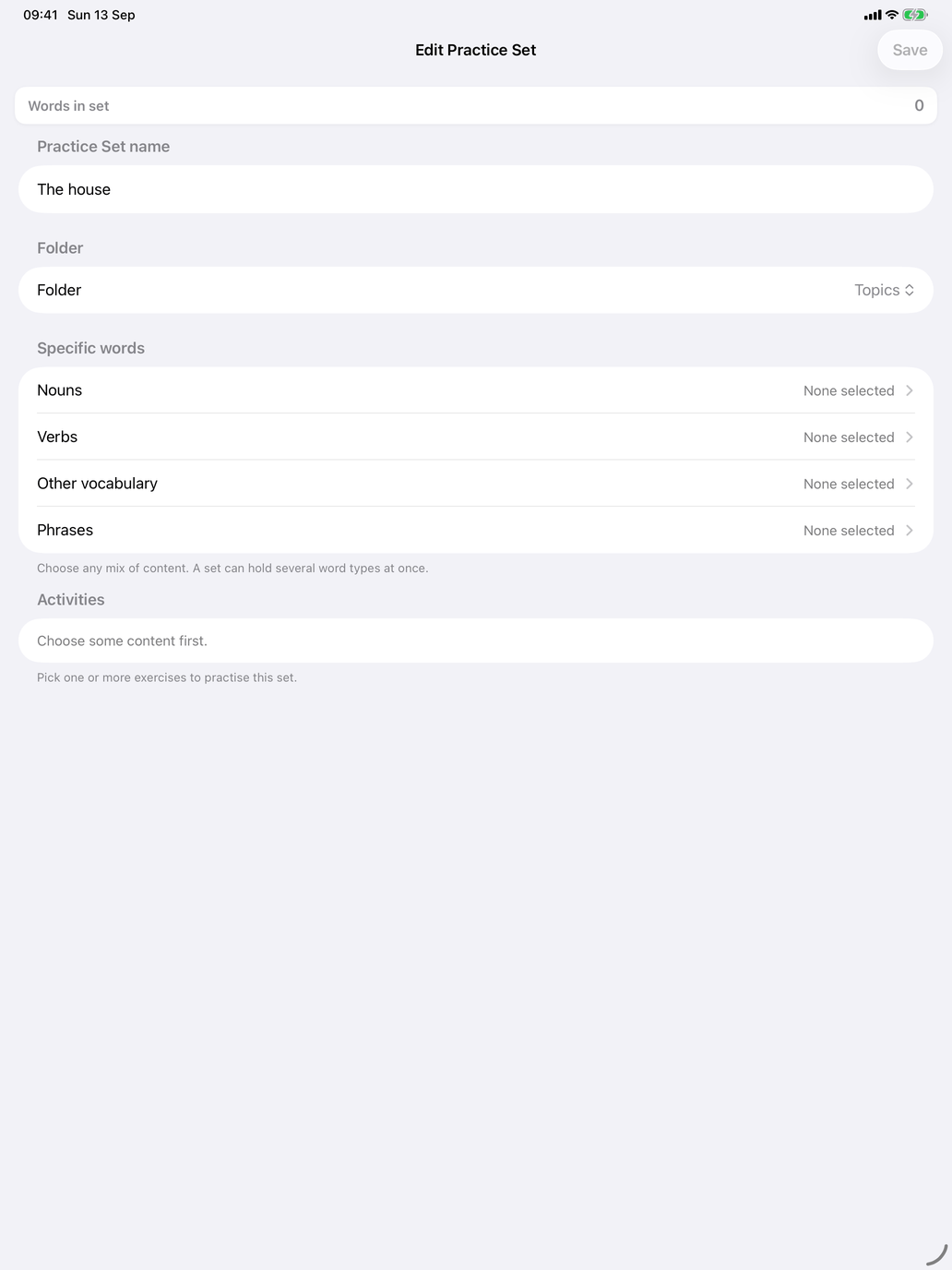
A set that is a fixed list of words — the example set, for instance — opens in Edit Practice Set instead: its name, its folder, the words in the set per word class, the Activities to run, and the Tenses when a verb drill is on.
Reports
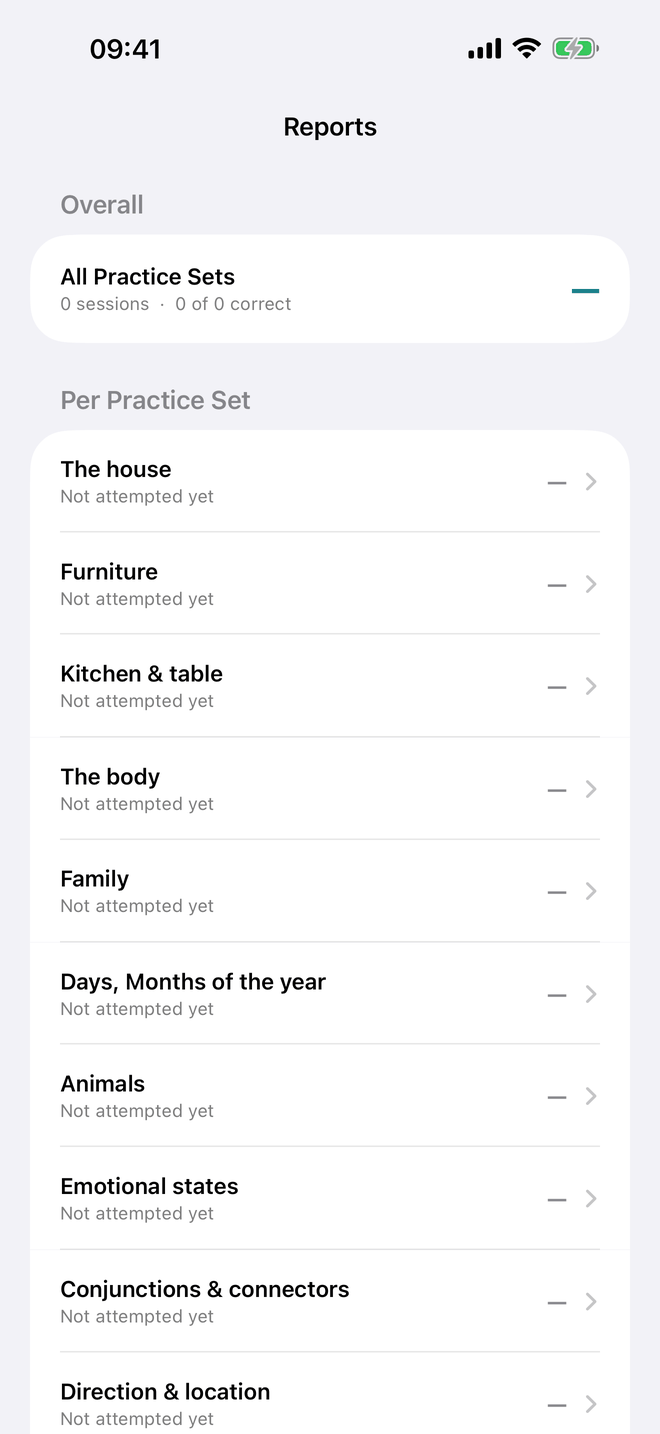
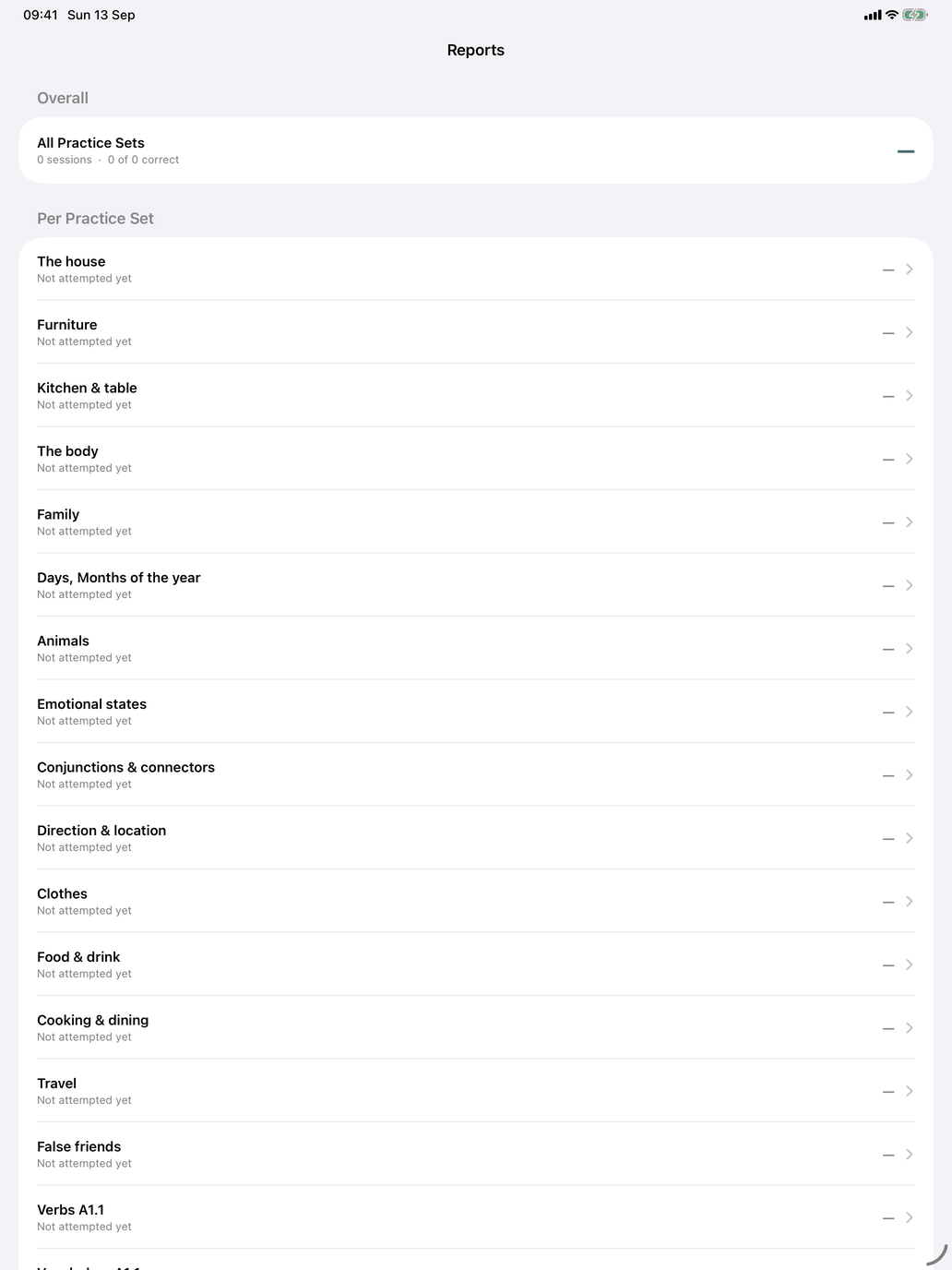
Reports in the toolbar shows how your sets are going. All Practice Sets gives the total number of sessions and correct answers; under Per Practice Set, each set shows its sessions and correct answers, or Not attempted yet. Only answers given inside a set count here.
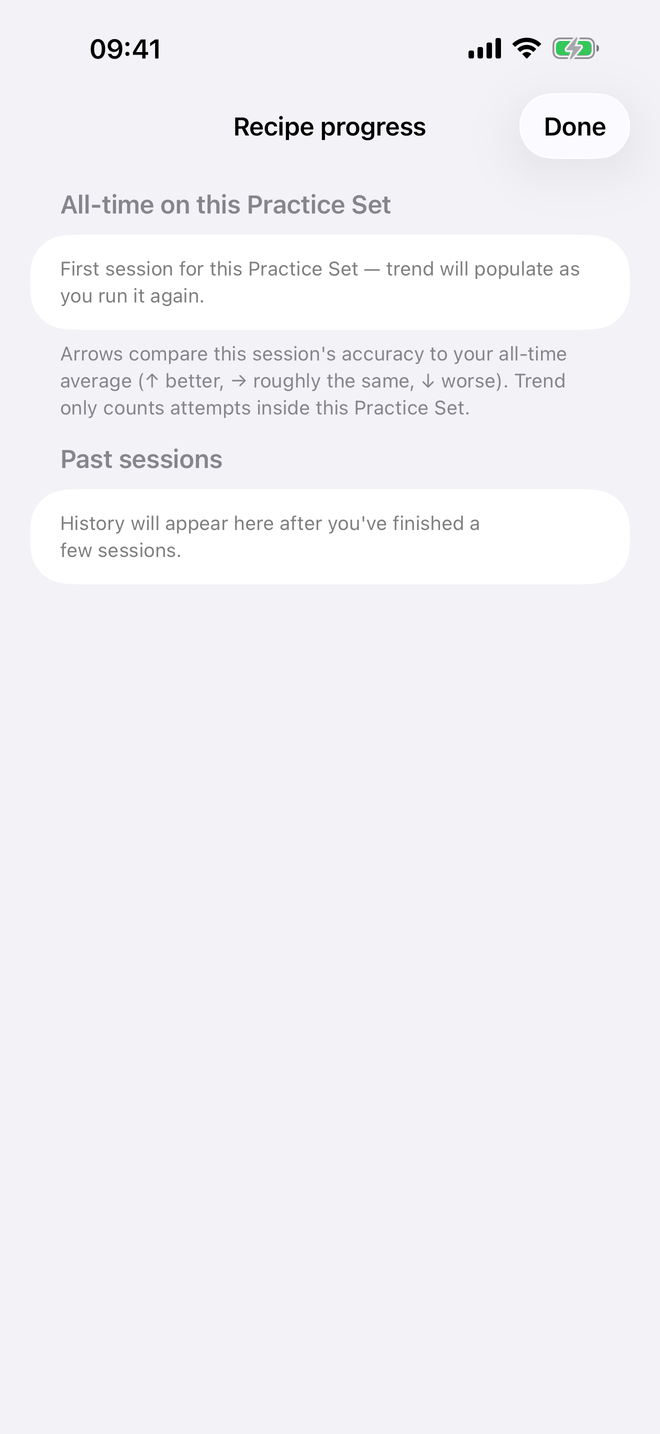
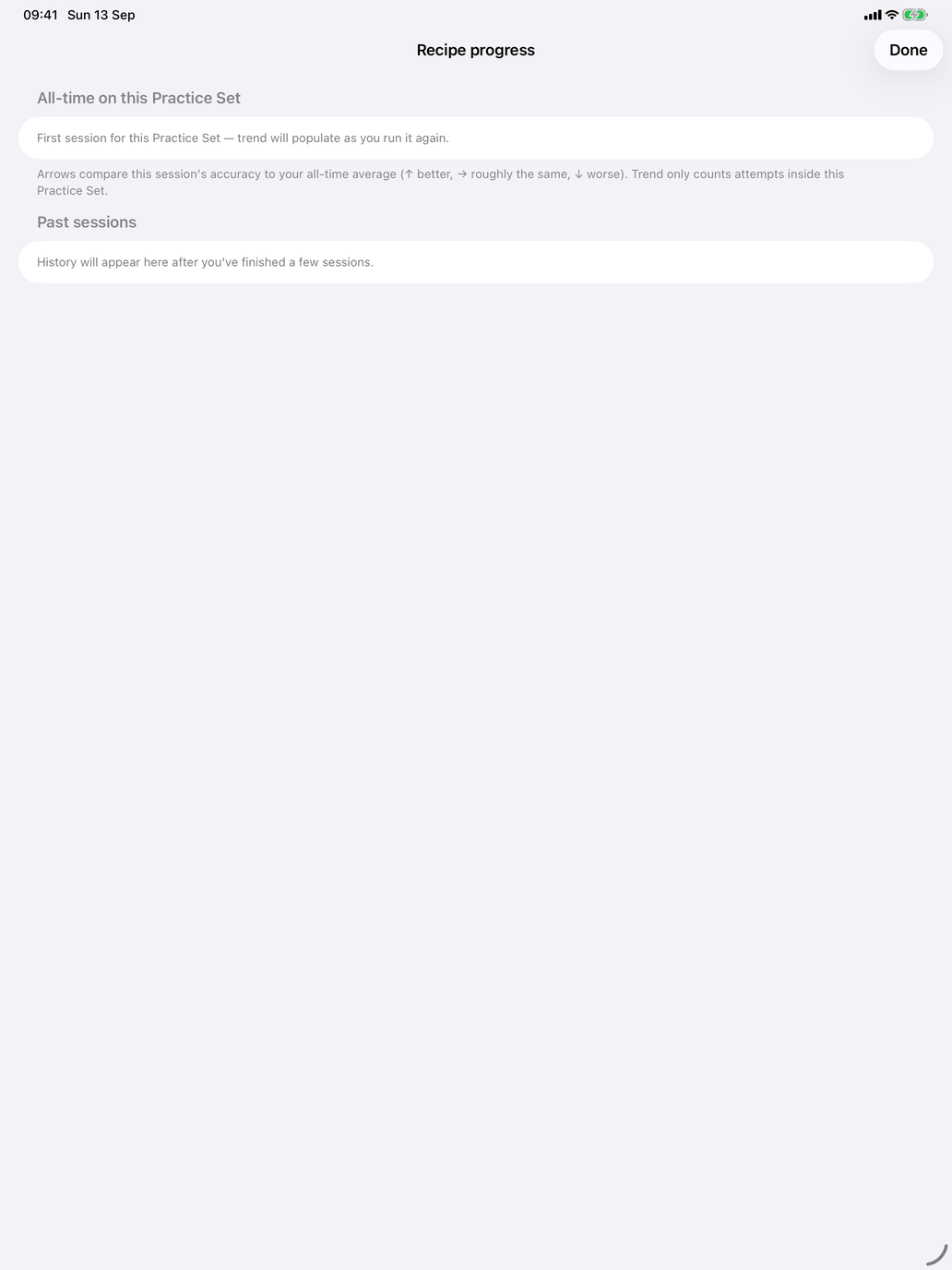
Tap a set for its Recipe progress: All-time on this Practice Set gives each item's accuracy across all your sessions with the set, and Past sessions lists your recent sessions with their scores.
Sharing: export and import
Practice sets can be written to a file, so you can move your library between devices or give a few sets to someone else. There are two kinds of transfer, kept apart on purpose. Your study history is separate again (see Settings), so sets and progress move independently.
Full backup — your whole library
Use this to move everything between your own devices, or to keep a safety copy.
On iPhone and iPad, tap Import or Export in the toolbar:
- Export Full Backup… writes your whole library, for every course, to one file (LinguaMorpha Practice Sets followed by the date and time) and opens the share sheet — AirDrop it, send it or save it to Files.
- Import Full Backup… reads a backup. Nothing changes until you confirm.
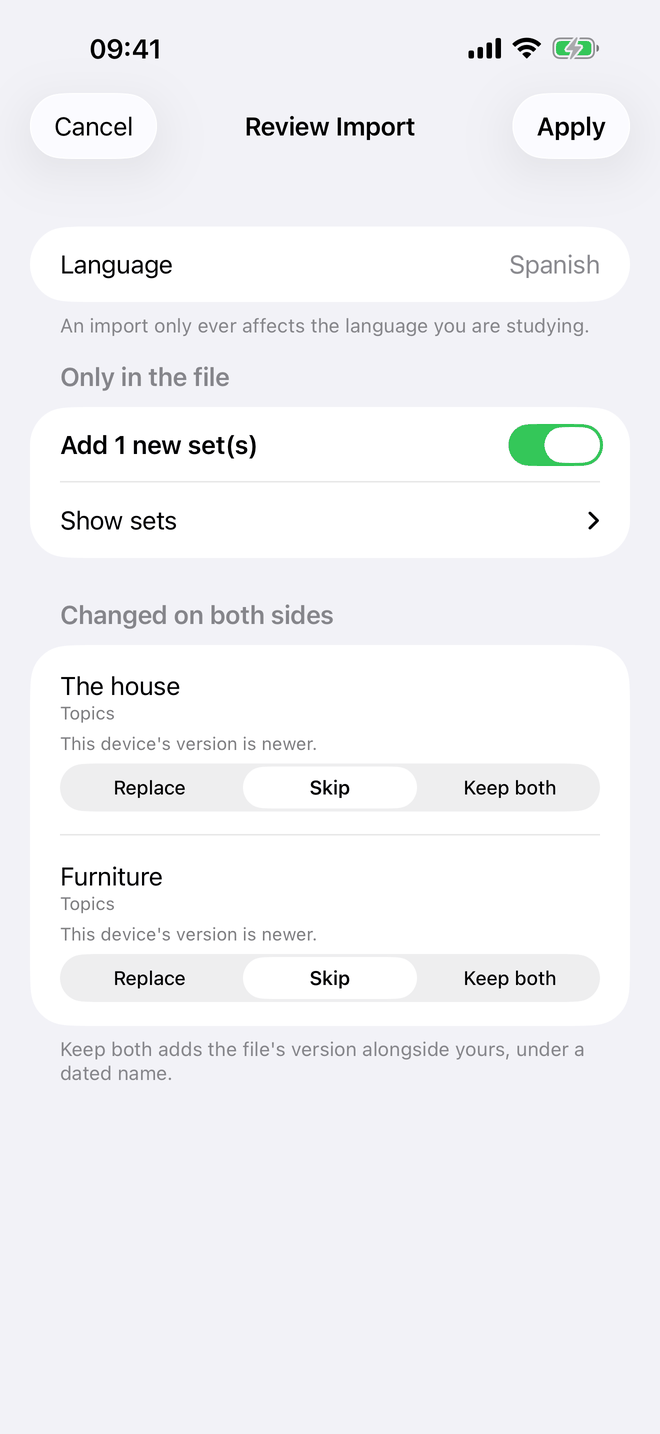
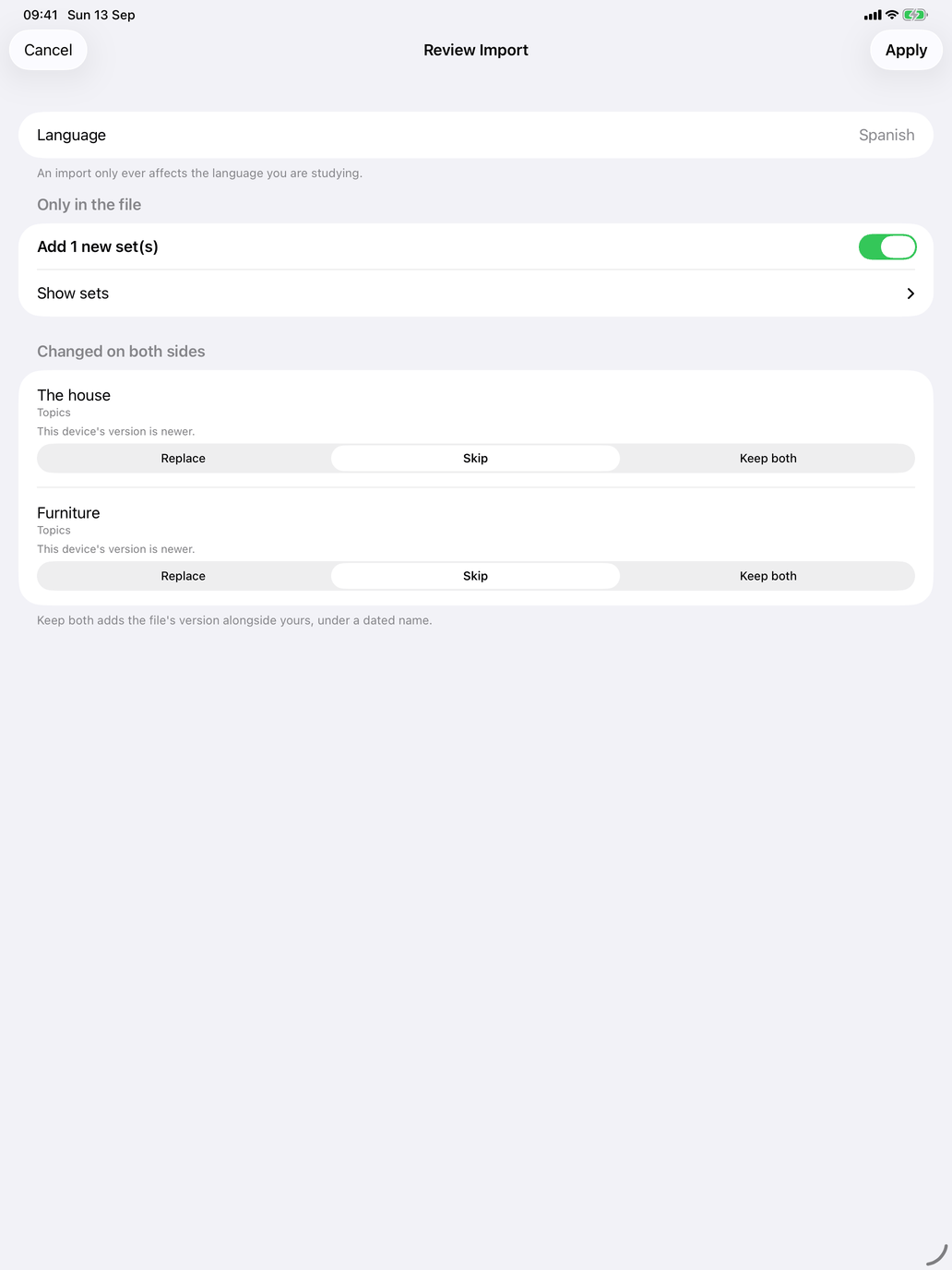
The Review Import screen covers only the course you are studying; sets for other courses in the file are ignored. It sorts the sets into:
- Already identical — nothing to do.
- Only in the file — Add them (on by default).
- Changed on both sides — for each, Replace, Skip or Keep both (which adds the file's version under a dated name). The default is whichever version was saved later.
- Only on this device — sets missing from the file. You can Delete them, but this is off by default: a set missing from the file may simply be newer than the file.
Tap Apply to carry it out. Sets are matched by identity, so importing your own backup again updates sets in place instead of duplicating them.
On the Mac, the same pair is File → Practice Sets → Import… and Export… (⌘I / ⌘E).
Sharing individual sets
Use this to send a set or two to someone else without disturbing either library.
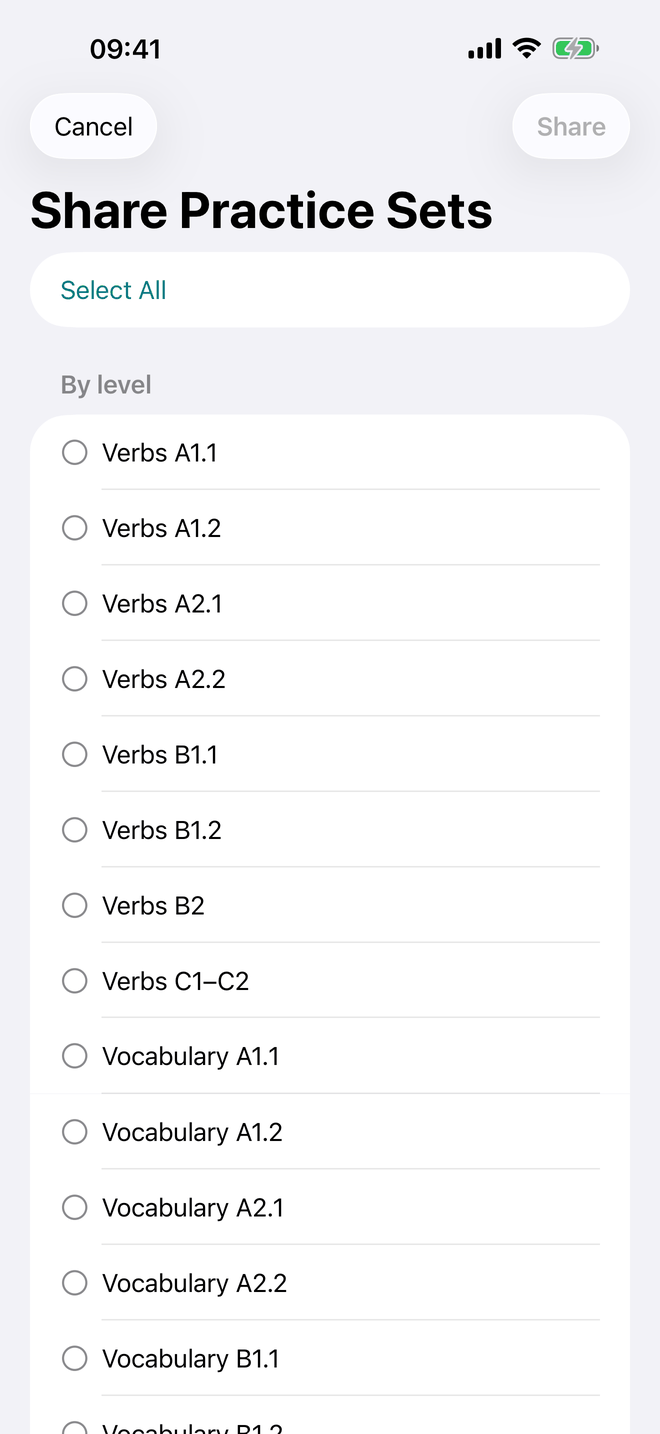
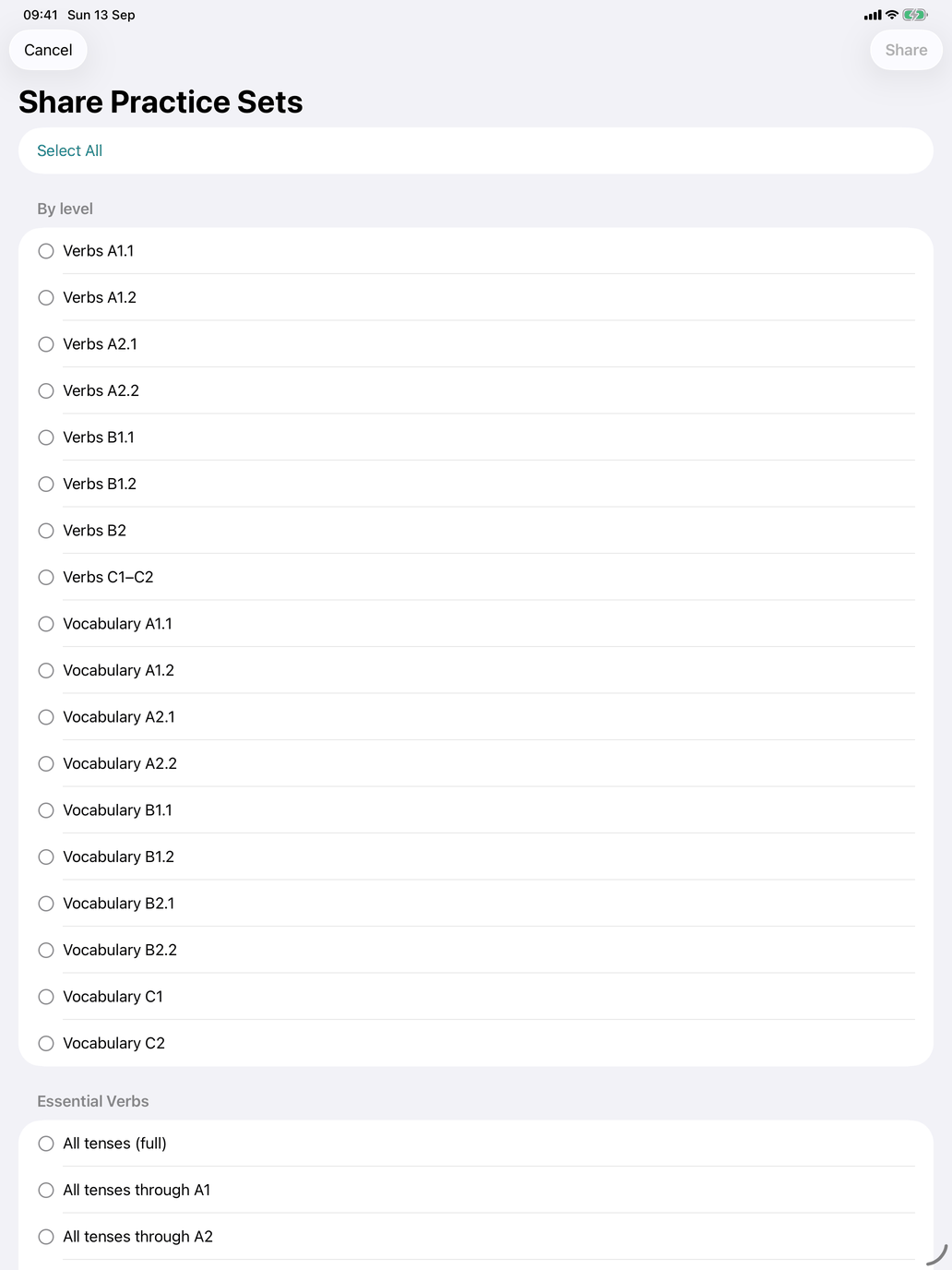
- Export Practice Sets… (in the same menu) opens Share Practice Sets: tick the sets to send, or Select All, and tap Share. One set is written as LinguaMorpha Practice Set — ‹name›, several as LinguaMorpha Shared Practice Sets; then the share sheet opens.
- Import Practice Sets… reads a shared file.
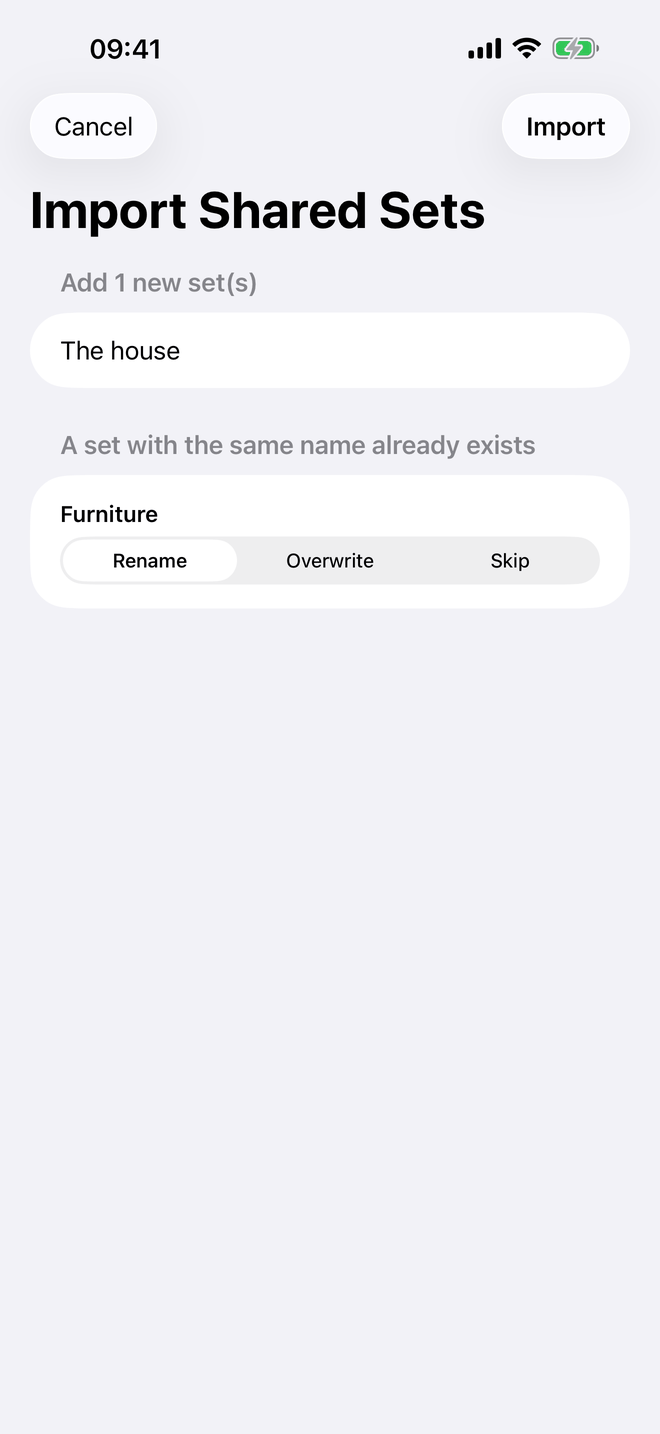
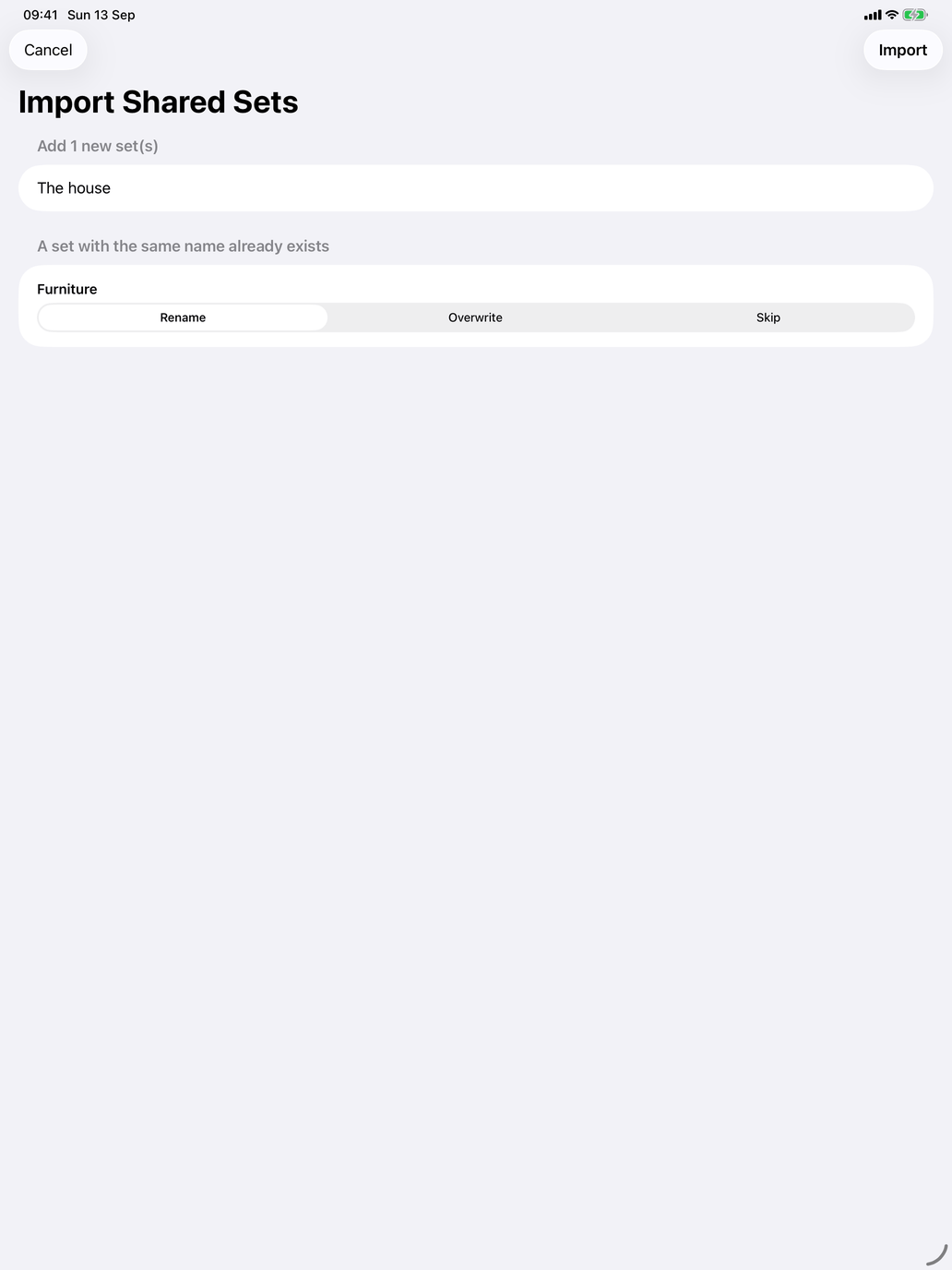
Import Shared Sets shows what the file holds for the course you are studying. New sets are listed under Add; a set with the same name as one of yours is listed separately, and for each you choose Rename (the default — both are kept), Overwrite or Skip. Tap Import. Nothing already in your library is deleted.
On the Mac these are File → Practice Sets → Share Selected… and Import Shared….
A recommended workflow
- Start from a set at your level to see the shape.
- Build your own set around what you are working on this week — a tense, a topic, a handful of tricky words.
- Keep a full backup to carry your library between your devices; share single sets with a study partner, and import the ones they send you.