Settings
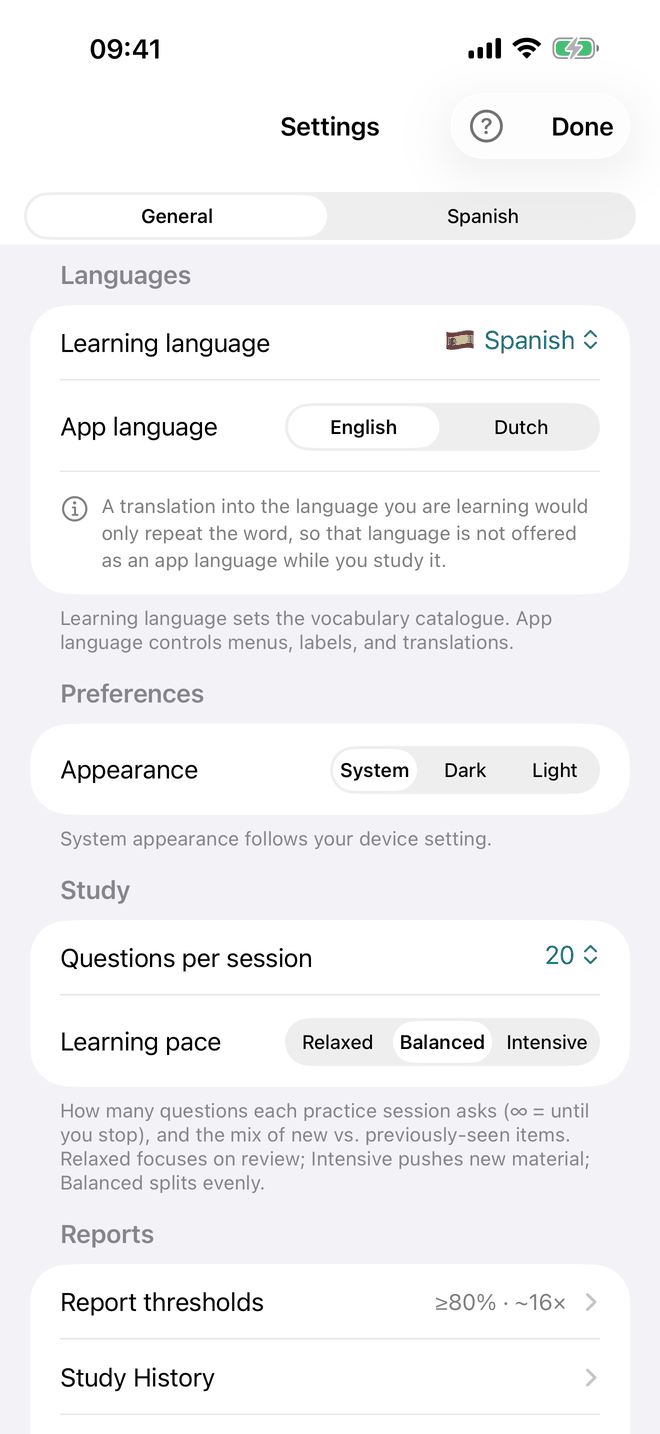
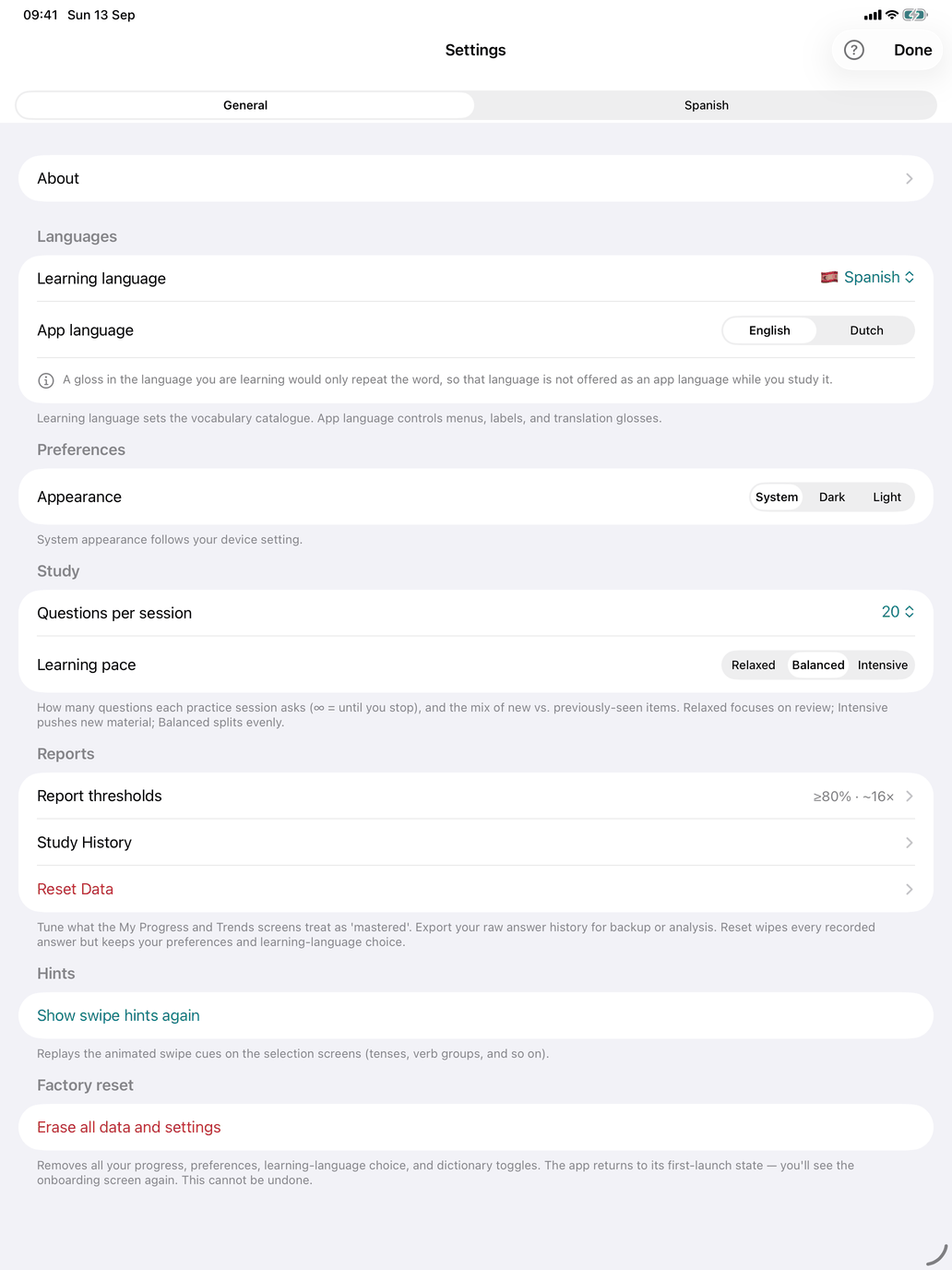
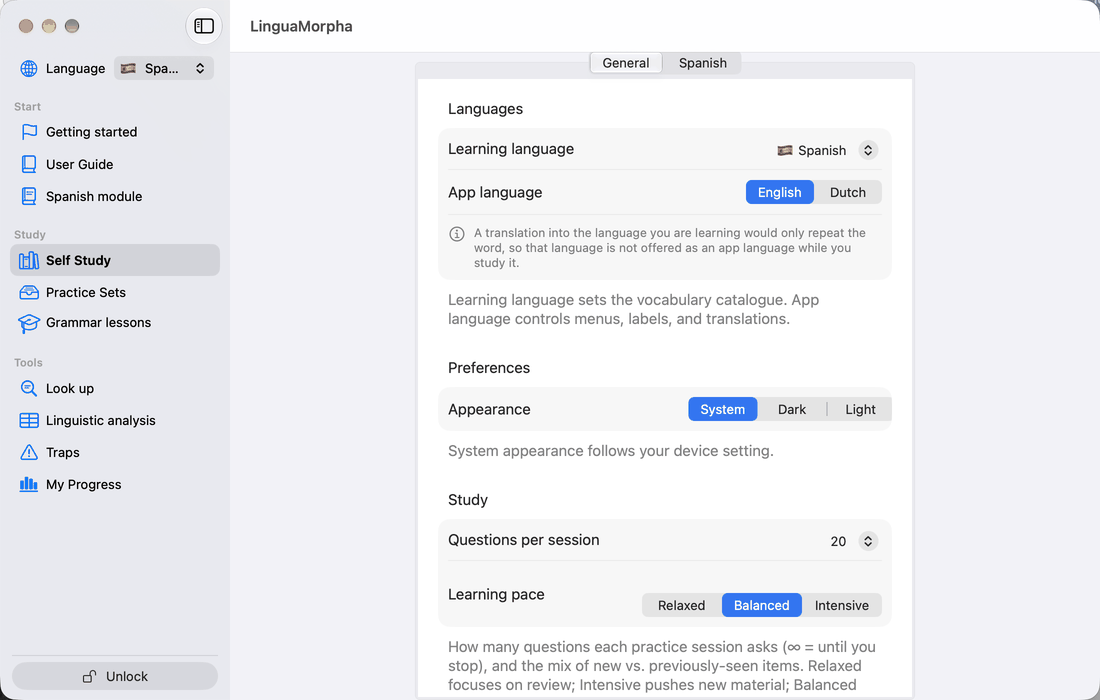
Settings holds the preferences that apply everywhere in the app: languages, appearance, session size and pace, report thresholds, speech, dictionaries and your study data.
- iPhone and iPad — tap ⋯ at the top right of the main screen and choose Settings. Done closes it, and ? explains it.
- Mac — a window of its own: LinguaMorpha → Settings… or ⌘,.
There are two tabs: General, and a tab named after the course you are studying (Spanish, French or Latin) with that course's own settings. On iPhone and iPad the tabs are a switch at the top; on the Mac they are icons along the top of the window.
Settings and Setup are different things. Settings are app-wide preferences. The Setup section in each Self Study hub is where you choose which words, groups or tenses are in play; it lives in the hub, not here.
General
Languages
- Learning language — the course you are studying. Changing it here is the same as using the flag (iPhone and iPad) or the Language menu (Mac).
- App language — English, Dutch or Spanish. It sets the language of the app's menus, labels and help, and the language translations are shown in. The language you are studying is not offered — a translation into it would only repeat the word — and a note says so.
On the Mac the menu bar is built when the app starts, so after changing App language the app offers Restart Now or Later; the rest of the app switches at once.
Preferences
- Appearance — System, Dark or Light. System follows your device.
Study
- Questions per session — how many questions a session asks: 10, 20 (the default), 30, 50, or ∞ (keep going until you stop). It applies to every drill.
- Learning pace — Relaxed, Balanced (the default) or Intensive: the mix of words you have already seen and new words in each session. Relaxed leans on review, Intensive on new material, Balanced splits evenly. See Adaptive learning — how it works.
Reports
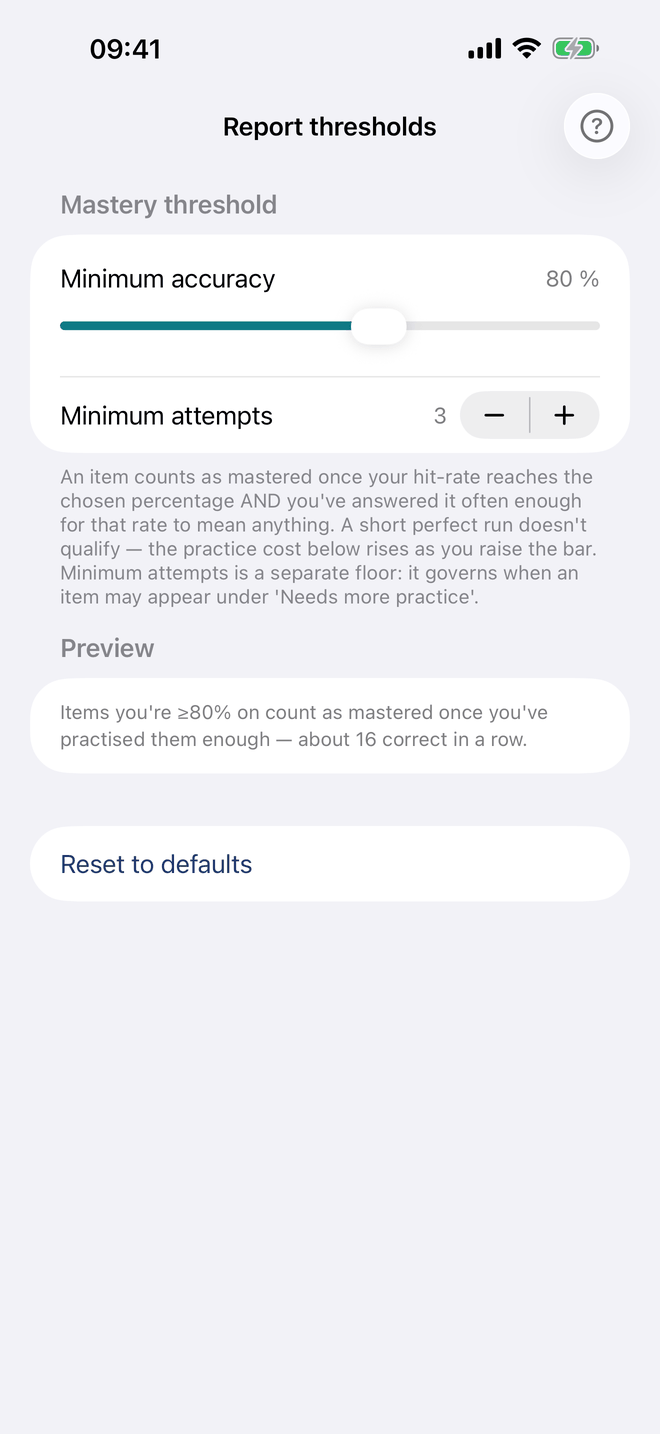
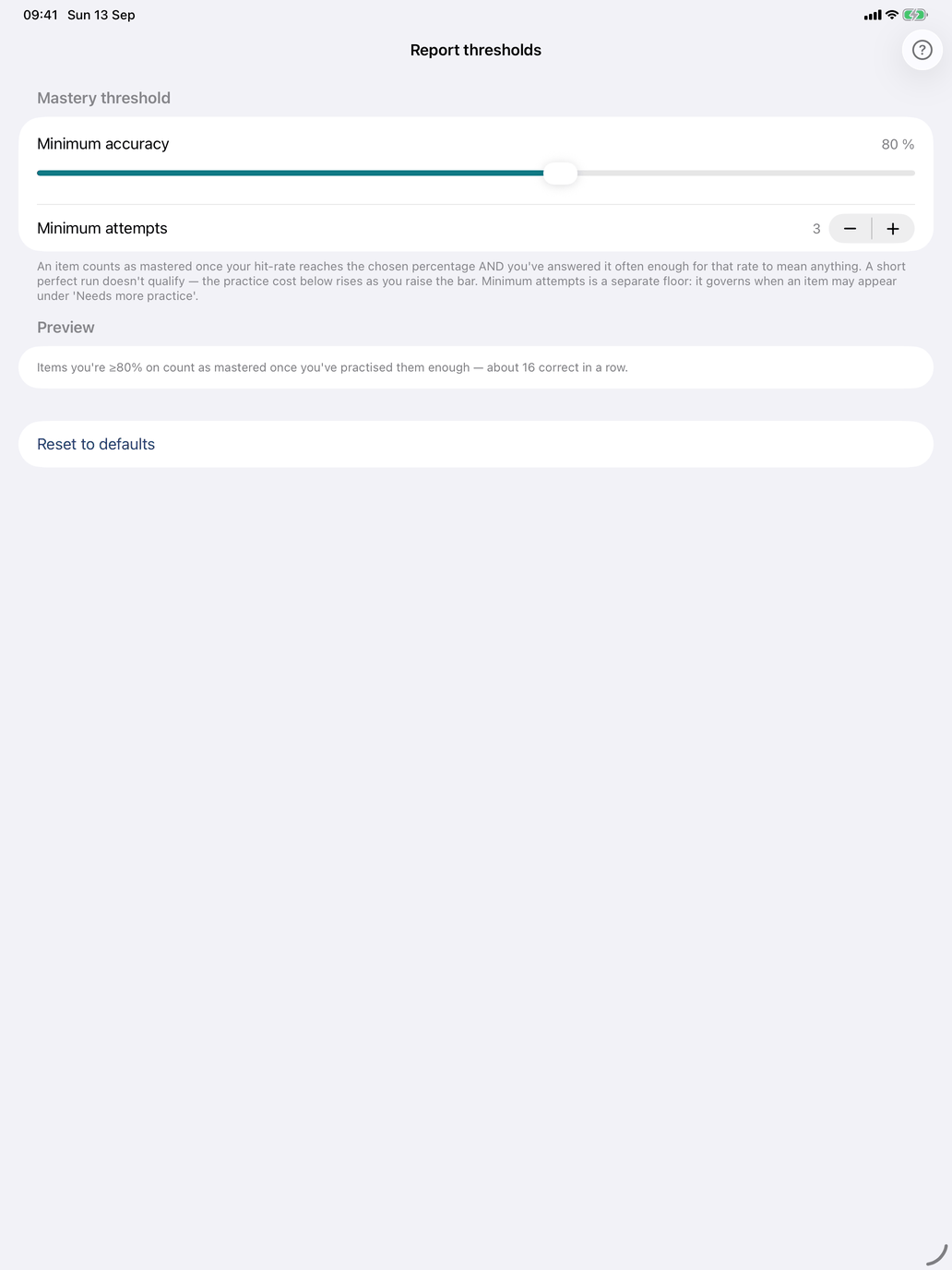
- Report thresholds — the bar the reports use for "mastered". The row shows the current setting, such as ≥80% · ~16×.
- Minimum accuracy — 50% to 100%, in steps of 5 (default 80%).
- Minimum attempts — 1 to 10 (default 3). How often you must have answered a word before it can appear in Word performance.
- Preview shows how the reports will word it, including roughly how many correct answers in a row mastery takes at that bar. Reset to defaults restores 80% and 3.
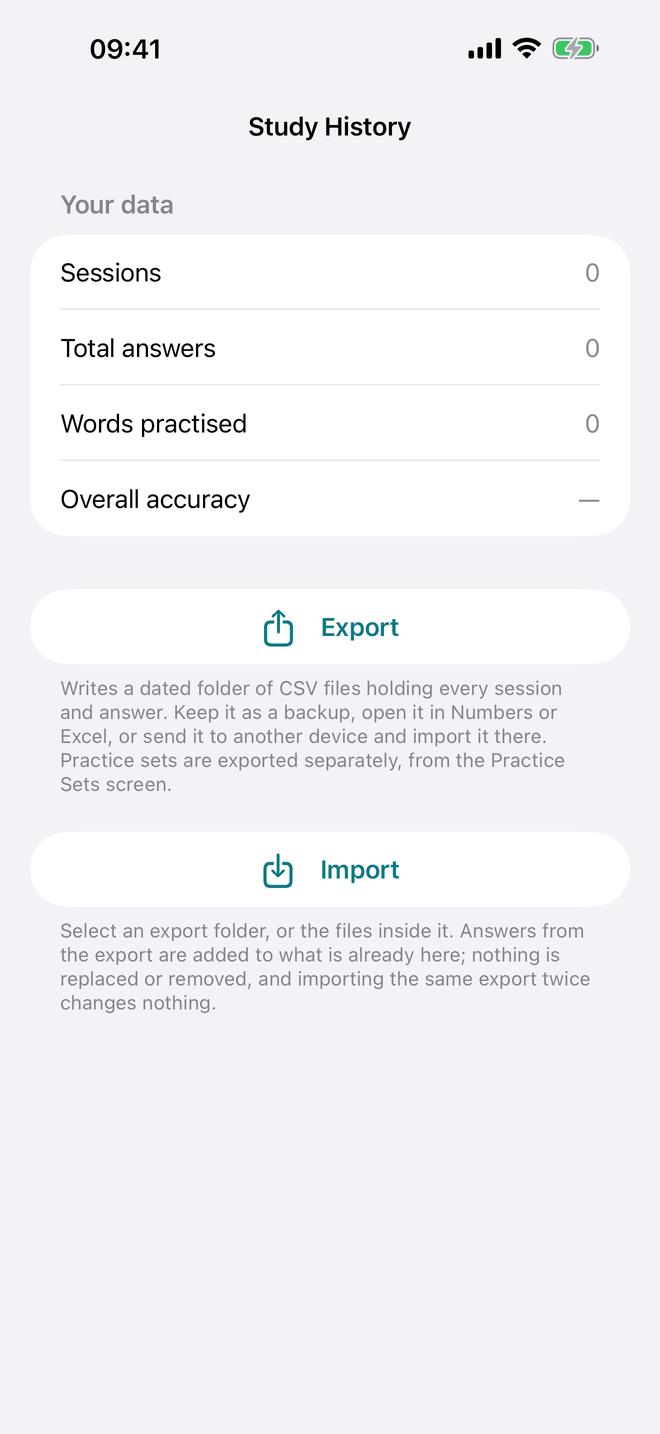
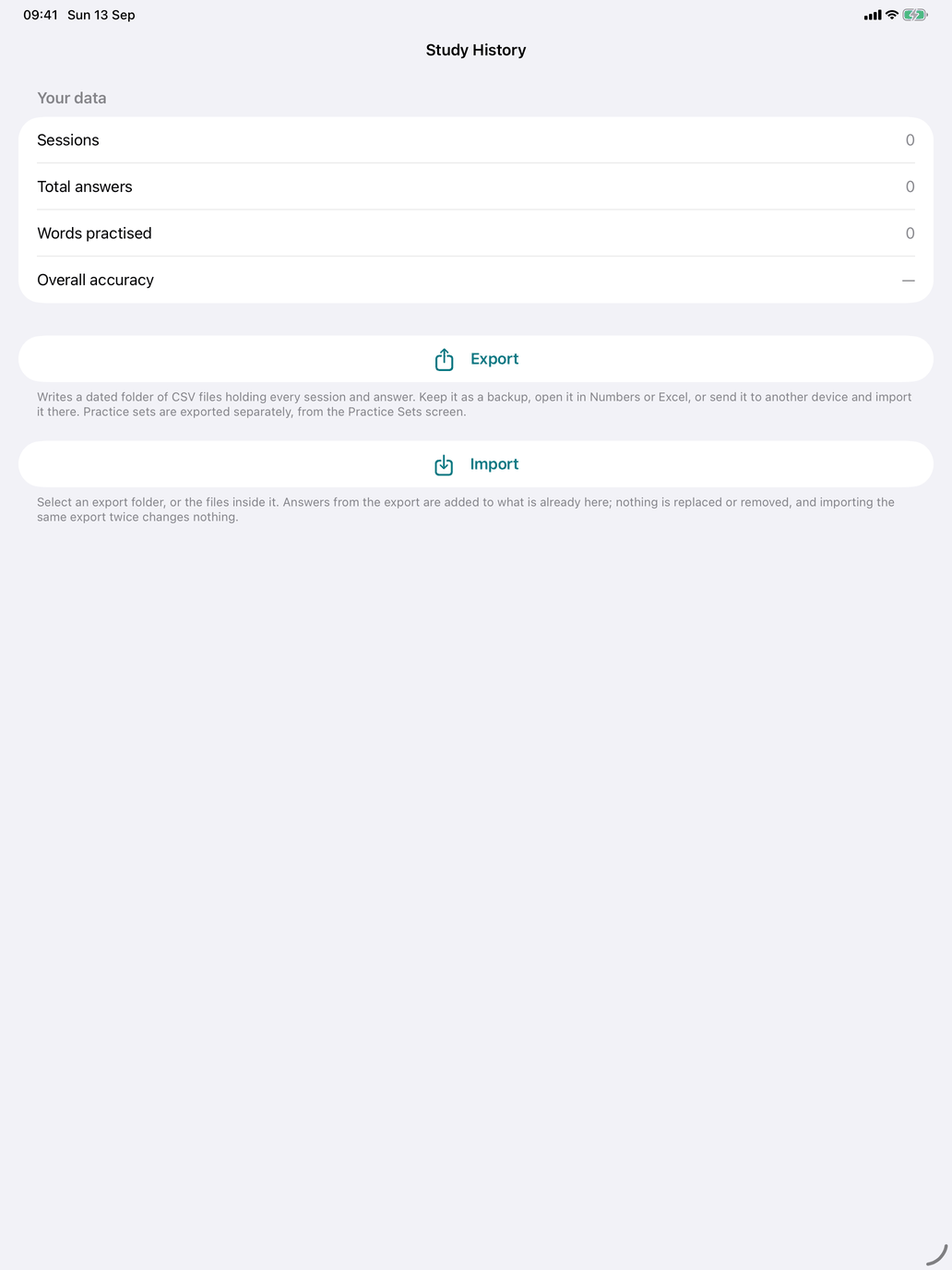
- Study History (iPhone and iPad) — your record of sessions and answers. Your data shows your sessions, total answers, words practised and overall accuracy. Export writes a dated folder of CSV files with every session and answer: keep it as a backup, open it in Numbers or Excel, or import it on another device. Import reads such a folder, or the files inside it; the answers are added to what is already there, nothing is replaced or removed, and importing the same export twice changes nothing. Practice sets are not included — they have their own export (see Practice Sets). On the Mac this is File → Study History → Import… and Export… (⇧⌘I / ⇧⌘E).
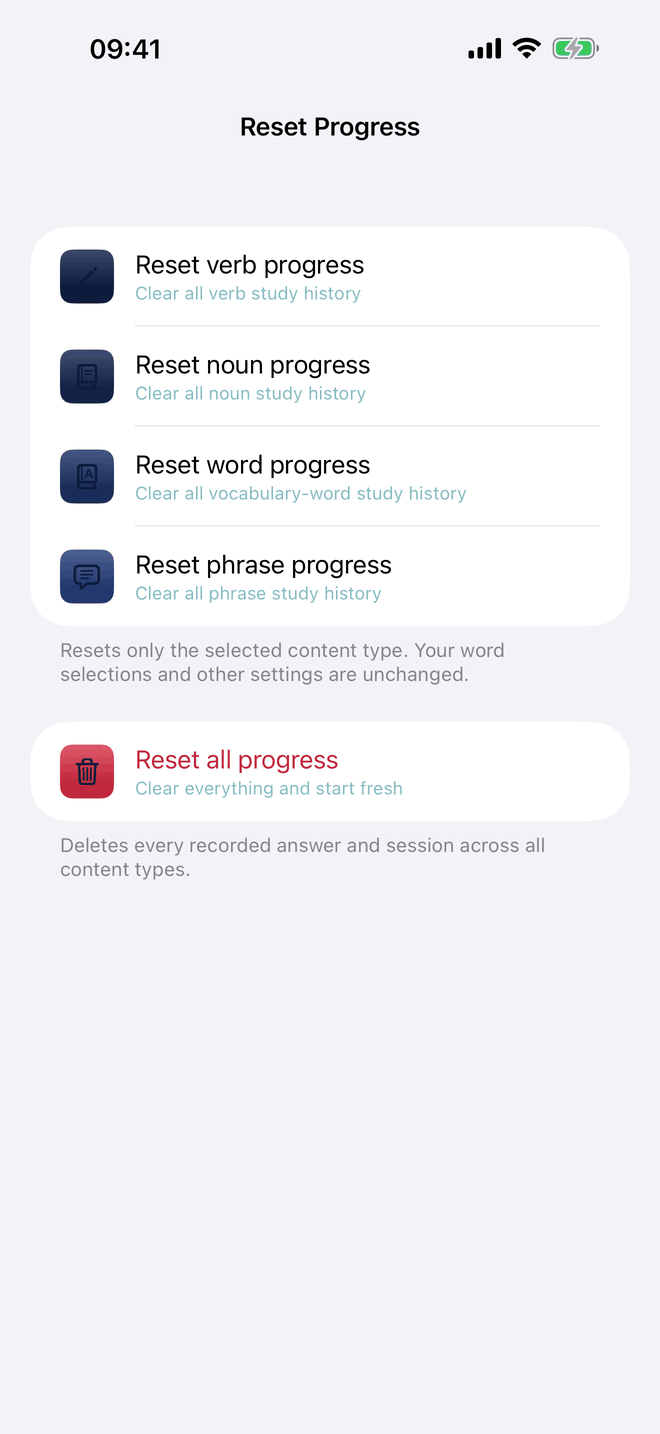
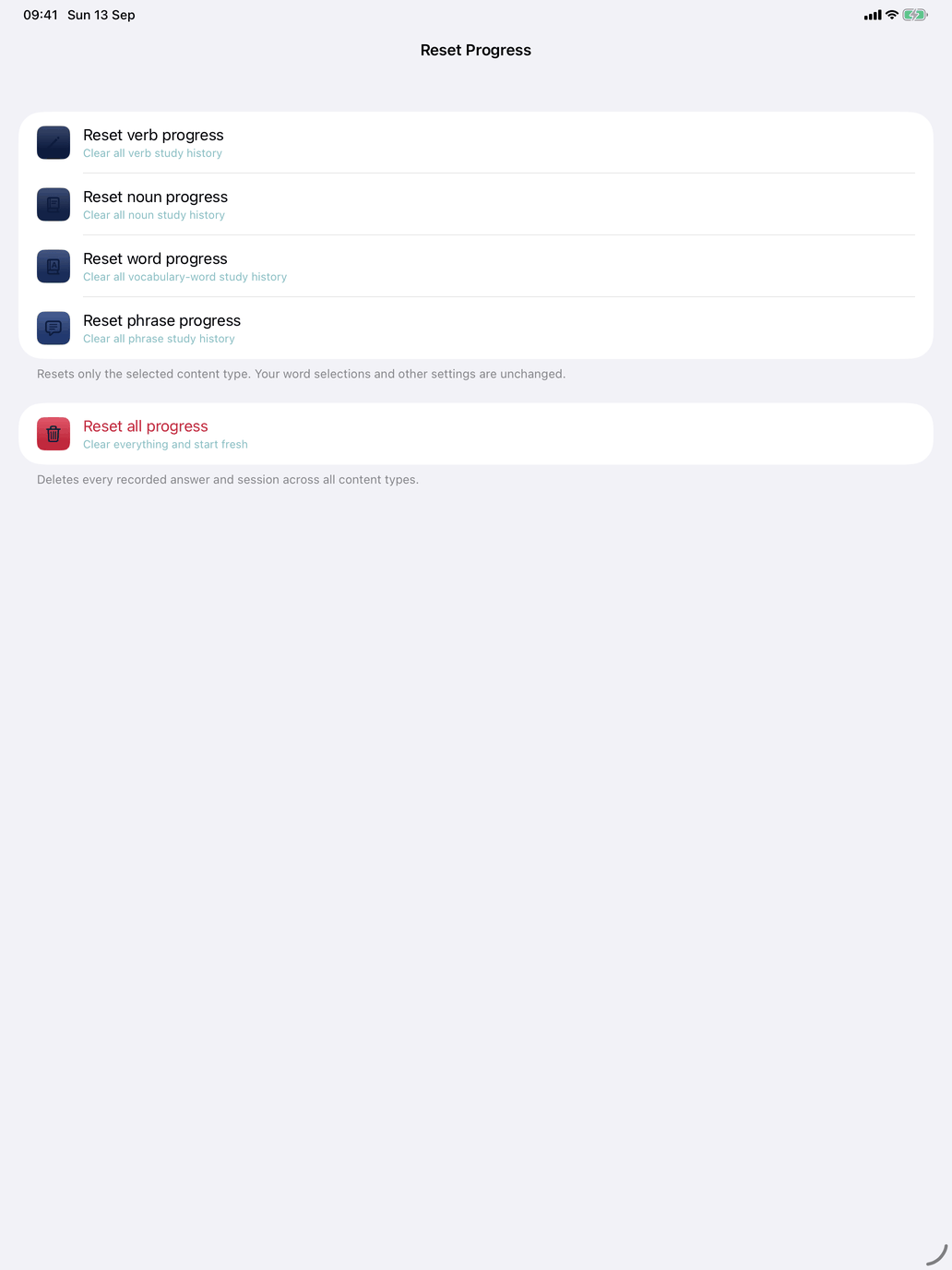
- Reset Data — deletes recorded answers. Reset verb, noun, word or phrase progress on its own, or Reset all progress to delete every answer and session. Each asks for confirmation. Your word selections and other settings are not affected.
Hints (iPhone and iPad)
- Show swipe hints again — replays the swipe hint on the flashcard drills, the one that shows which way to swipe for knew it and didn't.
Factory reset
- Erase all data and settings — deletes all your progress and preferences, including the learning language and dictionary choices, and returns the app to its first-launch state, with the welcome screens. It asks for confirmation and cannot be undone.
The course tab
Spanish and French
Voice & Conjugation
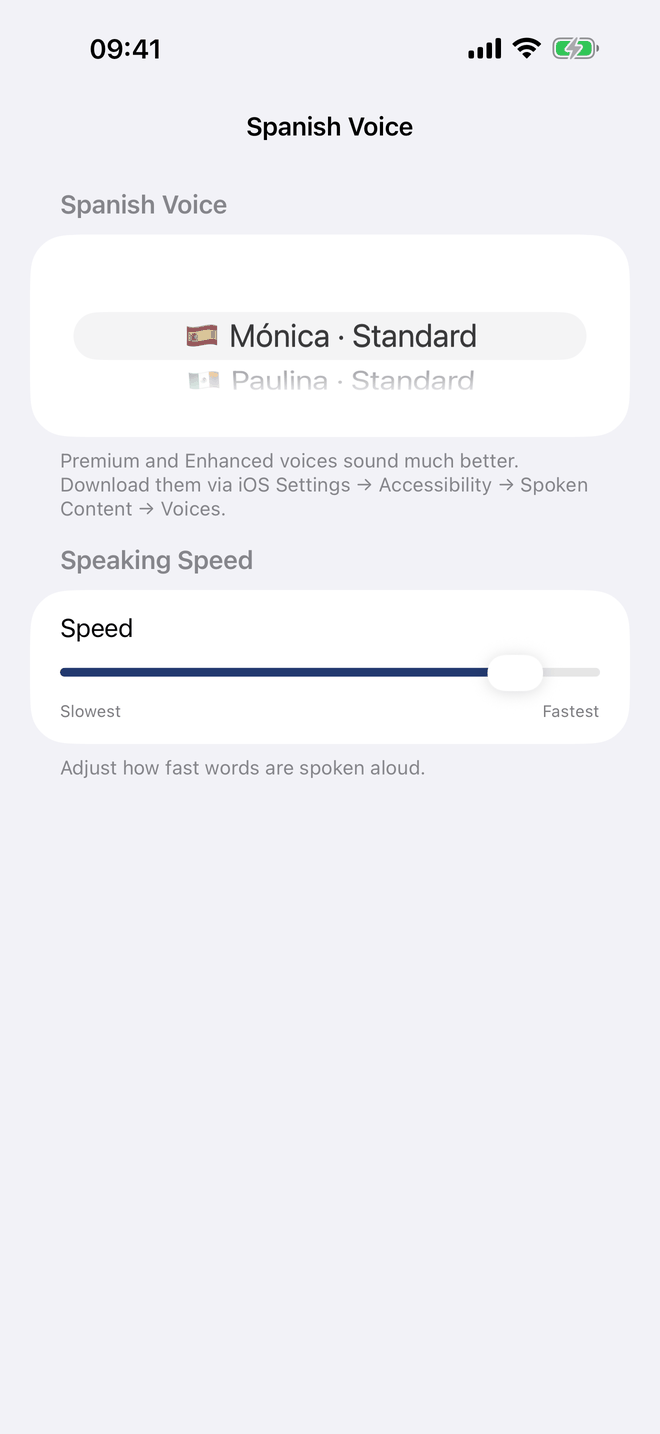
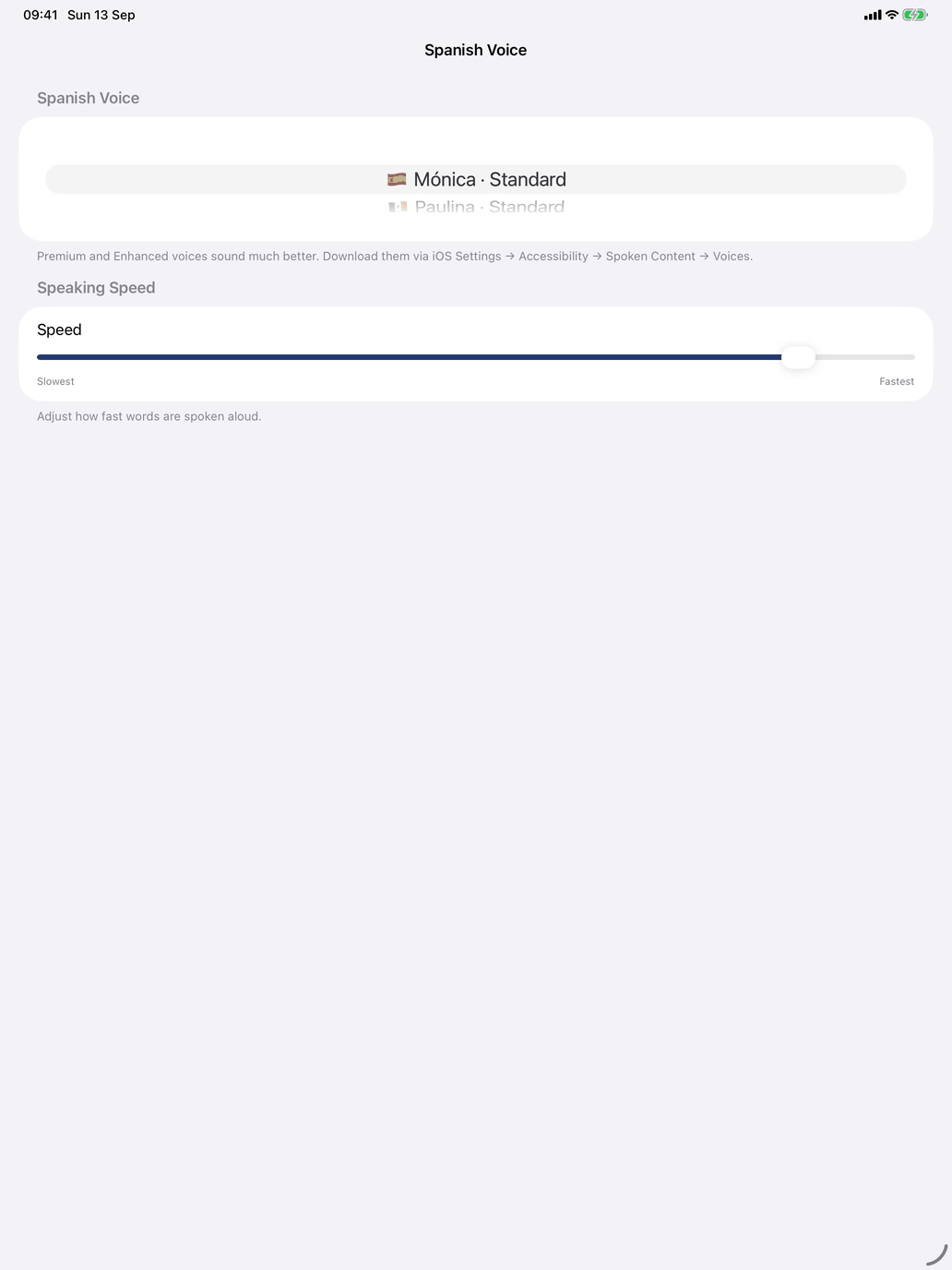
- Voice — the speech voice for the course's language. On iPhone and iPad the row shows the current voice and opens a screen with the voice list and the Speed slider. On the Mac the voice menu and the slider sit directly in the tab.
- Speed — how fast forms are spoken, from Slowest to Fastest. One speed applies to every course.
- Include pronoun — speaks the pronoun (yo / tú / él…, je / tu / il…) in front of each spoken conjugation. On by default.
Dictionary services (on the Spanish tab)
Verb and noun detail screens have a Dictionaries row; tap it to show buttons for online dictionaries:
- Linguee — example sentences from real translated texts.
- WordReference — bilingual entries with usage notes.
- Reverso — translations in context and conjugation tables.
- RAE — the Real Academia Española's dictionary (Spanish only).
Tap a switch to choose which buttons appear. All four are on at first, and the sites are free to use; once you know which ones you reach for, switch off the rest to keep the row short. With none on, the row disappears.
The same choices apply to the French detail screens, which offer Linguee, WordReference and Reverso; the switches themselves are on the Spanish tab. Latin has no dictionary row. On iPhone and iPad a dictionary opens in a browser sheet inside the app; on the Mac it opens in your web browser.
Latin
- Include pronoun (under Conjugation) — shows the pronoun (ego, tū, is…) with each conjugation form.
- Strict macrons (under Grading) — when on, a typed answer without its macrons counts as wrong. When off (the default), it counts as correct with a reminder to watch the macron. See the course guide.
Latin has no Voice row; see Setting up speech.
Voice and speed
LinguaMorpha speaks with the voices that Apple installs on your device (see Setting up speech). To choose one:
- Open Settings and switch to the tab for your course.
- On iPhone and iPad, tap Voice. The list shows every installed voice for the language, each with its flag and Apple's quality label — Standard, Enhanced or Premium. Voices for the course's main region come first, then the other regions, best quality first. On the Mac, choose from the Voice menu.
- Pick a voice.
- Drag Speed to taste.
If no voice is installed for the language, the screen says so and tells you where to download one.