Verb reference
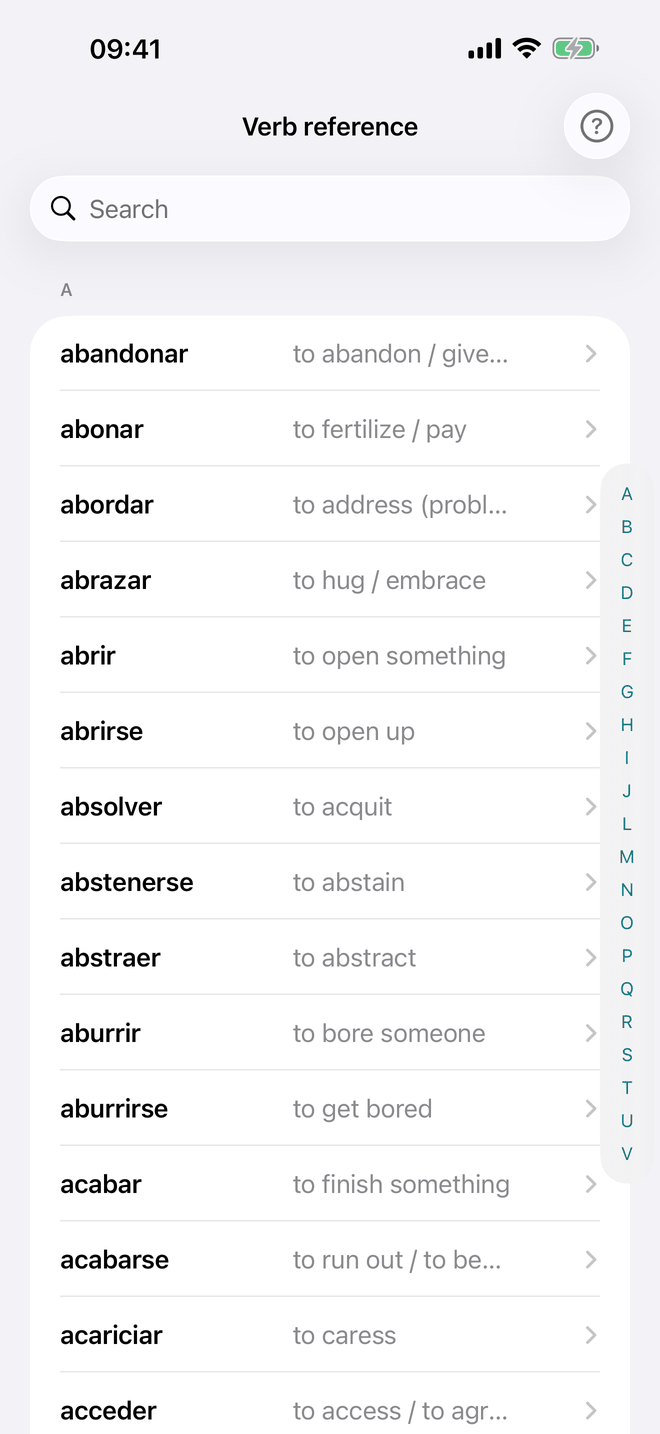
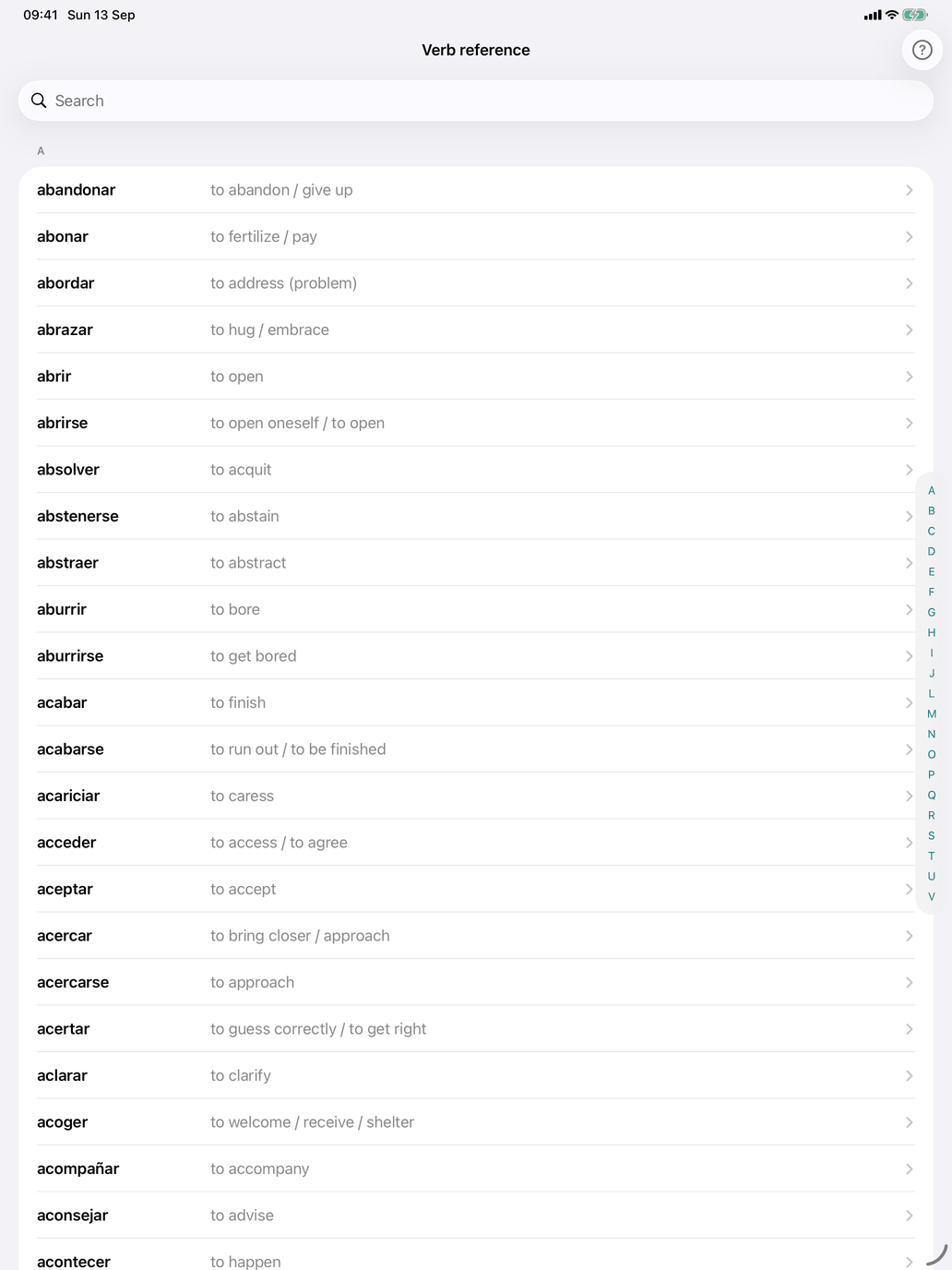
Verb reference, under Study on the verbs hub, is the browse list of your verbs: no testing, nothing recorded. Use it to review translations before a drill, to look up a verb you met in a drill, or to see which verbs your groups and word scope have selected.
The list contains every verb your current selection gives you — the ticked verb groups, filtered by the level and topics set in Select word scope. Each row shows the infinitive in bold with its translation beside it. The list is alphabetical, with an A–Z index down the right edge for jumping, and the search field matches both the Spanish infinitive and the translation.
If your selection contains no verbs, the screen says "No verbs selected" and offers Select scope to change your level and topic filter.
Tap a verb to open its detail screen, with the tables, usage, structure and reference sheet described under Conjugation tables.
Verb reference or Verb meaning?
- Verb reference — this screen. Browse only; nothing is recorded. Use it for a quick warm-up, or to dig into a verb you keep getting wrong.
- Verb meaning — the flashcard drill under Drills, where every answer is recorded and your weak verbs come back more often.
A good loop is to look through Verb reference for a minute to bring the vocabulary back, then run Verb meaning on the same selection.