Setting up Spanish speech
Why this matters (Spanish)
The voices are Apple's, not LinguaMorpha's. The app speaks through the text-to-speech engine built into iOS, iPadOS and macOS. It can only use voices already installed on your device. It has no voices of its own and cannot improve Apple's.
Apple offers Spanish voices at three quality levels: Standard, Enhanced and Premium. Standard voices sound robotic. Enhanced and Premium voices sound far more natural and are strongly recommended for language learning. They are free, and once you download one, every app on the device can use it.
Downloading a better Spanish voice
You do this in Apple's settings, not in LinguaMorpha:
- On iPhone or iPad, open the Settings app and go to Accessibility → Spoken Content → Voices → Spanish. On the Mac, open System Settings and go to Accessibility → Spoken Content → System Voice → Manage Voices.
- Choose the region whose accent you want to learn (Spain, Mexico, and so on).
- Download a voice marked Enhanced or Premium. These are large downloads, so use Wi-Fi.
Apple sometimes moves these settings between OS versions. If the path above doesn't match your device, search its settings for "Voices".
Choosing the voice and speed in LinguaMorpha
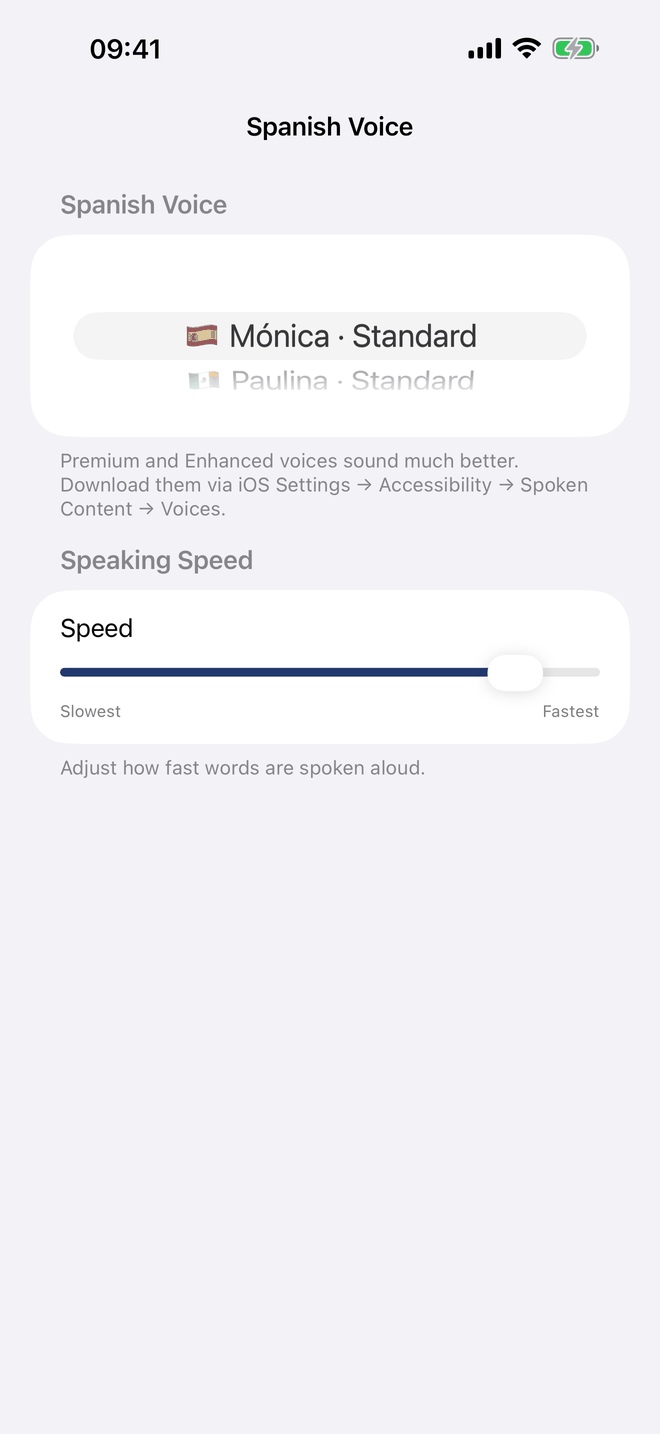
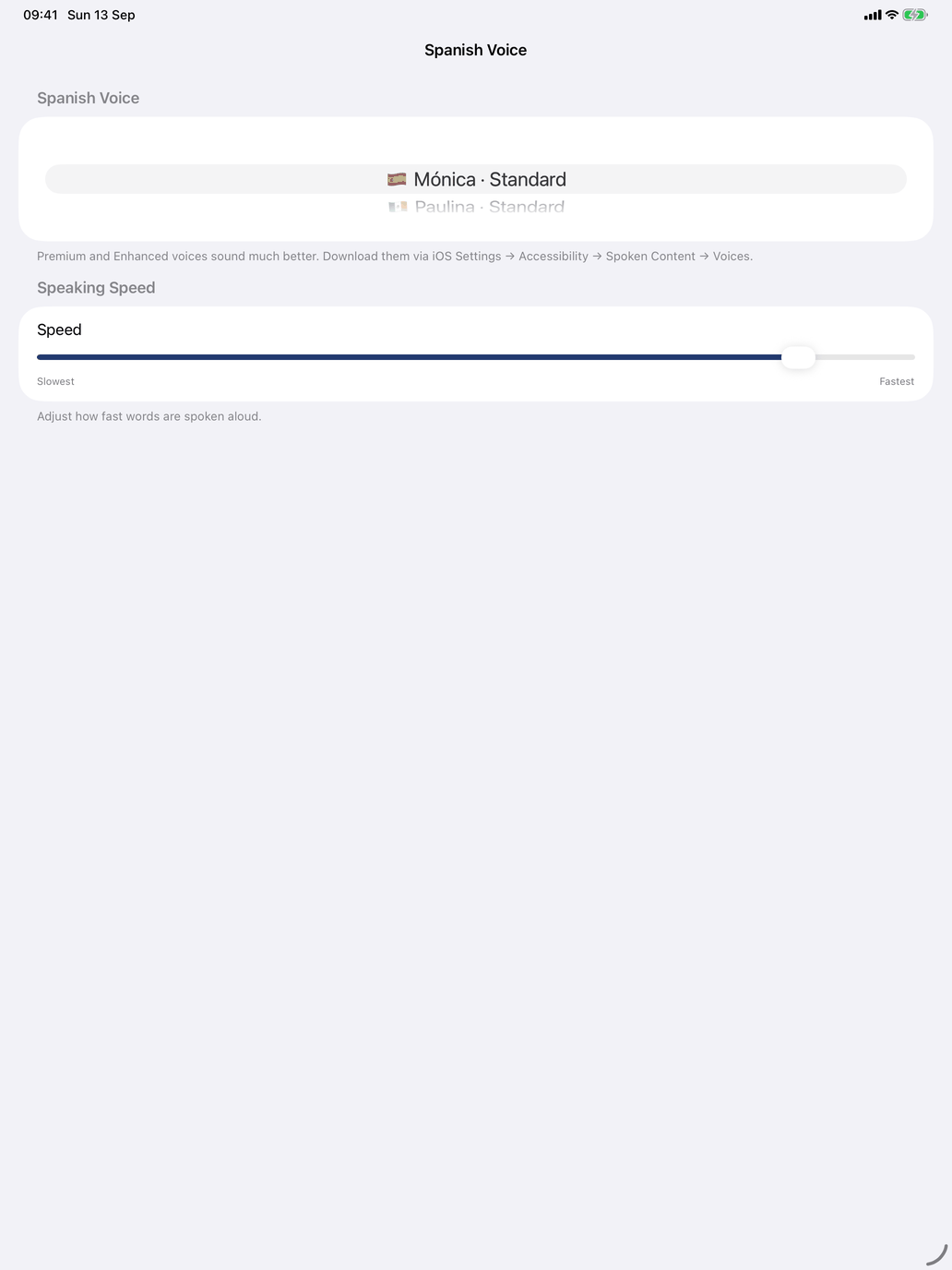
- iPhone and iPad — open the ⋯ menu on the Home screen, choose Settings, and switch to the Spanish tab. Under Voice & Conjugation, tap Voice. The Spanish Voice screen lists the voices, and below them is the Speaking Speed slider, from Slowest to Fastest.
- Mac — open LinguaMorpha's Settings and choose the Spanish tab. The Voice menu and the Speed slider are right there.
Only voices already installed on your device appear. Each one shows its region's flag, its name and its quality (Premium, Enhanced or Standard). Voices for Spain come first, then other regions, with the best quality first in each group. Until you choose a voice, the app uses the best-quality voice for Spain on your device. If no Spanish voice is installed, the screen tells you where to download one.
Speed is one setting for all spoken languages; Latin is the exception and always plays at its own slower pace. The slider goes slightly faster than normal at the top end. On the Mac, the speed starts a little slower than on iPhone and iPad, because Mac voices speak faster.
Include pronoun, in the same section, adds yo / tú / él… before each form when a conjugation table is read aloud. It is on by default.
LinguaMorpha reads the Spanish side with the voice you choose here. The English or Dutch side of a flashcard is read by your device's standard voice for that language.